
Quick Summary: Accurately tracking upfront payments is critical for clean bookkeeping. This automated Excel template helps you build a precise prepaid expense schedule, allowing you to easily track monthly amortization, monitor Year-to-Date (YTD) costs, and instantly reconcile variances against your General Ledger (GL).
Download the Template
- [Download the Free Version] (Locked: Tracks up to 5 prepaid items)
- [Get the Premium Version] (Unlocked: Track unlimited items and customize formulas)
What’s New in the 2026 Version?
This template has been completely rebuilt to streamline data entry and reporting:
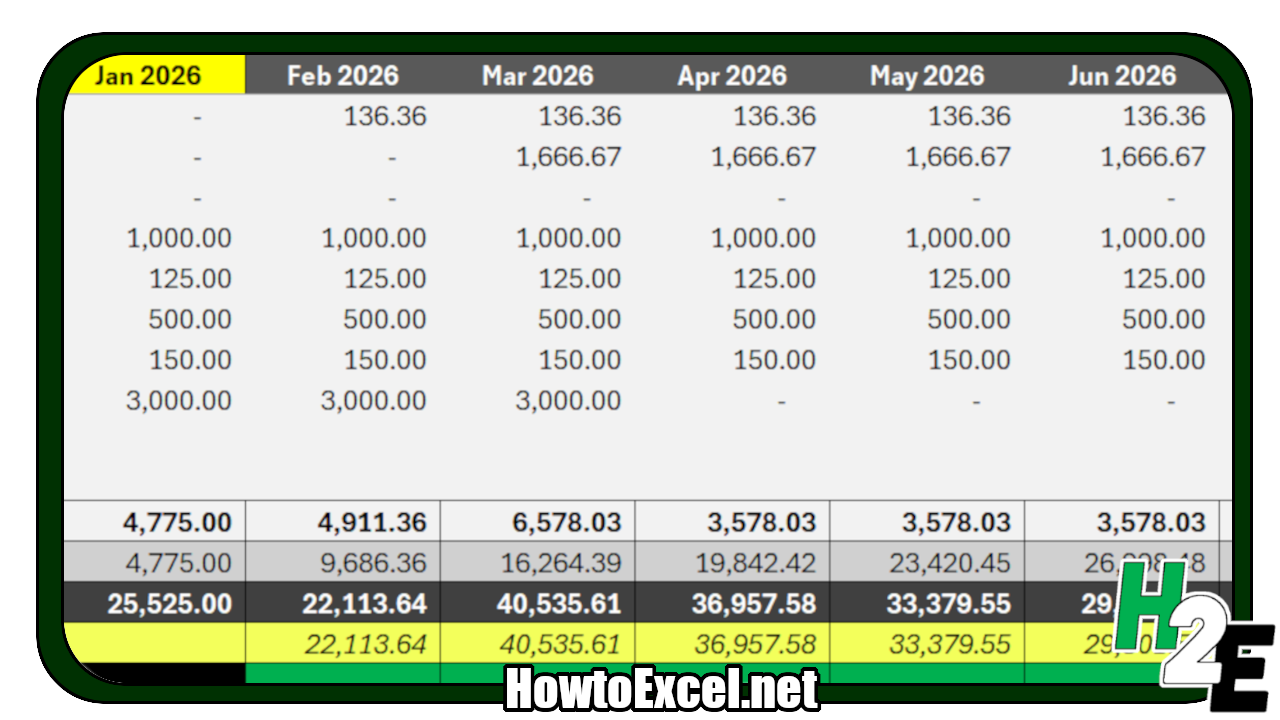
- Built-in Reconciliation: Enter your actual GL balance directly into the sheet to automatically calculate and highlight any variances.
- Horizontal Layout: Add new items and years by scrolling across rather than vertically, keeping your dashboard clean.
- Separated Dates: You can now log the exact Purchase Date independently from the Amortization Start Date for maximum accuracy.
- Extended Tracking: The schedule now accommodates up to 60 periods (5 full years) of data.
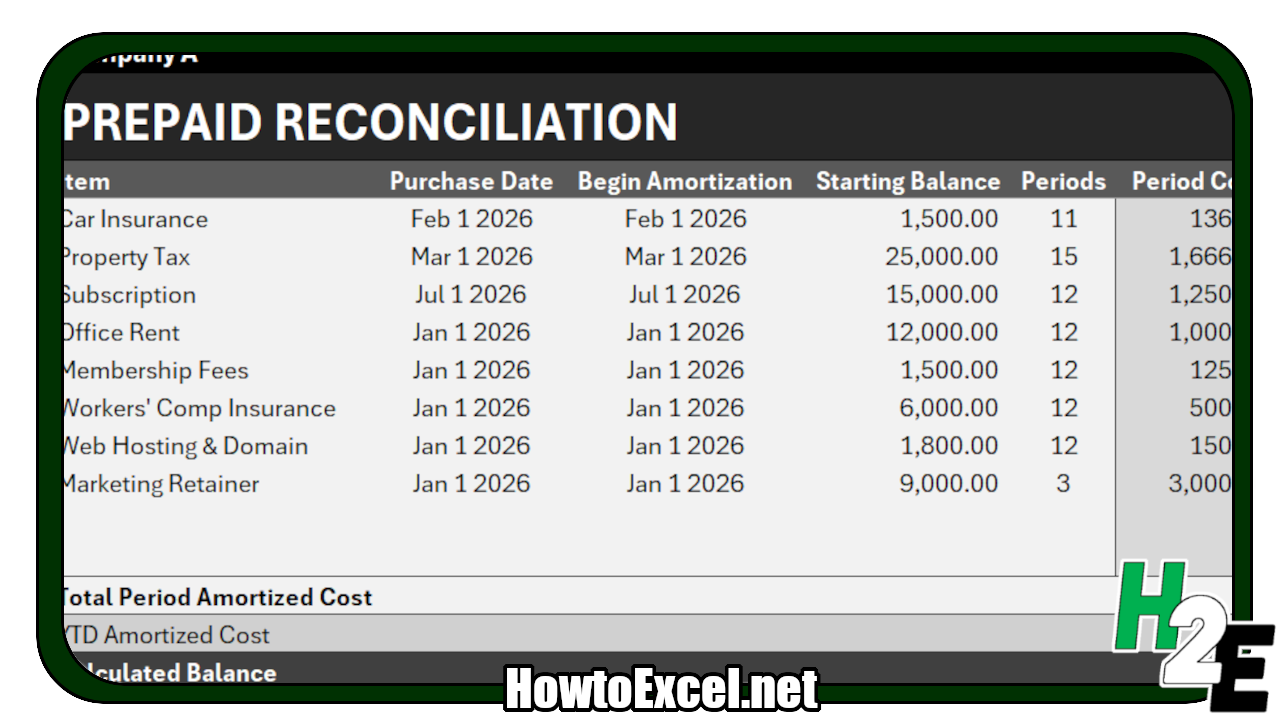
How to Set Up Your Prepaid Schedule
The template is designed to do the heavy lifting for you. You only need to input data into a few specific columns.
Step 1: Define Your Financial Year Start by adjusting the first month of your schedule (highlighted in yellow). Pro Tip: Set this to “Jan 2026” (or the start of your fiscal year). Even if an expense doesn’t begin amortizing until June, starting the sheet in January ensures your YTD values calculate perfectly every time the 12-period cycle resets.
Step 2: Enter Your Prepaids (Columns A:E) Input the details of your upfront payments. You only need to fill out:
- Type of Prepaid (e.g., Insurance, Software)
- Purchase Date
- Amortization Start Date
- Starting Balance
- Number of Periods (Months)
Step 3: Let the Formulas Work Do not change the values in the “Period Cost” field. Once your inputs are entered, the template will automatically calculate the exact amortized cost for the current period and update your running YTD amounts.
Support the Site
If this template saved you time during month-end reconciliation, consider upgrading to the [Premium Unlocked Version] to remove the 5-item limit, or check out our full library of advanced financial templates.