
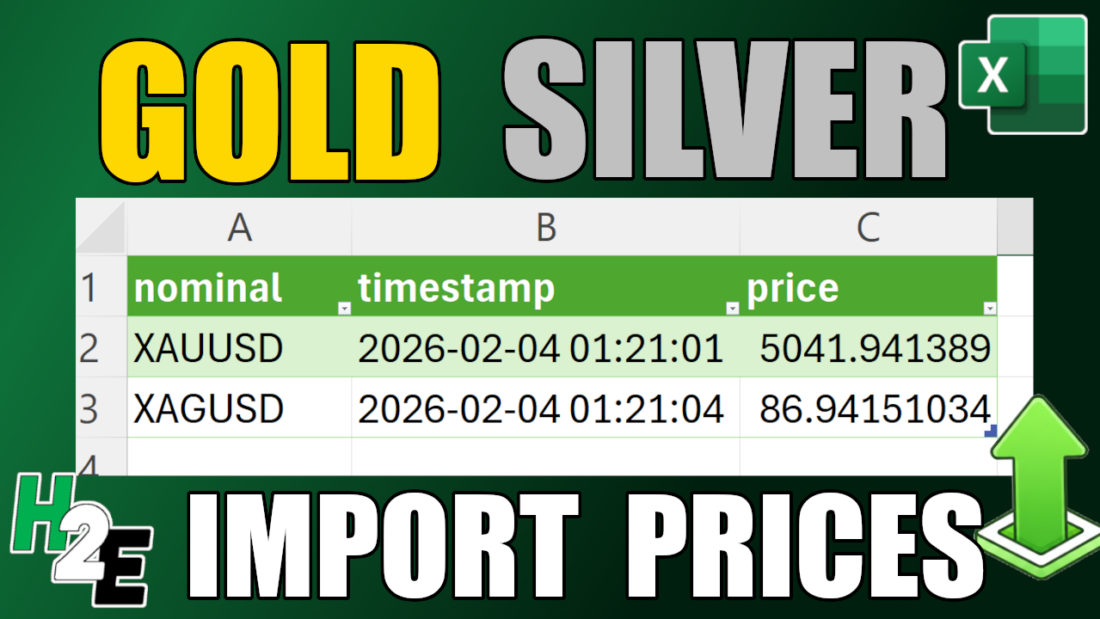
If you want to look up the price of gold or silver, you can do that easily through a quick Google search. But did you know that you can also import prices right into Excel? With the help of Power Query, I’m going to show you how that’s possible.
Start by getting access to an API
There isn’t a built-in Excel function that pulls in the price of gold or silver. But we can use an API connection to get that in. I suggest using alphavantage.co, where you can get a free API key. You can pull up to 25 requests per day. After that, you’ll have to wait until the next day. But at the very least, you can refresh several times over the course of a day. If you need more frequent updates, you can also choose from paid plans.
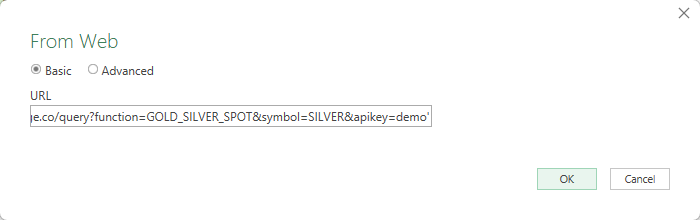
If you go with an API service, then you’ll need to refer to their documentation on how to reference and pull data. In the case of Alpha Vantage, it gives the following URL as an example of how you would pull in silver prices:
url = 'https://www.alphavantage.co/query?function=GOLD_SILVER_SPOT&symbol=SILVER&apikey=demo'
I’ve bolded the parts that you would change. If you want to pull the price of gold, simply change the value that is bolded above, from SILVER to GOLD. You’ll also need to change the demo API key to the one that you’ve set up.
This link can then be used in Power Query.
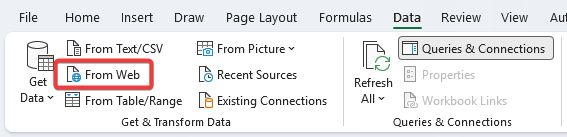
Click on the From Web button in the Data tab, which will give you a place to paste the URL into:
This will now open up Power Query and allow you to see what the data looks like:
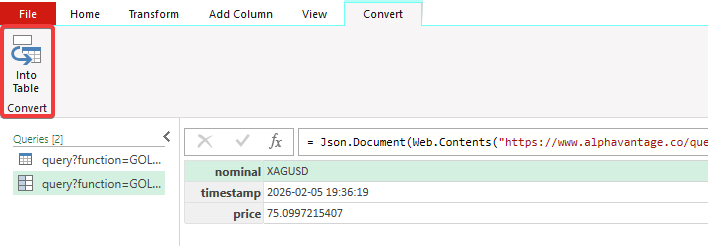
After clicking on the option to convert into a table, you’ll now see the ability to Close & Load, which will download the data into Excel:
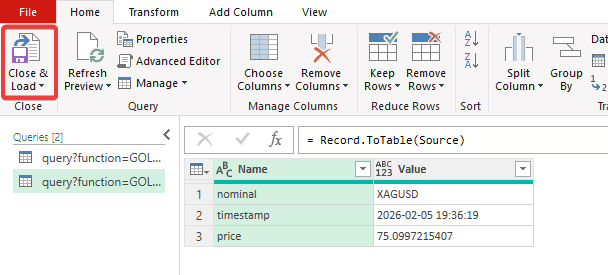
Doing this will create a new tab on your spreadsheet, with the following data now displayed in a table format:
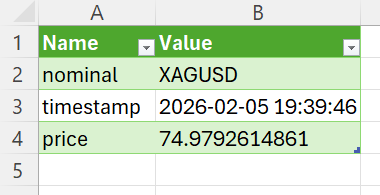
To refresh the data, click the Refresh All button in Excel, or right-click the table and select Refresh.
How to import both gold and silver prices in a combined query
You can create a second query to pull in the price of gold, but there’s also another option: a combined query. This will allow you to set up multiple queries at once and, through a single refresh, pull in both data points.
The one hitch is that with Alpha Vantage, you can make only one request per second, so you’ll need to wait before initiating the second data pull. This, too, however, can be coded within Power Query.
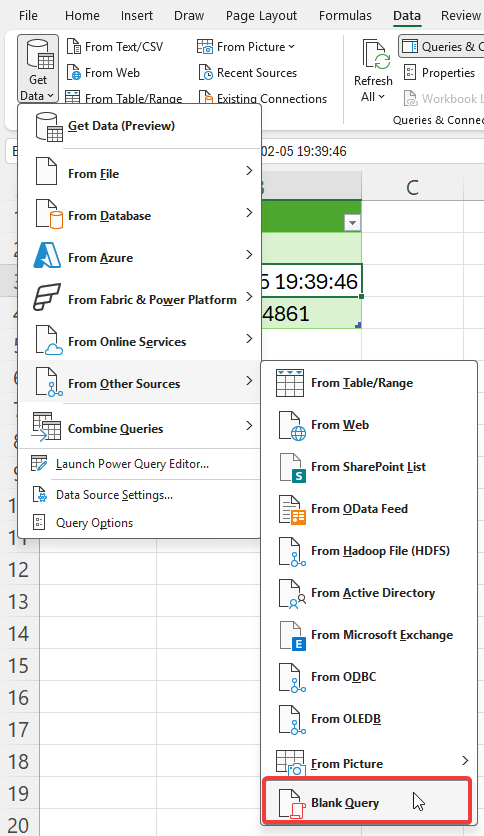
Let’s get back into Power Query to do this. From the Get Data option, select the button that allows you to create a Blank Query:
Then, click on the option to go straight into the Advanced Editor:
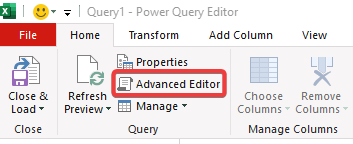
By doing this, you can now enter Power Query code, rather than going step by step. Here is the code that you can use to pull in both the price of gold and silver from Alpha Vantage:
let
    ApiKey = "YOURAPIKEY",

    FetchData = (symbol) =>
        let
            Source = Json.Document(Web.Contents("https://www.alphavantage.co/query?function=GOLD_SILVER_SPOT&symbol=" & symbol & "&apikey=" & ApiKey))

        in
            Source,

    Gold = FetchData("XAU"),

    Silver = Function.InvokeAfter(() => FetchData("XAG"), #duration(0, 0, 0, 2)),

    Combined = Table.FromRecords({Gold, Silver}),
    #"Changed Type" = Table.TransformColumnTypes(Combined,{{"price", type number}})
in
    #"Changed Type"
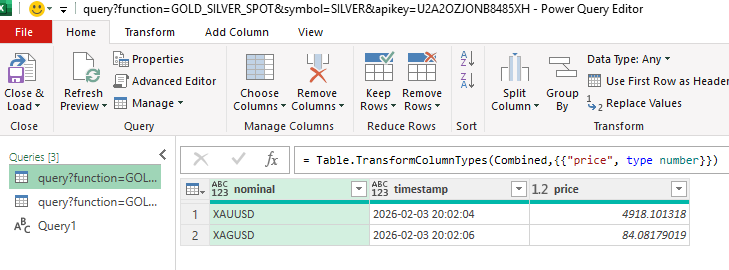
Note that you’ll need to put in your own API key at the beginning. But with this code, it’ll wait a couple of seconds before running the second query. And at the end, you have both gold and silver prices in a table:
If you liked this post on How to Get Gold and Silver Prices Into Excel, please give this site a like on Facebook and also be sure to check out some of the many templates that we have available for download. You can also follow me on X and YouTube. Also, please consider buying me a coffee if you find my website helpful and would like to support it.