

AI Summary: You can build a simple Kanban-style board in Excel by storing tasks in an Excel Table and using the FILTER function to spill each status column automatically. Add optional filters (like Assigned To and Priority) by multiplying conditions, and use an OR test to make a filter optional when a cell is left blank.
- Scales with you: add extra criteria (Assigned To, Priority) without changing the layout.
- Best for: lightweight task tracking in Excel without add-ins.
- Core idea: one task list (Excel Table) + one board sheet (status headers) + FILTER formulas.
Overview
Excel doesn’t include a built-in Kanban board, but you can create a similar workflow with a task table and a few FILTER formulas. This approach lets you visualize work by status (columns) and automatically updates the board as tasks move through your process.
Step 1: Create a task list (Excel Table)
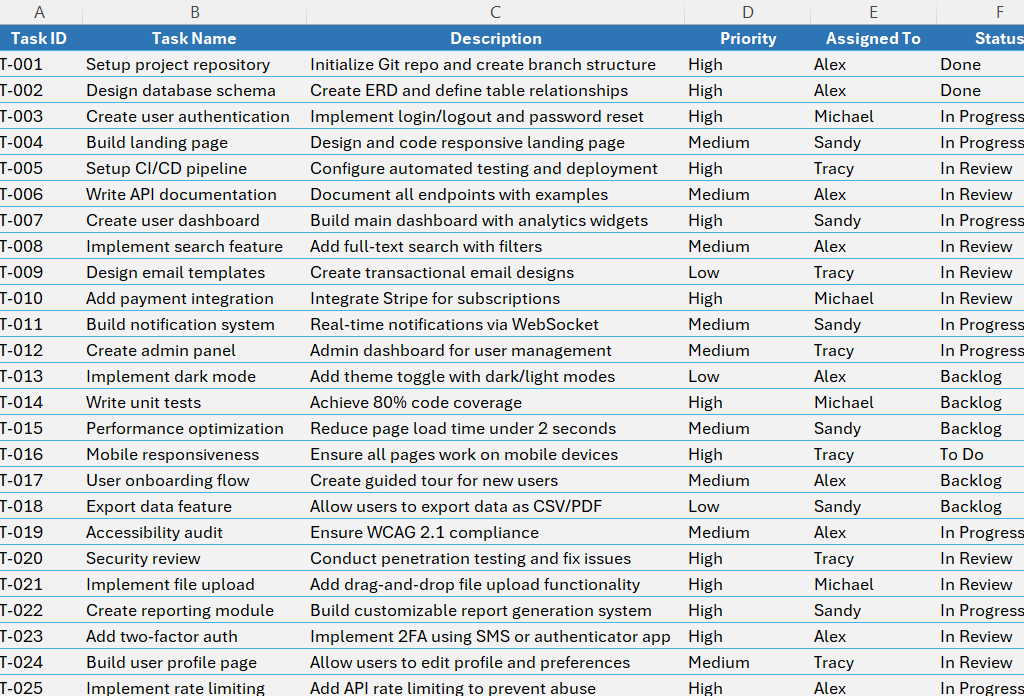
Start with a task list like the one shown below. At a minimum, include the Task Name and Status. Adding more fields (for example, Assigned To and Priority) lets you filter the board later.
Step 2: Lay out the Kanban board (statuses as columns)
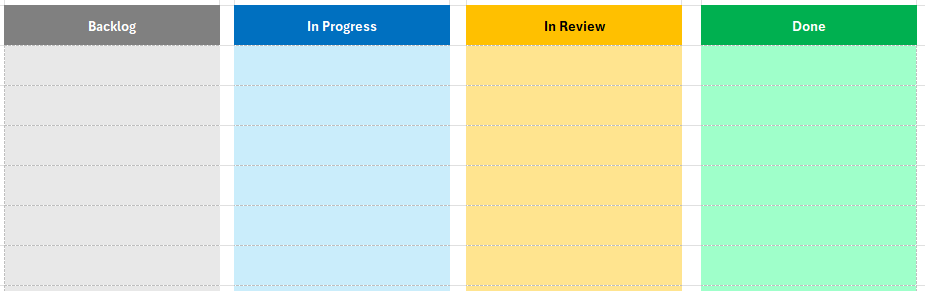
On another sheet, set up the Kanban board layout. Create one column per status and format the headers however you like. In this example, the statuses are Backlog, In Progress, In Review, and Done.
Step 3: Use FILTER to spill tasks into each status column
Under the first status header (for example, Backlog in cell B3), enter this formula to pull all matching task names into the column:
Formula: =FILTER(Table1[Task Name],Table1[Status]=B$3,””)
How it works: FILTER returns the Task Name values where the Status equals the header cell (B$3). The last argument (“”) displays a blank when no results match. Using an Excel Table (Table1) matters because the ranges expand automatically as you add tasks.
Because the formula locks the header row (row 3), you can copy it across to the other status columns (placing it in row 4 under each header). You’ll now have a Kanban board that updates automatically based on each task’s status.
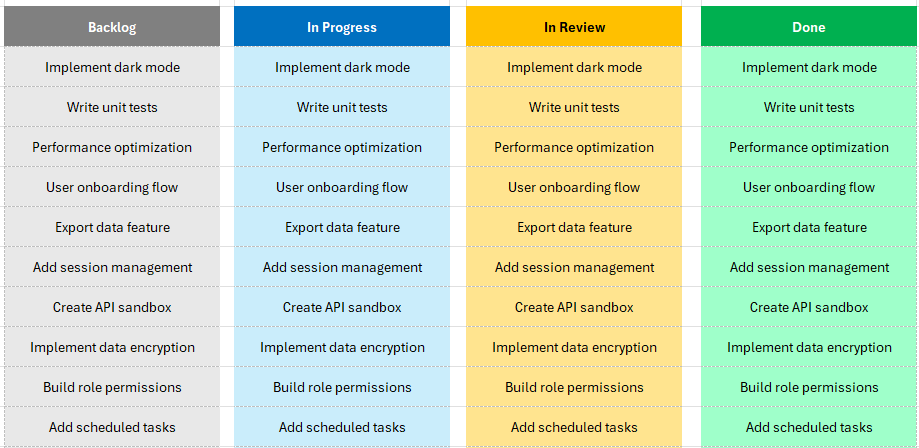
As you make changes to the statuses on the tasks, they will automatically update on the KanBan board. You may want to create a drop-down list on your task list to make it easy to update statuses.
Optional: Add filters (Assigned To, Priority, and more)
So far, the board filters tasks only by Status. If your task table includes more fields, you can also filter by things like Assigned To and Priority to focus on a specific person or type of work.
On the board sheet, add input cells for Assigned To and Priority (often via drop-down lists). In this example, those input cells are stored as named ranges called assignedto and priority.
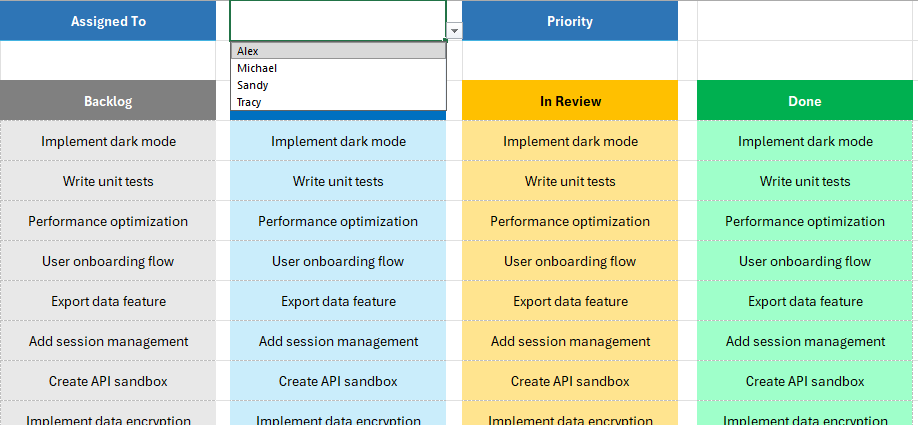
Multiple conditions: FILTER accepts one include argument, but you can combine conditions by multiplying them. Each comparison returns TRUE (1) or FALSE (0). Only rows where all conditions are TRUE multiply to 1 and are returned.
Formula (Status + Assigned To + Priority): =FILTER(Table1[Task Name],(Table1[Assigned To]=assignedto)*(Table1[Status]=B$3)*(Table1[Priority]=priority),””)
For example, selecting Alex for Assigned To and High for Priority will show only Alex’s high-priority tasks in each status column.
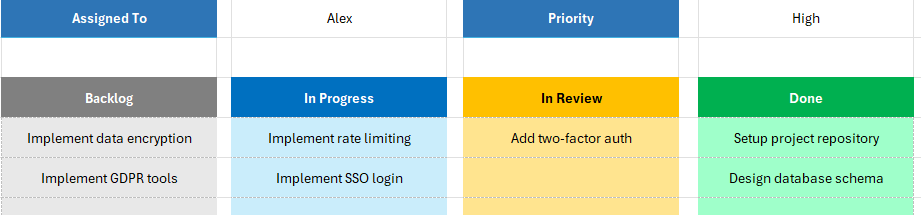
Make a filter optional: If you want Priority to be optional, add an OR test using +. This makes the Priority condition TRUE when either (a) the priority matches, or (b) the priority input cell is blank.
Formula (Priority optional when blank): =FILTER(Table1[Task Name],(Table1[Assigned To]=assignedto)*(Table1[Status]=B$3)*((Table1[Priority]=priority)+(priority=””)),””)
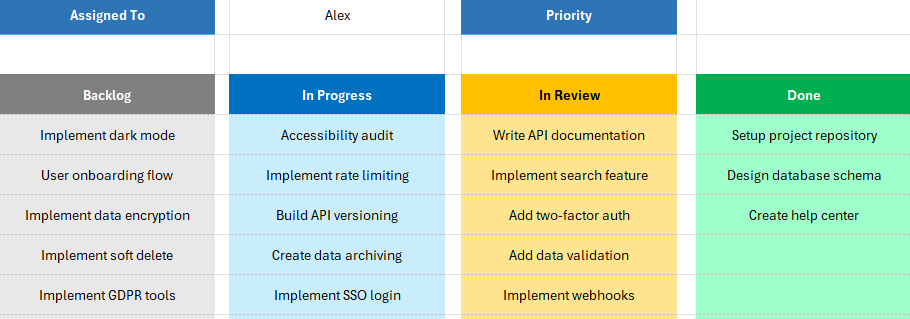
With that change, leaving the Priority input blank will return all tasks for Alex (still grouped by status), instead of only tasks with a specific priority.
FAQ
Can Excel do Kanban? Excel doesn’t have a native Kanban board feature, but you can create a Kanban-style view by grouping tasks into status columns and using formulas to display the right tasks in each column.
Why use an Excel Table for the task list? Tables automatically expand as you add rows, so your FILTER formulas keep working without updating ranges.
How do I add multiple filters in FILTER? Multiply conditions like (Assigned To=cell)*(Status=header)*(Priority=cell). TRUE becomes 1, and FALSE becomes 0, so only rows that meet every condition are returned.
How do I make a filter optional when an input cell is blank? Add an OR test with +, like (Priority=cell)+(cell=””). That makes the condition pass when the input is empty.
If you’re stuck or want to compare your setup to mine, you can download my Kanban template.