H2Eextractnumbers

Extract Numbers From a String of Text

Oftentimes when you’re working with a large range of values, it can be useful to add letters such as ‘B’ to indicate billions or ‘M’ to show millions. It can save space and be easier to read without too many zeroes. But if you want to perform any analysis, you’ll need to ensure that you’re working with numbers, not string. Here’s a download from Yahoo Finance that shows cryptocurrencies by their market caps:
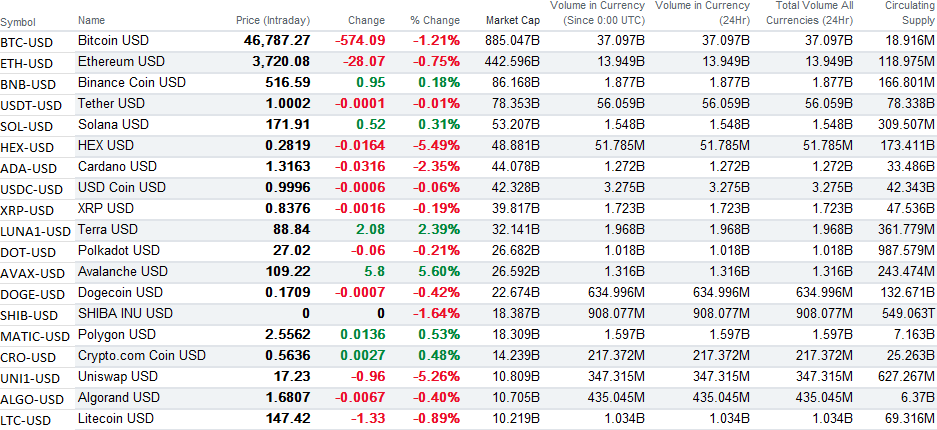
Cryptocurrencies sorted by market cap.

In this example, I’m going to extract the numbers from the circulating supply column, which contains millions, billions, and trillions.

Using the Substitute Function

If you want to remove the same text over and over again, an easy option for that is the SUBSTITUTE function. How it works is you select the string, the text you want to replace, and what you want to replace it with. Here’s how I would substitute out the ‘M’ for millions and replace it with a blank value in its place (assuming A1 was the cell that contained the text mixed in with a numerical value):

=SUBSTITUTE(A1,"M","")

The one limitation here is I’m only substituting out one letter. If I wanted to also replace the letter “B” then I would wrap the above formula inside of another SUBSTITUTE function, as such:

=SUBSTITUTE(SUBSTITUTE(A1,"M",""),"B","")

And, since there are also trillions in this data set, I will need to make another adjustment for the values containing the letter ‘T’ :

=SUBSTITUTE(SUBSTITUTE(SUBSTITUTE(A1,"M",""),"B",""),"T","")

Now this formulas has gotten pretty lengthy. And as you can see, it can get even longer if there are more text values that you want to substitute out. The only thing left is to multiply this entire value by a value of 1 to convert the text into a number. My complete formula in this example, to pull out the numbers from text, is as follows:

=SUBSTITUTE(SUBSTITUTE(SUBSTITUTE(A1,"M",""),"B",""),"T","")*1

Now, all the letters from those values are gone:
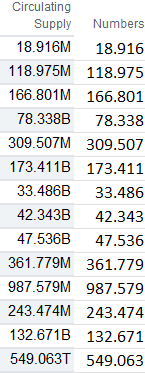
Numbers with text converted into just numbers.

Since you’re dealing with different units in this case, the one other thing you may want to do is add some logic to multiply it by a factor so you’re not mixing in millions with billions and trillions. However, with these now being numerical values, it’s possible to do with with just an IF statement.

Parsing Out Using Mid Functions

A more flexible way of pulling numbers out from text in this case is by using a combination of two functions — LEN and LEFT. With the LEFT function, you’re extracting out the characters at the start of a string. The key here is in knowing how many characters you want. This is where the LEN function comes in, as it counts the number of characters that are in a cell.

In the following formula, this would extract everything that’s in cell A1:

=LEFT(A1,LEN(A1))

This wouldn’t be a terribly useful formula since it would be the same as referencing A1. However, if I want to extract every character except the last one, as in the example above, I just need to adjust the second argument so that I deduct 1 from the length:

=LEFT(A1,LEN(A1)-1)

The only thing left to get the same results as in the example of the nested SUBSTITUTE functions is to just multiply this formula by 1. The advantage here is that I don’t have to worry about which specific letters to replace and I’m always going to be extracting all the characters except the last one.

There are more complicated examples of extracting numbers out of text and for those you might need to use the MID or RIGHT functions. Here’s an overview of how you can parse data out in Excel, which goes over more complicated examples than the ones noted here.


If you liked this post on How to Extract Numbers From a String of Text, please give this site a like on Facebook and also be sure to check out some of the many templates that we have available for download. You can also follow us on Twitter and YouTube.

H2Eflipdata

How to Flip a Table in Power Query

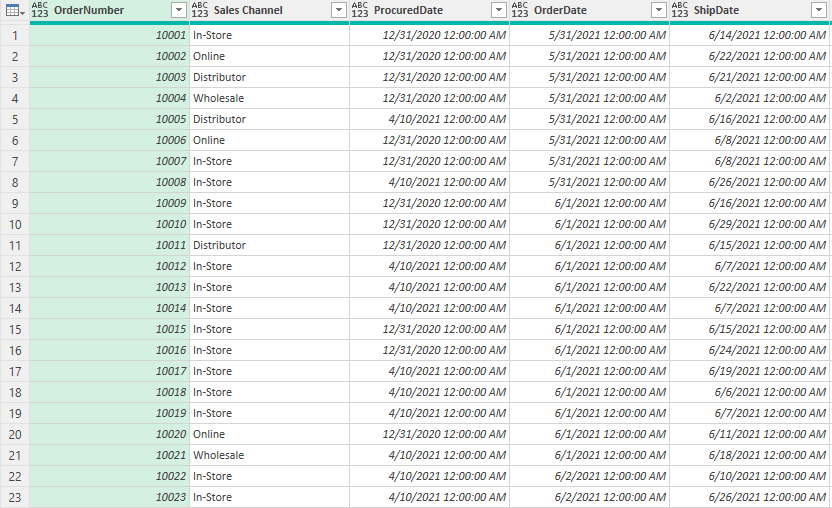
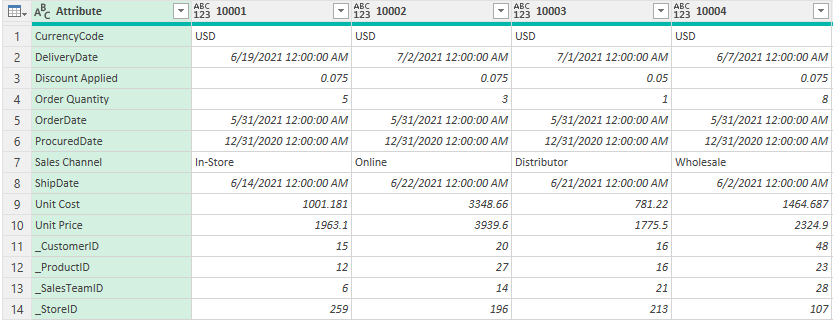
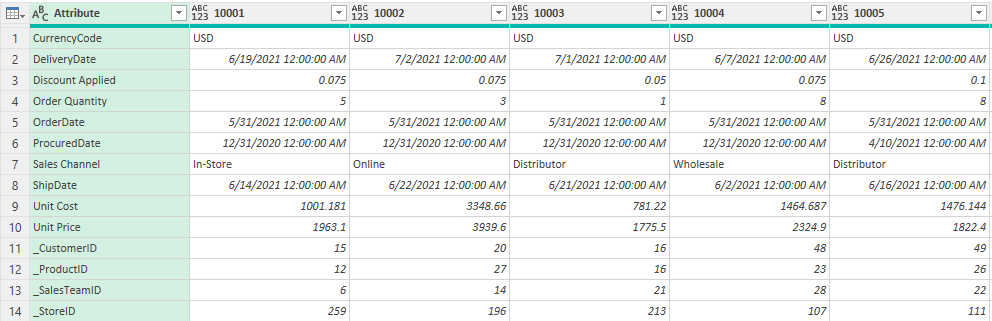
Do you want to change how your Power Query table looks? In this post, I’ll show you how you can flip your data so that you can turn a table that looks like this:

Table in Power Query that has order numbers going vertically and other fields across.

Into this:

Table in Power Query that has order numbers going across and other fields going vertically.

In the second table, it’s a bit easier to see all your fields vertically and you don’t need to scroll across to see them all. Depending on how you may want to visualize your data, you may find it useful to swap from one view to the other.

How to transform and flip data in Power Query

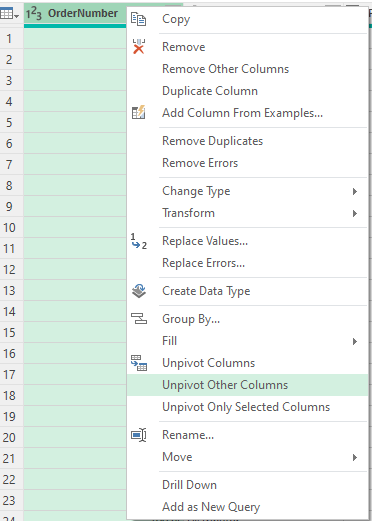
To transform the first field into the second field, you’ll need to take two steps in Power Query. The first is to unpivot your data. In this example, I want the order numbers to be as my headers going across, and so I will right-click on that header and select the option to Unpivot Other Columns:

Unpivoting other columns in Power Query.

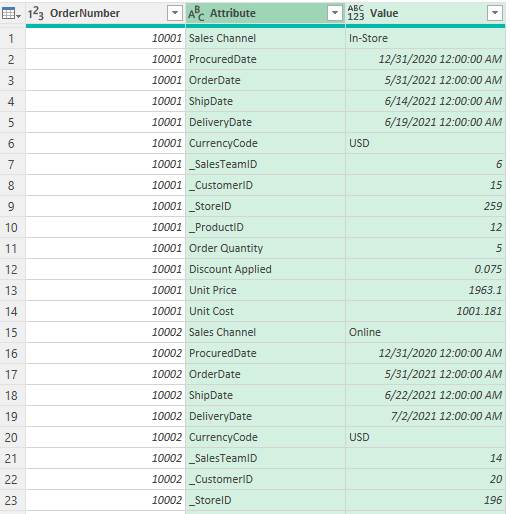
That will result in the table transforming as follows:

Power Query table after being unpivoted.

This isn’t quite what I need yet, but it’s close, as it has the fields going vertically instead of horizontally. The last part is to put the order numbers going across the top. To accomplish this, I will select that column and choose the Pivot Column option to re-pivot the data again.

The Pivot Column option in Power Query.

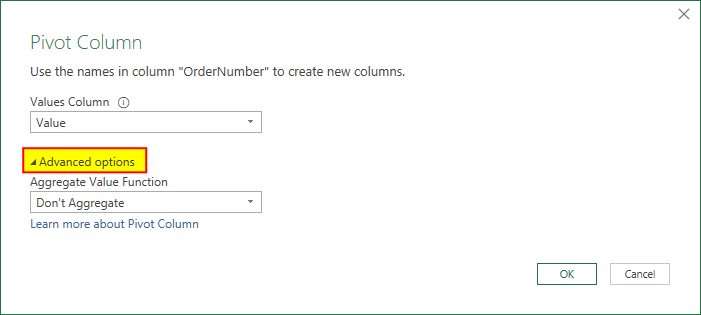
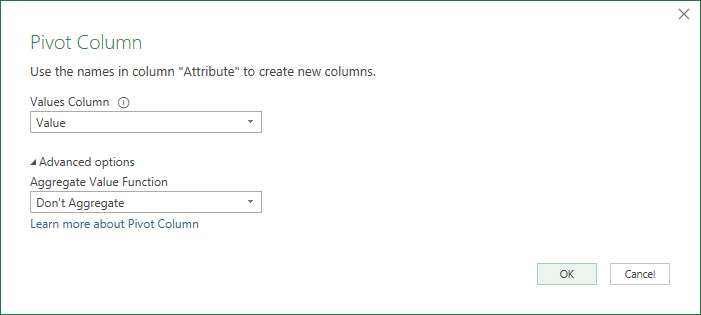
Then, on the next screen, it’s important to select the correct values option. And, you’ll also want to select Advanced options and choose Don’t Aggregate:

Pivot column options in Power Query.

Now, I end up with a Power Query table that has been flipped and has the order numbers going across and the fields going down vertically:

A table in Power Query that has been flipped from its original layout.

How to flip the data back

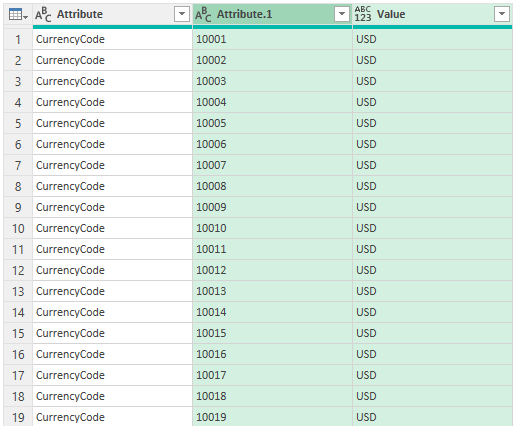
Let’s suppose that you start with the above table and you want to flip it the other way (so that the attributes are going across). Here again, we’ll start with unpivoting the data back. The most important consideration is to know which field you want going across. In this case, it’s going to be the attribute field. Right-click on that and click on Unpivot Other Columns. Then, you’ll see this table:

An unpivoted Power Query table.

Now, the next step is to re-pivot the data. Select the Attribute field on the left and click Pivot Column. Again, you’ll need to select the correct value column and choose the option so that you Don’t Aggregate:

The Pivot Column settings in Power Query are displayed.

And now we’re back to having the order numbers going vertically. Although some of the fields have moved around amidst all those changes, the format is back to how it was at the beginning:

Power Query table showing order numbers going vertically and other fields going across.

If you liked this post on How to Flip a Table in Power Query, please give this site a like on Facebook and also be sure to check out some of the many templates that we have available for download. You can also follow us on Twitter and YouTube.
H2Etogglebutton

How to Create a Toggle Button on the Excel Ribbon

In a previous post, I went over how to modify the Excel ribbon with some basic buttons. This time, I’m going to focus specifically on a toggle button that can change the value of a cell or trigger a calculation or macro. In this example, I’ll show you how you can create a toggle button on the ribbon that will change the color of the sheet, switching between having no fill and a white fill.

The first thing you’ll want to do is download the CustomUI Editor, which you should be able to find online through a search. Once you have that, you can get to work on coding the xml.

Creating the ribbon code

To get started, you can refer to this post on how to create a simple tab and button on the Excel ribbon. Once you have that basic framework set up in the CustomUI Editor, it’s just a matter of modifying the type of button you’ll use. In that post, I just inserted some generic code for a button:

<customUI xmlns="http://schemas.microsoft.com/office/2009/07/customui">
	<ribbon startFromScratch="false">
		<tabs>
			<tab id="customTab" label="Custom Tab">
				<group id="customGroup" label="Custom Group">
					<button id="customButton" label="Custom Button" imageMso="HappyFace" size="large" onAction="Callback" />
				</group>
			</tab>
		</tabs>
	</ribbon>
</customUI>

The button in that example is just a basic button. To turn it into a toggle button, I just need to modify the syntax so rather than saying ‘button’ it says ‘toggleButton’. I still need a label, an image, and specify what happens when it is pressed (the ‘onAction’ argument). Here’s what my updated xml code looks like:

<customUI xmlns="http://schemas.microsoft.com/office/2009/07/customui">
	<ribbon startFromScratch="false">
		<tabs>
			<tab id="customTab" label="Custom Tab">
				<group id="customGroup" label="Custom Group">
					<toggleButton id="customButton" label="Custom Button" imageMso="HappyFace" size="large" onAction="Callback" />
				</group>
			</tab>
		</tabs>
	</ribbon>
</customUI>

Changing button to toggleButton just allows the button to have a pressed state so that when you click on it, it can look sunken. You can use that variable to also dictate what action should be taken. The key to making the toggle button work is to attach some macros to it, which is what I’ll cover next.

Creating the callback macros

A callback macro tells Excel what should happen when the toggle button is clicked. Here’s what the macro should look like initially:

Sub Callback(control As IRibbonControl, pressed As Boolean)

End Sub

The pressed value is a boolean, so it will only either be true or false. The next part of the code involves setting up an if statement to check on that value.

    If pressed = True Then

        'code goes here if the value is true (pressed)

    Else
    
        'code goes here if the value is false (not pressed)


    End If

In this example, I’m going to make a simple macro where the sheet is either filled white, or there is no fill effect. The code isn’t complicated and I will start will selecting all the cells, selecting the interior property, and setting it to solid (i.e. ‘filled’):

Cells.Interior.Pattern = xlSolid

And to change it back so there is no fill effect:

Cells.Interior.Pattern = xlNone

Within the full callback macro, this is how all the code looks:

Sub Callback(control As IRibbonControl, pressed As Boolean)

    If pressed = True Then
    
        Cells.Interior.Pattern = xlSolid

    Else
    
        Cells.Interior.Pattern = xlNone


    End If


End Sub

Here is the toggle button in action:


If you liked this post on How to Create a Toggle Button on the Excel Ribbon, please give this site a like on Facebook and also be sure to check out some of the many templates that we have available for download. You can also follow us on Twitter and YouTube.
H2Epieofpie1

How to Make a Pie of a Pie Chart

A pie chart can be a great way to show percentages, such as how much significant an individual’s product sales are to the total number. However, if you’re dealing with more than 10 items, a pie chart can start to get a bit messy. But there is a way to address that, and that’s with a second pie chart. In this post, I’ll show you how to make a pie of a pie chat so that it’s easier to display more items.

At what point should you consider another chart?

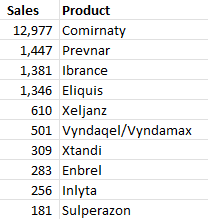
There’s no magic number as to how many items is the limit for a pie chart. It will ultimately depending on how big your slices are, and the size of your text. For my example, I’m going to use data from healthcare company Pfizer‘s most recent quarterly results to show sales of its top-selling products. For the third quarter of 2021, the revenue of its top products were as follows:

Sales by product for Pfizer in Q3 2021.

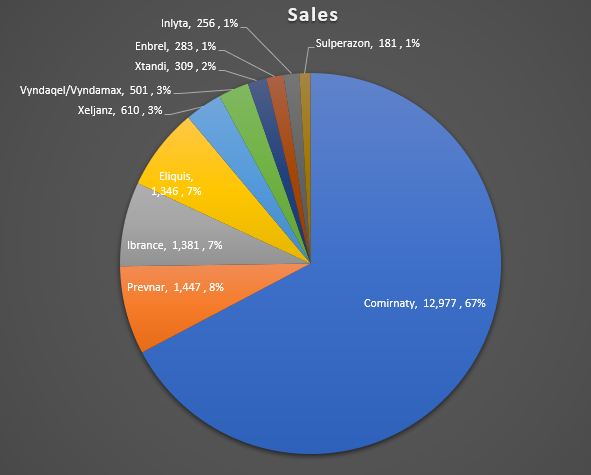
If I were to create a pie chart using this data, this is how it would look like:

Pie chart showing Pfizer's sales by product.

Since there are many small items accounting for 3% or less of revenue, a case could be made for creating a second pie chart here. You don’t have to do so, but it could help make the visual more readable for users.

Creating a second pie chart

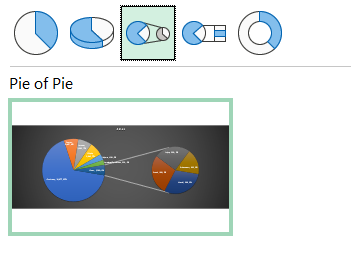
To add a second pie chart, what I need to do is select the chart. Then, go into the Chart Design tab and select the Change Chart Type option. From there, I will select the Pie of pie chart:

Selecting the pie of a pie chart.

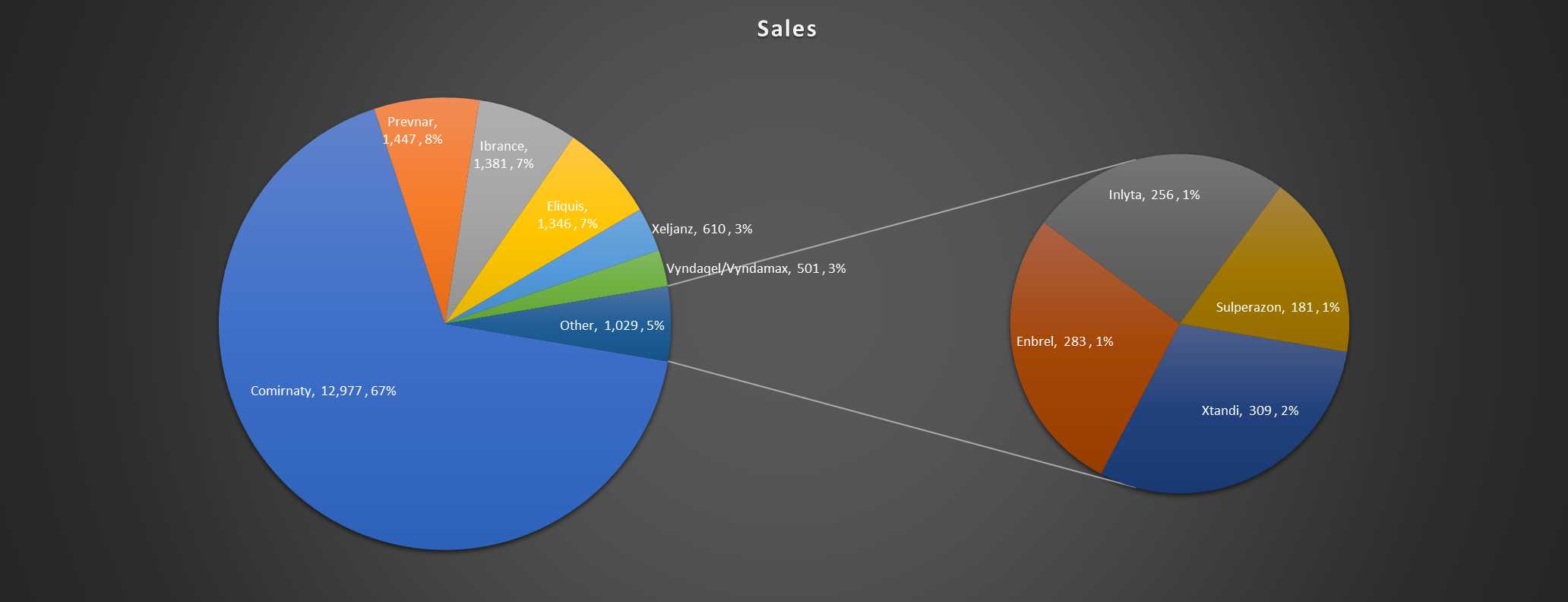
Upon making the selection, I now get a second chart that offloads some of the items onto there:

Two pie charts showing in Excel.

Customizing the size of the pie chart

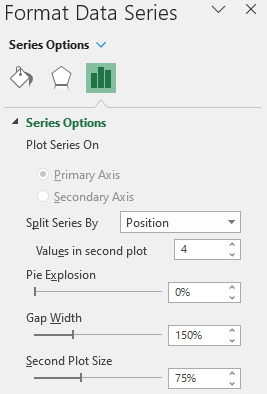
By default the smallest slices will be on to the second pie chart. However, you can specify how you want to split the charts. If you right-click and select Format Data Series, you can specify the number of items that show in the second chart:

Formatting the data series on a pie of a pie chart.

In the above example, there are 4 values in the second chart. But you can change this higher or lower and ultimately that will be discretionary; it will depend on how you want your data to look. If you have many small items in your summary that you want to show in a smaller pie chart, then you may want to increase the number of values in the second plot. If that’s not the case, you could opt for a smaller number.

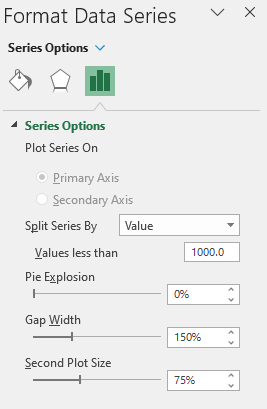
This may seem a bit arbitrary and there are other rules you can apply instead. For example, you can select to Split Series By value:

Splitting a pie chart series by value.

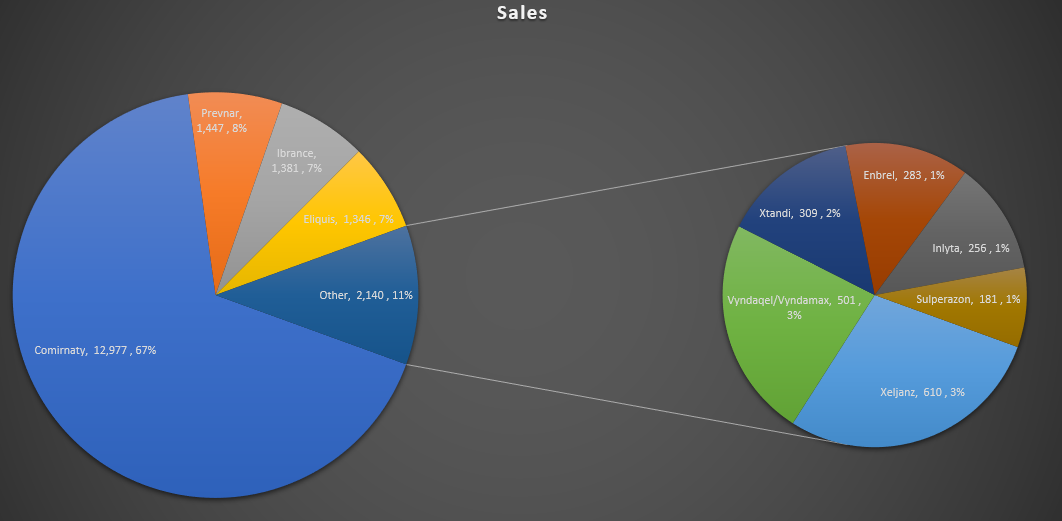
In this case, any value that’s less than 1,000 will be moved off to the second pie chart. Here’s what that looks like:

Two pie charts where the second one shows any values less than 1,000.

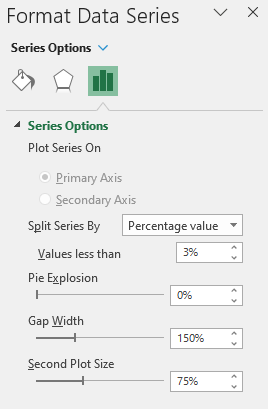
Another option is to split the chart based on the percentage of each slice:

Formatting the pie chart so that it shows any items that are less than 3% of the data.

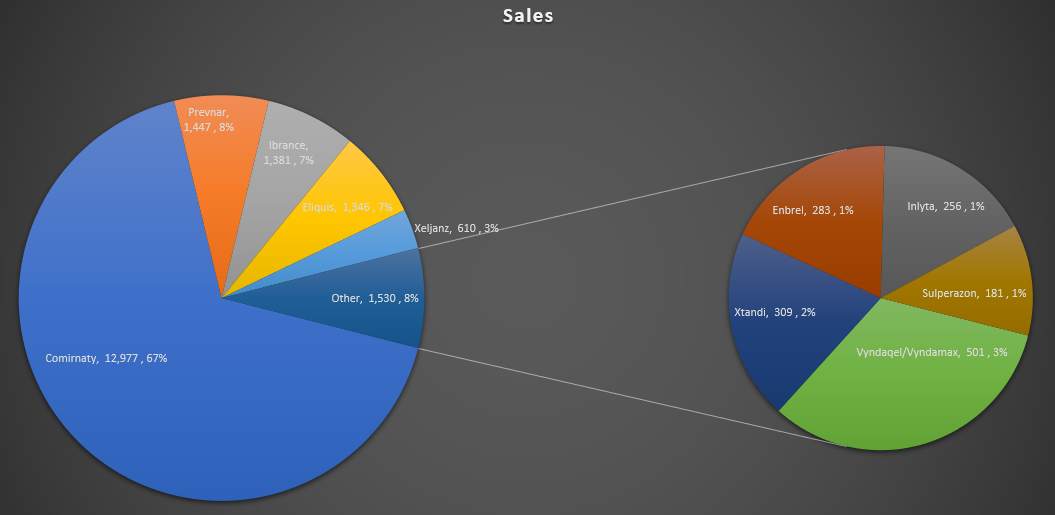
In the above example, I’ve selected any items that account for les than 3% of the total, they will be pushed onto the second pie chart:

Two pie charts where the second one shows values that account for less than 3% of the data.

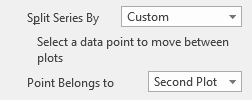
If you want to manually move items from one chart to the other, you can also change the Split Series By option to ‘Custom’ and then click on a slice you want to move. You’ll see an option there to set whether it belongs to the Second Plot or to the First Plot.

Using custom in the split series by to move a slice from one pie chart to another.

Making these changes will move the slice to either the first pie chart or the second one.


If you liked this post on How to Make a Pie of a Pie Chart, please give this site a like on Facebook and also be sure to check out some of the many templates that we have available for download. You can also follow us on Twitter and YouTube.
H2Ebuffett

Track Warren Buffett’s Portfolio Using Power Query

Billionaire investor Warren Buffett is the CEO of Berkshire Hathaway. And what trades his company is making is always big news among his followers and fans. In this post, I’ll show you how you can use Excel, and specifically Power Query, to determine what the company’s holdings are as of their most recent quarter, and how much they’ve changed over time.

Start with getting the most recent 13f report

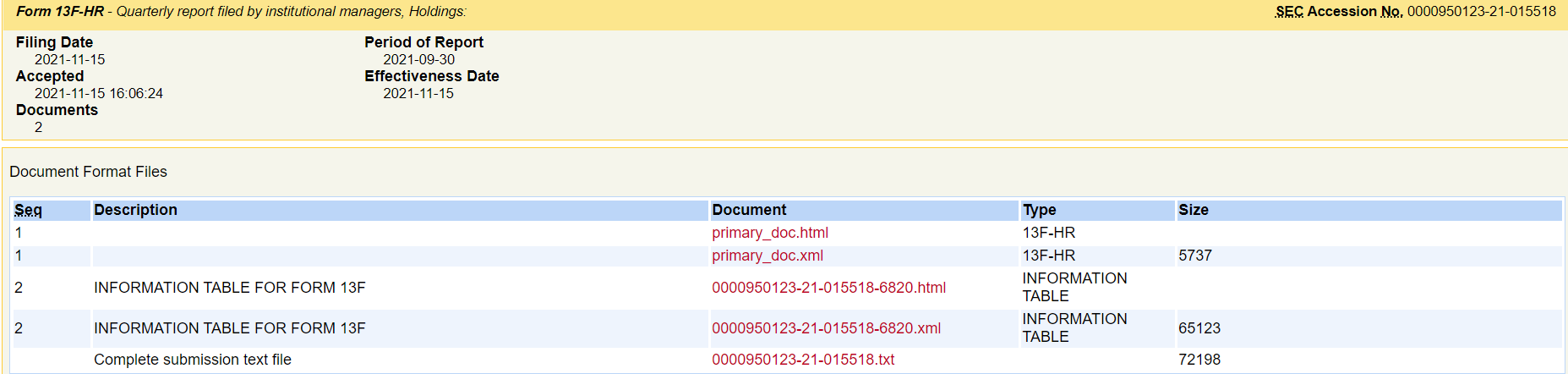
Berkshire Hathaway reports its holdings every quarter and you can find those filings on the SEC website. This link filters out the 13f filings for you already. I’m going to click on the Documents button of the most recent report:

Berkshire Hathaway 13f report search.

On the next page, the key link to use is the html file for the Information Table:

Berkshire Hathaway 13f report files.

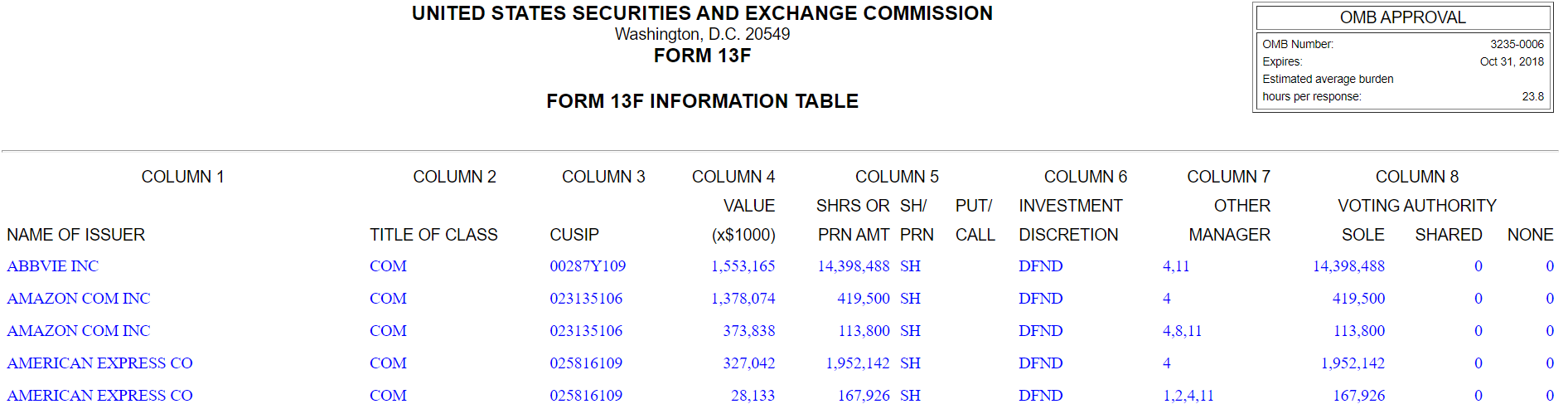
When I click on it, the report itself looks like a convenient table format:

Berkshire Hathaway Form 13 information table.

It’s here that you can see the holdings as of the end of the period for Berkshire Hathaway. I’m not going to copy this into Excel but instead, I am going to use the link itself.

Setting up the Power Query link

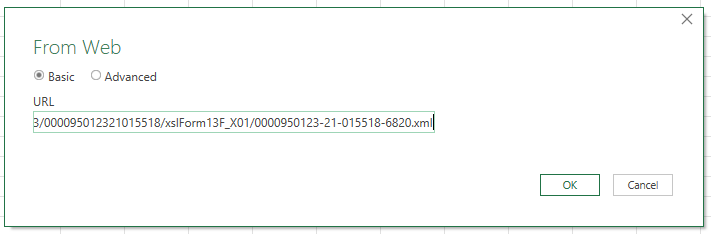
Back in Excel, I’m going to set up a connection by going to the Data tab and clicking From Web in the Get & Transform Data section. This will prompt me for a URL, where I will enter the link from the SEC website.

Entering the 13f report link into Power Query.

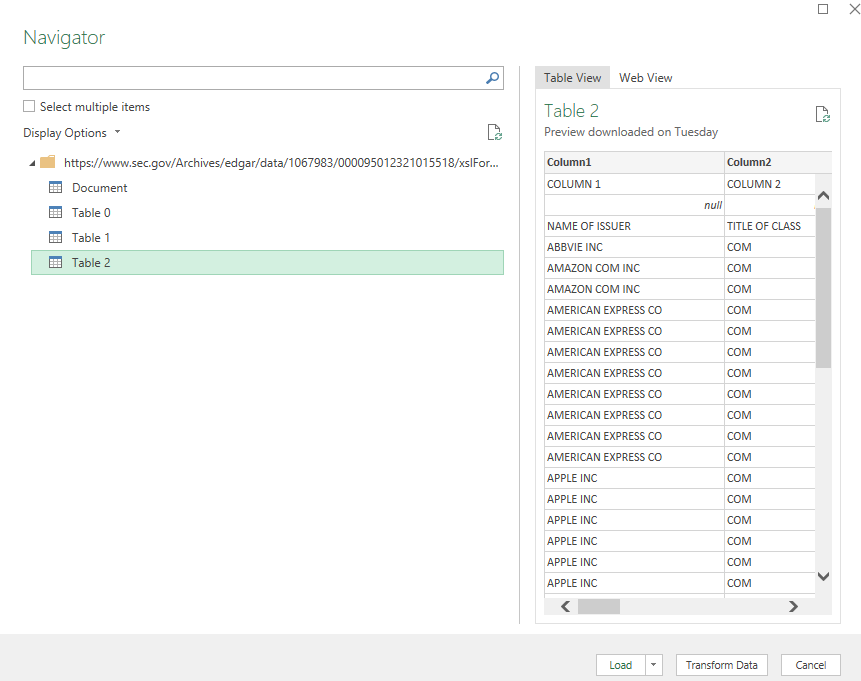
Upon clicking OK, the Navigator box shows up, where I have multiple tables to choose from:

Selecting the correct table in  an initial Power Query connection.

Table 2 is the one that I want as that is the table that has the company names listed and all the other holding details. Since I want to make changes to the data, I’ll click on Transform Data rather than just loading it directly into Excel. Here’s how the table looks:

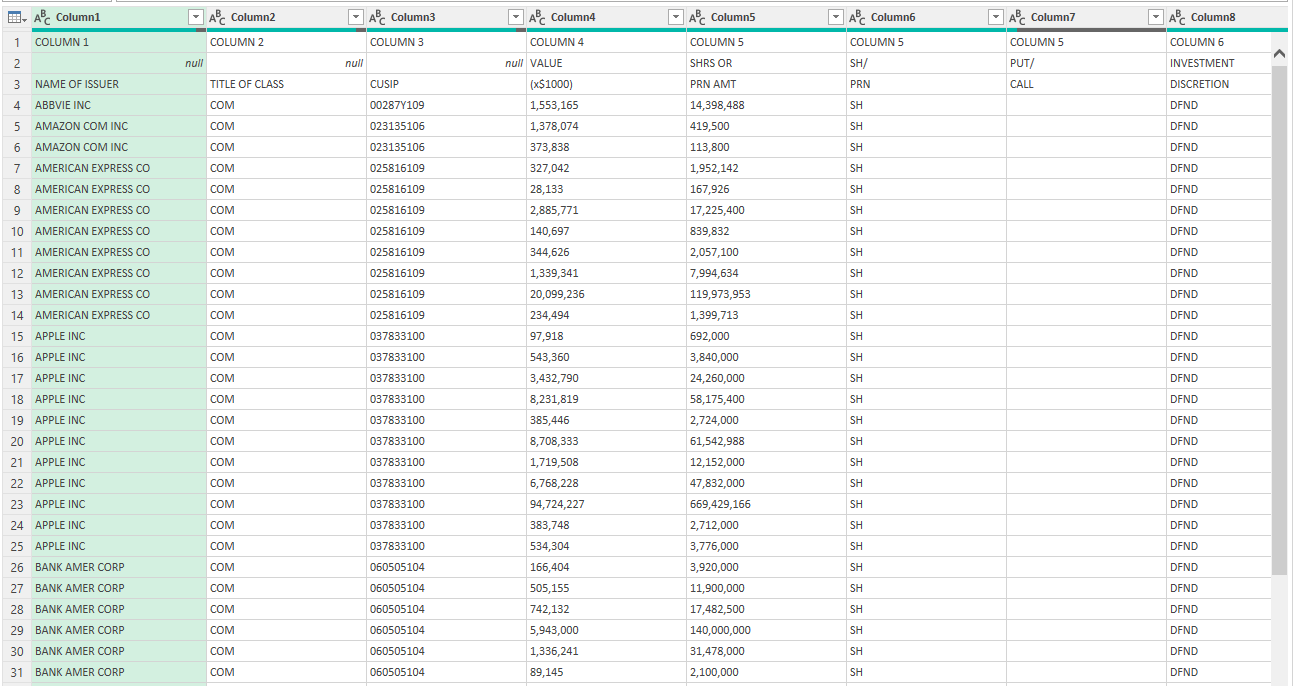
Data in Power Query showing Berkshire Hathaway's most recent holdings.

There are a few things right off the bat that I’m going to fix here:

  • The headers are not at the top.
  • The holdings need to be grouped so that I see the total per company.

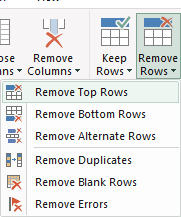
To reference the columns easier, it’s important that the headings are correct. First up, I’ll remove the first two rows by clicking on the Remove Rows option in the Home tab in Power Query:

Removing the top rows from a Power Query table.

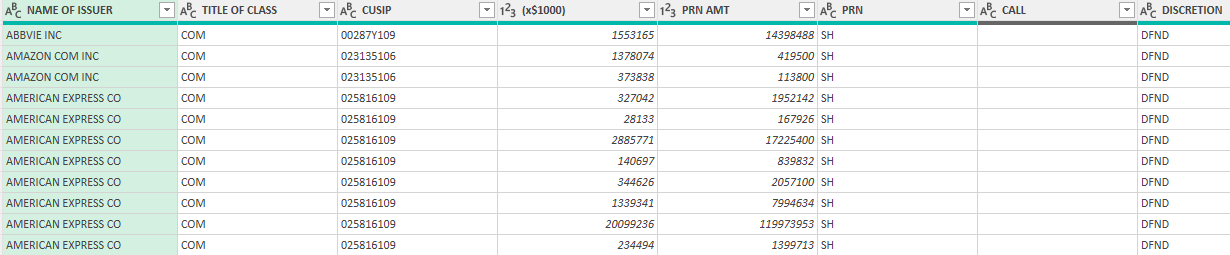
Removing the first two will get the names closer to the top, but the header names remain generic:

Power Query table after removing rows.

To fix this, I’ll click the option to Use First Row as Headers:

The Use First Row as Headers option in Power Query.

Now the first issue is fixed:

Headers in Power Query after the first row being promoted.

To group the companies, I’ll use the Group By option in Power Query:

The group by function in Power Query.

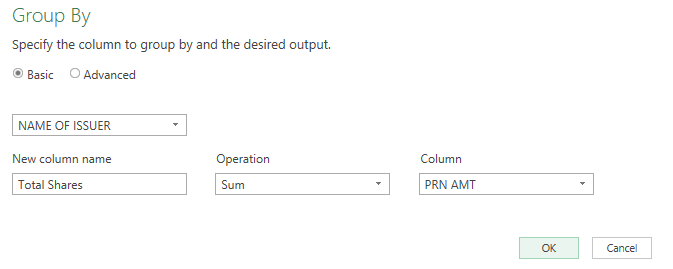
On the next screen, I’ll group by issuer (i.e. the name of the company’s shares that are held), set the new column so that it is called ‘Total Shares’, and sum the PRN Amount (shares held):

Setting the group by parameters in Power Query.

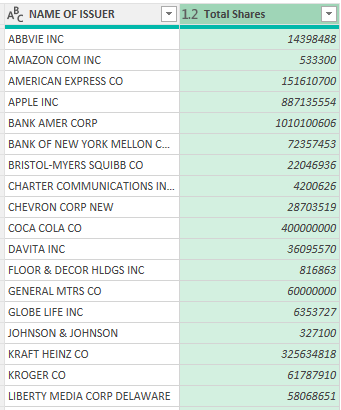
Now I get a summary of all the shares that are held when grouped by company:

Shares held by Berkshire Hathaway.

Now I can load this into Excel and have a list of the most recent Berkshire Hathaway holdings.

Comparing to a previous period

Next, I’ll compare the change in position from a previous period. Let’s say I want to go back a year. I can copy this query and just change the source so that it looks at this link from a year ago.

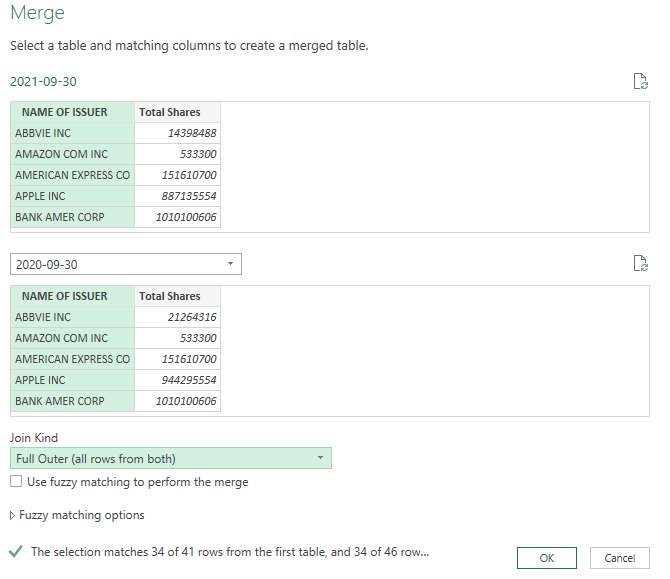
I’ve re-named the queries 2021-09-30 and 2020-09-30 (you can do this simply by right-clicking on the query name). To compare the two periods, what I’m going to do is merge the two queries. In the Merge options, make sure to select a Full Outer join so that all the rows are included. This ensures that you aren’t including just those companies that Berkshire Hathaway still owns shares of.

Merging queries in Power Query.

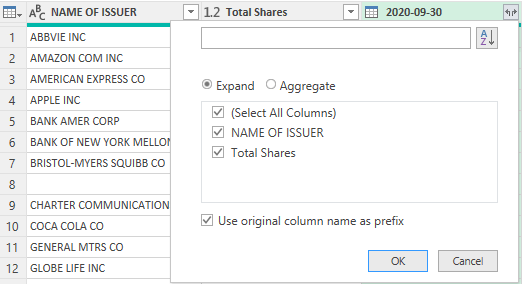
Next, I’ll expand the table to pull in the company name and the shares from the previous report:

Expanding the fields from a table in Power Query.

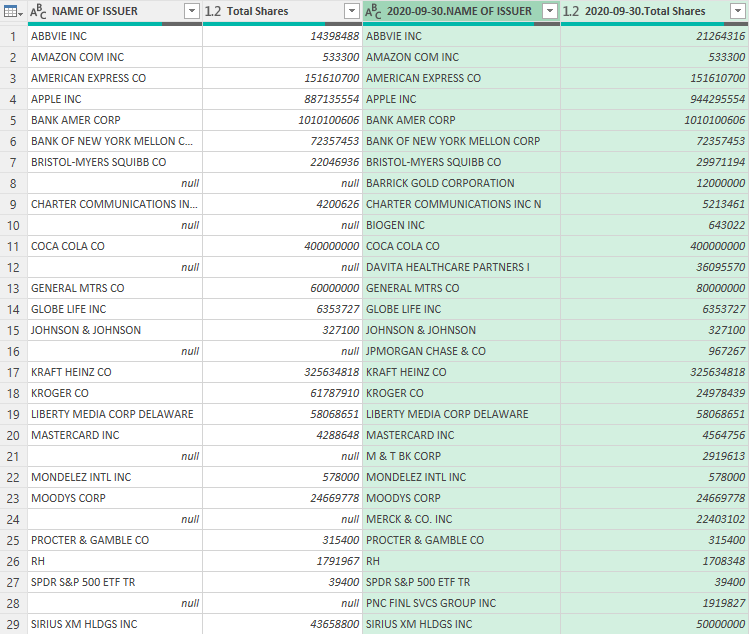
This will give me the same values from both tables. One of the things you’ll notice is because of the full outer join, some companies and share values show as null because they don’t exist on both reports:

Two merged queries in Power Query under a full outer join.

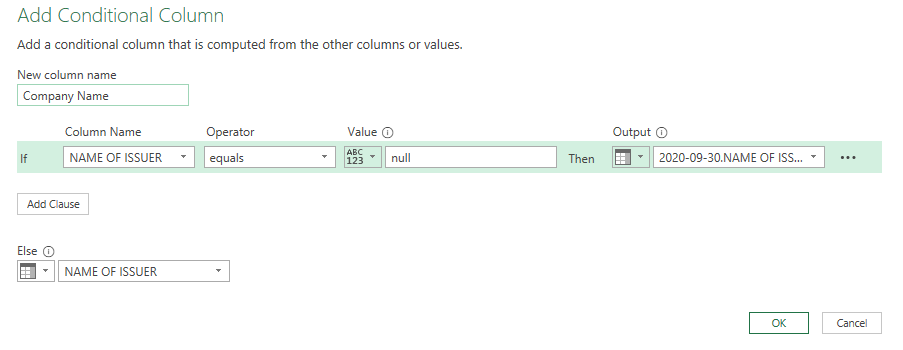
To fix this, I’m going to create a Conditional Column, which you can select from the Add Column tab. The rule I’m going to set up is as follows: if the value in one issuer/name column is null, take the other column’s value. Here’s how it looks:

Creating a conditional column in Power Query.

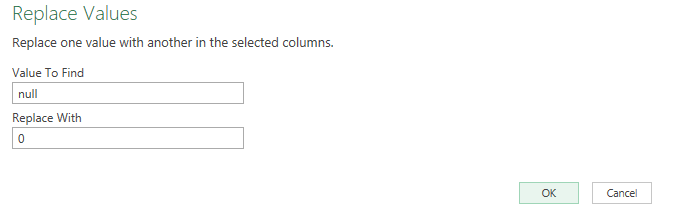
For the change in shares, I’ll need to do a calculation that takes the current holdings and subtracts the previous holdings. But before that, I need to convert the null values where the share numbers are to 0. To do this, select those columns and on the Home tab select the option to Replace Values

Replacing null values with zeroes.

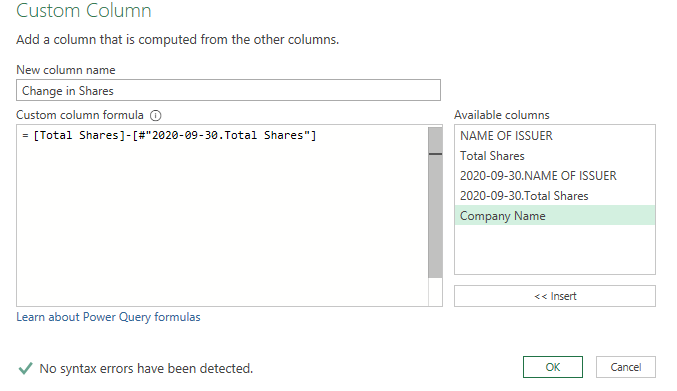
Now I can create a Custom Column to calculate the change in shares:

Creating a custom column to calculate the change in shares.

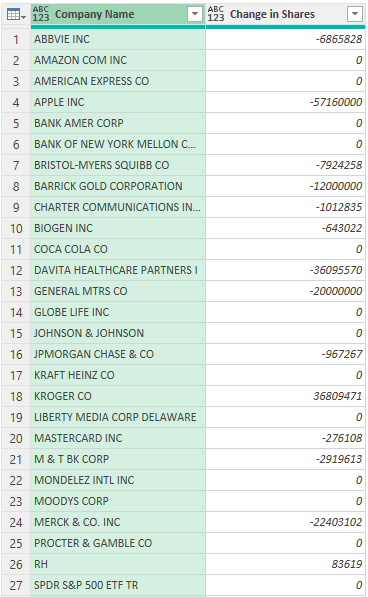
Here’s my updated table after removing the other columns:

Report in Power Query showing Berkshire Hathaway's change in holdings.

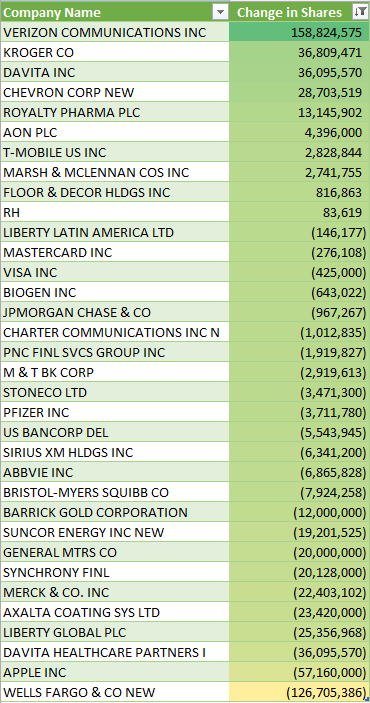
All that’s left is to load the data in Excel. Here’s what the end result looks like after applying some formatting and sorting the values in descending order:

Report in Power Query in Excel showing Berkshire Hathaway's change in holdings.

If you liked this post on How to Track Warren Buffett’s Portfolio Using Power Query, please give this site a like on Facebook and also be sure to check out some of the many templates that we have available for download. You can also follow us on Twitter and YouTube.

H2Esmallestnonzero

Find the Smallest Non-Zero Value in Excel

Do you need to find the smallest value but want to skip over any zero values? In this post, I’ll show you how you can do just that. The MIN function in Excel does a good job of finding the lowest value but if you have any zero values, those will get included in the result. So how can you get around the issue and get the smallest non-zero value? There are multiple ways you can accomplish this.

Using an array function

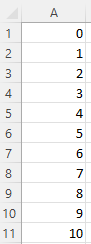
An array function allows you to evaluate each cell and that can tell the function whether to include it in its calculation. In the following example, I have a list of the numbers from 0 through to 10:

Numbers 0 through 10 are listed.

By just using the MIN function on that entire range, I will get a value of 0 as the result. However, you can get around this by embedding an IF statement within your MIN function and then turning the formula into an array. The regular MIN function would look as follows:

=MIN(A1:A11)

The IF statement will look to see if a value is not equal to 0 by using the “<>” operators:

=IF(A1:A11<>0,A1:A11)

The IF function evaluates every cell and if it’s not equal to 0, then it returns the value. Here’s how it looks embedded within the IF statement:

=MIN(IF(A1:A11<>0,A1:A11))

The result of this formula is a 1, as it will ignore any 0 values. If you’re running an older version of Excel that doesn’t calculate this correctly, you will need to use CTRL+SHIFT+ENTER to convert this into an array formula and so that you have the curly braces around it as such:

{=MIN(IF(A1:A11<>0,A1:A11))}

Using the LARGE function

Another way you can calculate the smallest non-zero number is by using the LARGE function. Technically, this is used when you want to find the largest values in a range. For instance, if I wanted to get the largest number in range A:A, my formula would be as follows:

=LARGE(A:A,1)

This is the same as if I were to use the MAX function. However, if I know there are 10 items in my range and I grab the 10th largest, that’s the same as saying I want to extract the smallest number in the range.

The key to making this work is using the COUNTIF function. With the COUNTIF, I can count the number values that are greater than zero in a range. This formula would accomplish that:

=COUNTIF(A:A,”>0″)

If I include that in my LARGE function, it will look like this:

=LARGE(A:A, COUNTIF(A:A,”>0″) )

An array calculation is not needed here since I am not evaluating every cell. And this formula arrives at the same result as the earlier method.


If you liked this post on How to Find the Smallest Non-Zero Value in Excel, please give this site a like on Facebook and also be sure to check out some of the many templates that we have available for download. You can also follow us on Twitter and YouTube.
H2Estockcharts

Create Stock Charts in Excel Using Power Query

In Excel, there are multiple different stock charts you can create. All you need is some combination of the date, opening price, high price, low price, closing price, and volume to generate what you need. In this post, I’ll show you how you can utilize Power Query to pull that data in and transform it, without having to apply any manual changes to it every time. For an overview, you can check out this post on How to Get Stock Quotes From Yahoo Finance Using Power Query. I’m not going to repeat those steps and will assume that you’re familiar with that process.

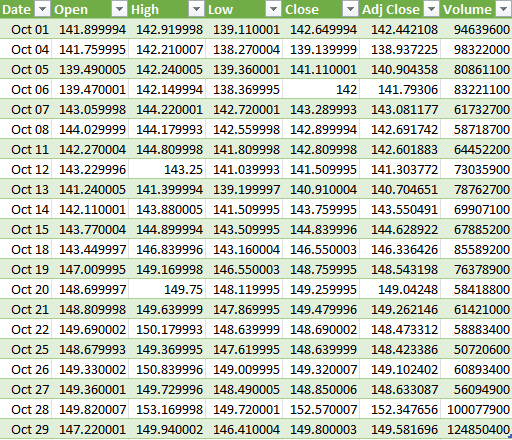
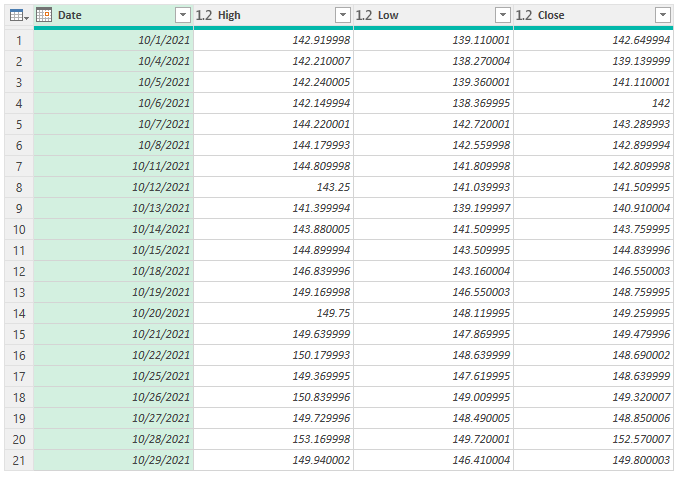
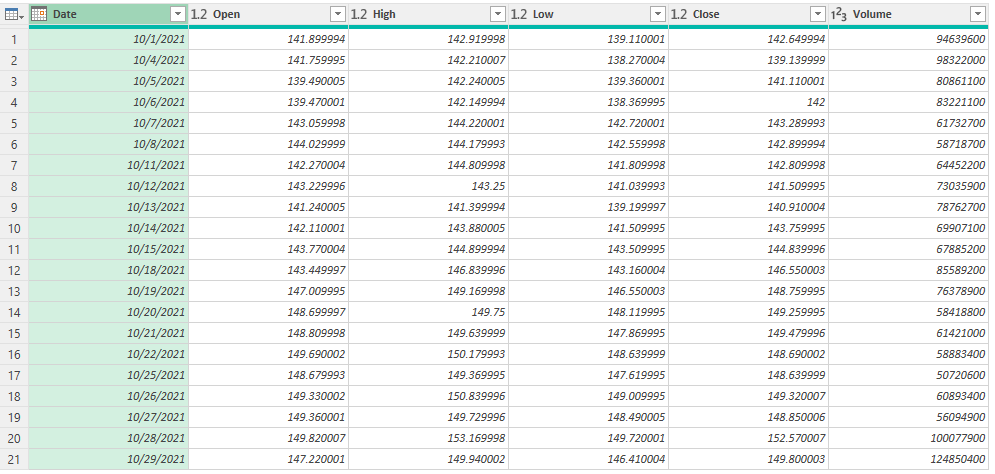
In this example, I’ve downloaded the stock prices for Apple (NASDAQ:AAPL) for the month of October 2021:

This already has all the data that is needed to create the four types of stock charts in Excel:

  • High-Low-Close
  • Open-High-Low-Close
  • Volume-High-Low-Close
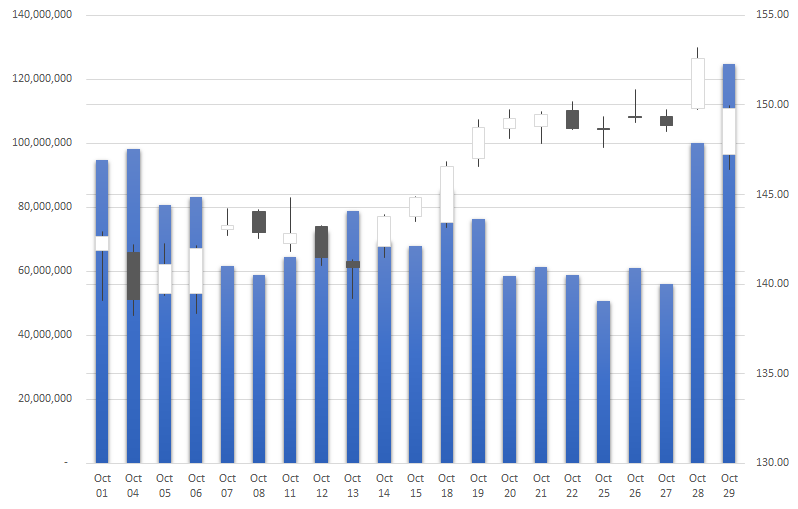
  • Volume-Open-High-Low-Close

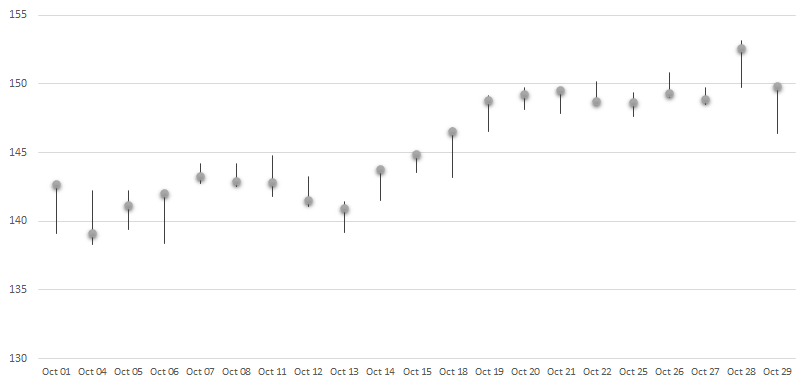
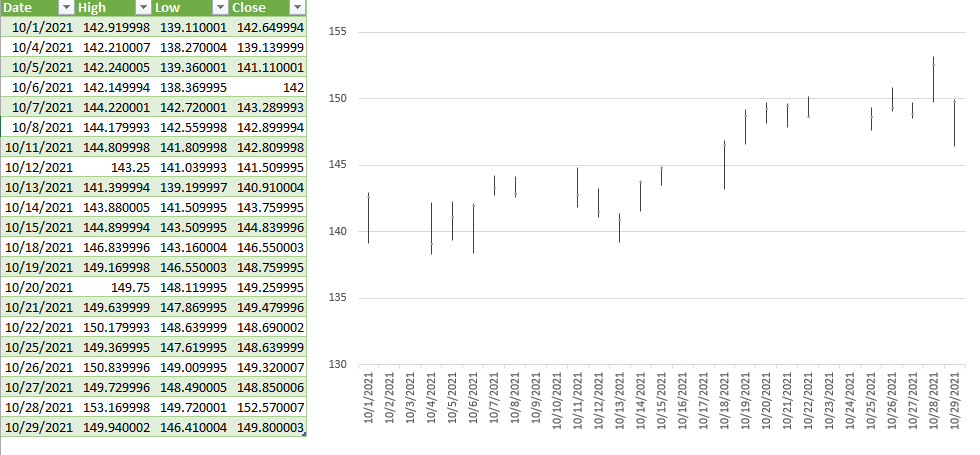
The key to making these different charts is just ensuring that you’ve got the correct fields in your download, and in the right order. For the High-Low-Close chart, you only need three fields to generate the following chart:

A high low close chart in Excel.

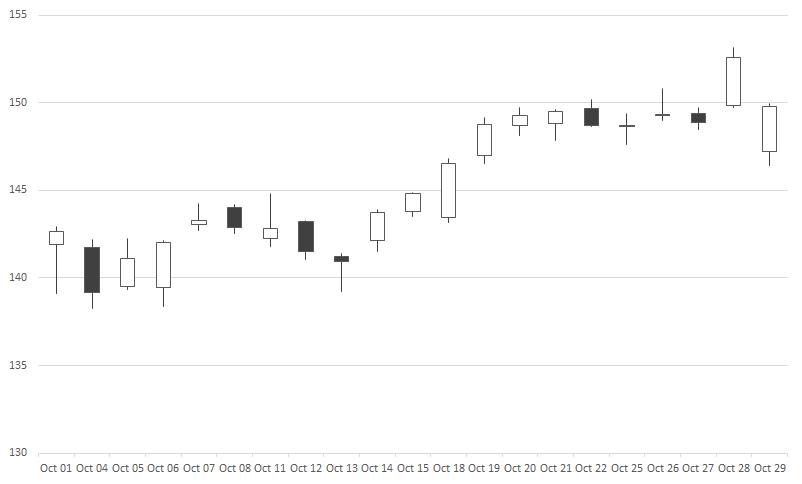
If you’re creating the open-high-low-close chart, all you need is to add the open field to the data set:

An open high low close chart in Excel.

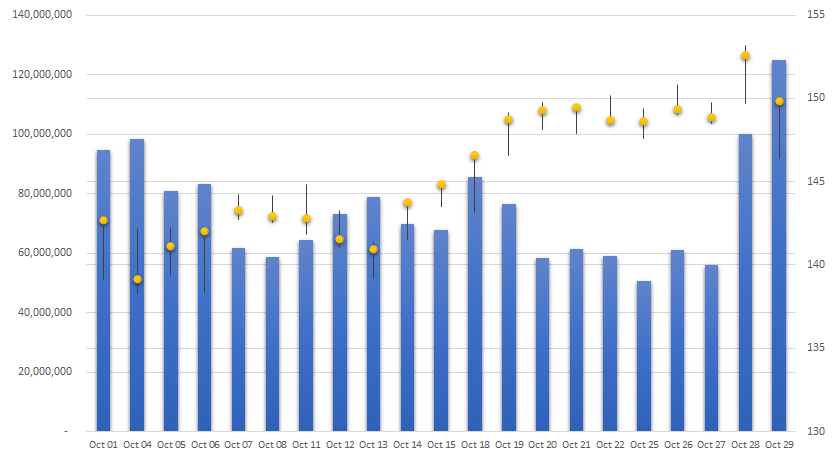
And for the volume-high-low-close chart, it’s just the volume instead of the open that goes at the start, and then you get something that looks like this:

A volume high low close chart in Excel.

The last chart includes both the volume and the open before the high, low, and close values:

A volume open high low close chart in Excel.

These charts are fairly straightforward to generate once your data is in the right order. But rather than moving around different fields, you can make all the changes within Power Query so that right when your data loads, it’s in the correct format.

Using Power Query to adjust your download

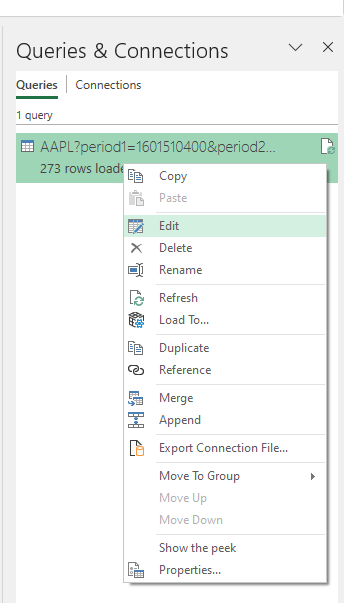
To modify an existing query, go to the Data tab and select Queries & Connections. Off to the right, you should see your query, where you can right-click and Edit it:

Editing a query in Excel.

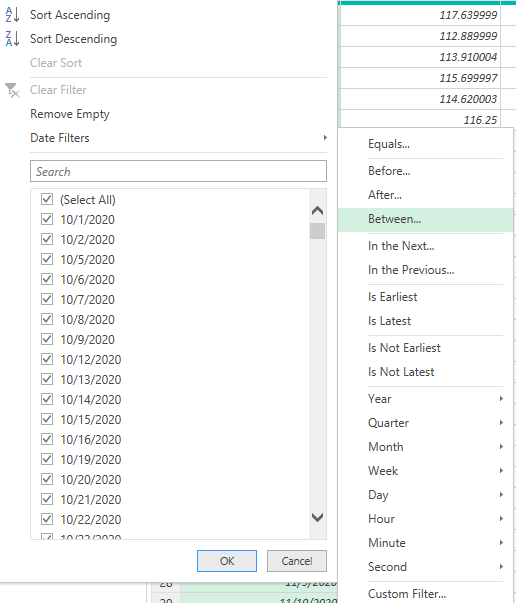
The first thing I’ll edit is the date range. In my earlier post, I just downloaded the full year of data. But if I want to filter only for October, then I can click on the drop-down for the Date field and select Date Filters to filter Between a range of dates.

Using the date filter to filter dates in power query within a specified range.

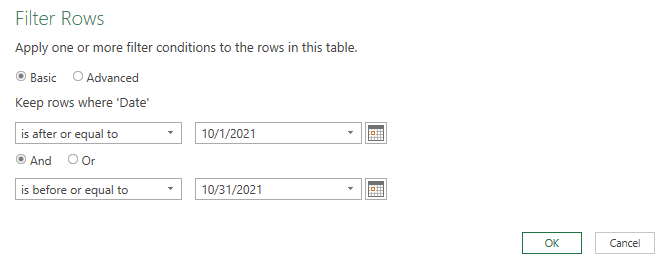
Using the calendar icon, I can specify the range of dates I want to include in my download:

Filter rows in power query based on their date values.

Next, if I want to just include the data for the most basic chart, the high-low-close chart, I’ll right-click on the Open, Adj Close, and Volume columns to remove them. Then, I’m left with the following:

Power query stock download that only contains the high, low, and close fields.

Now, if I were to load the data in Excel, I would already have all the columns I need to create the chart:

Creating the high low close chart in Excel.

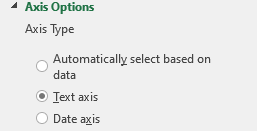
Note: if you want to get rid of the gap in dates on the chart, click on Format Axis and for the Axis Type, select Text axis:

Converting the date axis in Excel so that it reads as text instead of as a date.

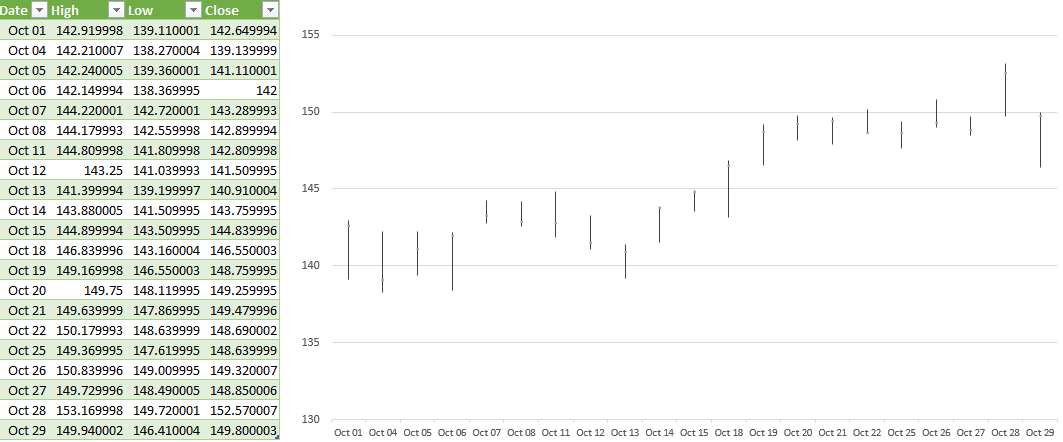
This prevents Excel from trying to fill in any missing dates from your data set Another thing you may want to do is format the date field so that it is a custom format showing MMM DD so that it saves space:

Stock chart in Excel with custom date formatting.

Now, let’s go back into Power Query and this time create the more complex download, for the volume-open-high-low-close chart. I’ll start by removing the last step I applied which removed more columns than I need for this current download. To remove any steps in Power Query, click on the ‘X’ next to it:

Removing the last step in Power Query.

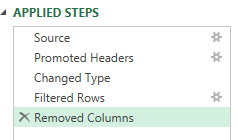
In this example, it’s just the Removed Columns step I will eliminate. The only column I need to remove from the download this time around is the Adj Close. So that’s what I’ll do, right-click and remove that column. However, my table still is not in the correct order:

Power Query table after removing the Adj Close field.

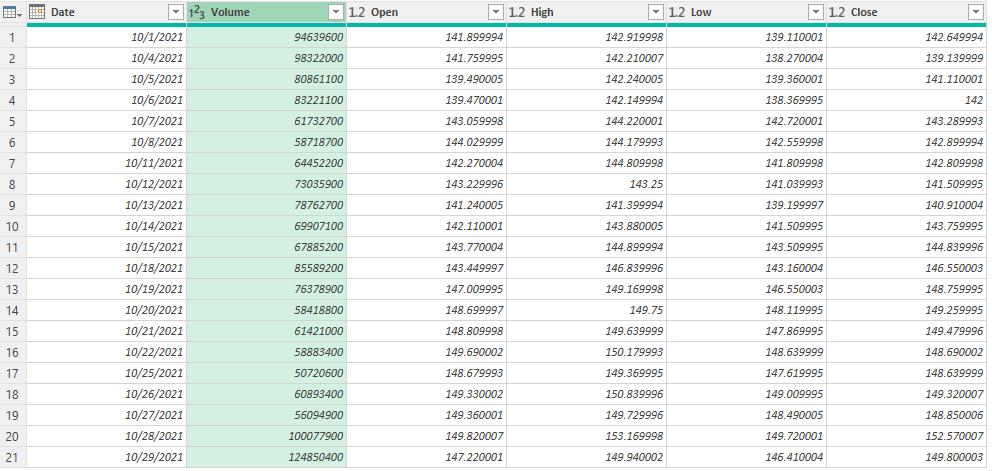
The Volume column needs to go before the Open column. This is as easy as just dragging the column and putting it in front:

Power Query table after moving the Volume field.

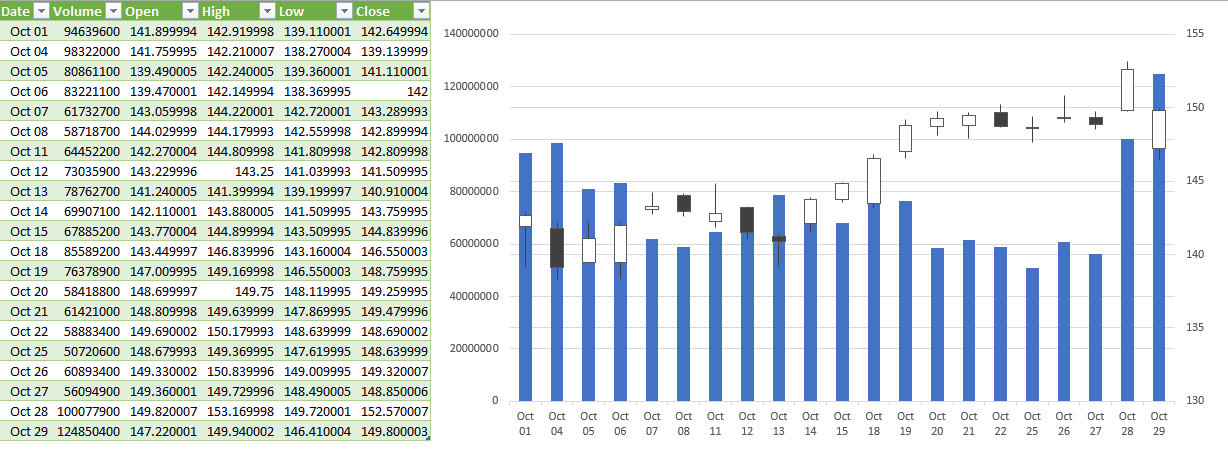
Now that it’s in the right order, I can load and close this into Excel. And now, the volume-open-high-low-close chart can easily generate:

The volume open high low close chart in Excel.

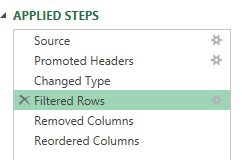
Suppose I want to adjust my chart to include data from September as well. Again, I can go back to edit my query. This time, I’ll select the gear icon next to the Filtered Rows step:

Modifying a Power Query step using the gears icon.

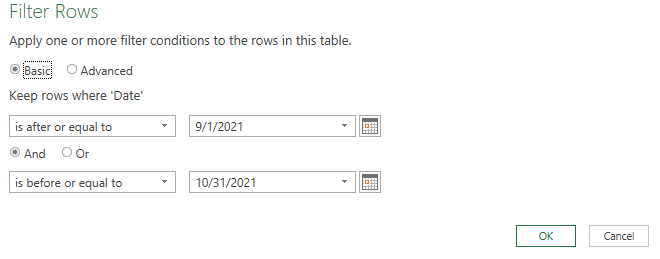
There, I can just modify my date range using the calendar:

Modifying the date filter in Power Query.

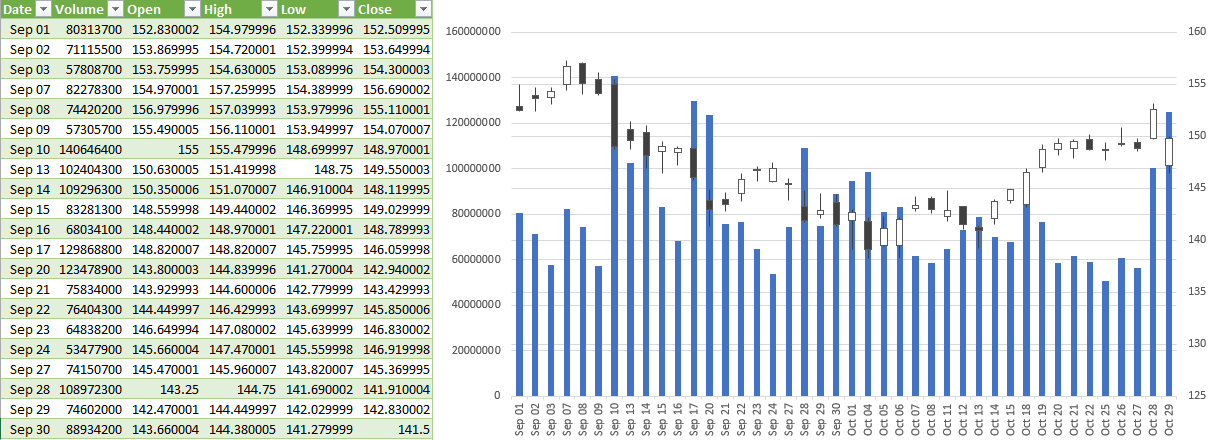
Now, re-loading the data into Excel automatically updates my chart with a simple refresh:

The volume open high low close chart in Excel using a broader date range.

The beauty of this is this query will update with new data and your chart will also update, taking out the manual steps of having to make any changes yourself. And if you incorporate named ranges like in my post covering pulling stock prices, then the data will easily refresh based on the variables that you’ve entered.


If you liked this post on How to Create Stock Charts in Excel Using Power Query, please give this site a like on Facebook and also be sure to check out some of the many templates that we have available for download. You can also follow us on Twitter and YouTube.
H2Eforecastrange

How to Make a Forecast Chart Showing a Range of Possible Values

In a previous post, I showed how to make a forecast chart in Excel with a dotted line. This time around, I’m going to go one step further and show you how to create a chart that shows a range of possible values. This is useful in the event that you want to show some flexibility in your forecast and where providing a range might be a more realistic option.

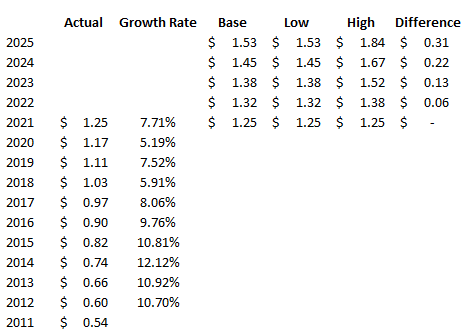
For this example, I’m going to project a company’s future dividend payment. Below, I have a a record of the past dividend payments along with the annual rate of increase:

Historical dividend payments along with their annual growth rates.

In order to create a range, I’m going to set both a high rate of growth and a low one. Since the company has made 10% increases in the past, I’m going to use that as the high. And for the low rate of growth, that will be 5%. Using those different rates, I can set up additional columns for what the dividend would be if the low rate were used and if the high one were applied. I will also create a column to calculate the difference between the high and low amounts, as well as one for a base amount — which will just be equal to the low amount. This will be used for stacking the difference on top of it to create the desired area chart:

Historical and projected dividend rates.

Creating the chart

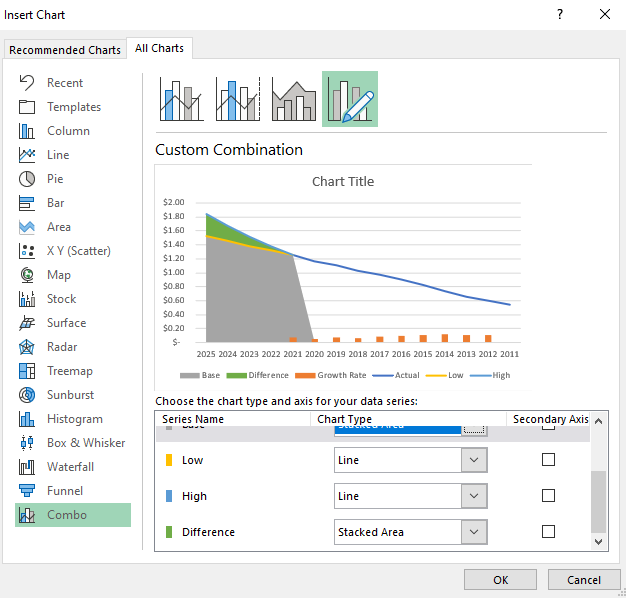
Now that the data is set up, I’m going to start creating the chart. Using a combination approach, I’ll set a line chart for the actual, low, and high columns. And for the base and difference amounts, I will set those to be stacked area charts. The growth rate I’ll leave as is because I will remove that once the chart is created:

Using a combo chart for line and stacked area charts.

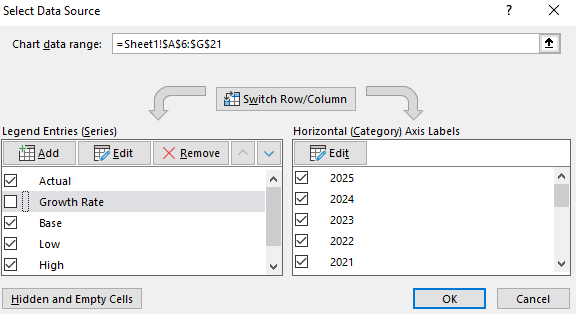
Next, I’ll right-click on the chart and click on Select Data. From the next screen, I will untick the box for the Growth Rate:

Removing a series from an Excel chart.

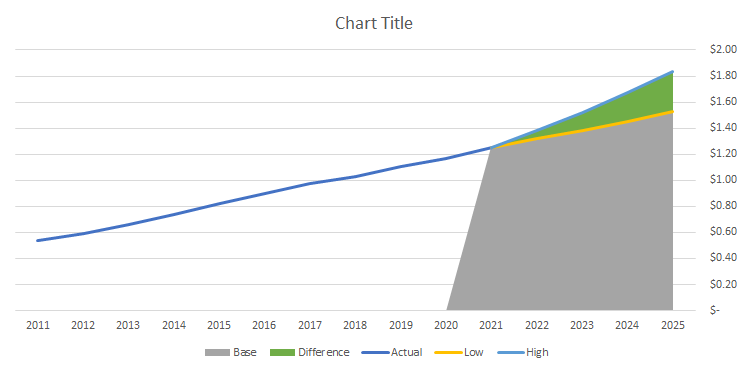
Then, I will right-click on the x-axis, select Format Axis and select the option to put Categories in reverse order. Now my chart looks as follows:

Forecast chart showing line and stacked area charts.

Now, I’ll remove the legend and format the base color, which is currently grey, to a blank fill color:

Forecast chart showing line and stacked area charts.

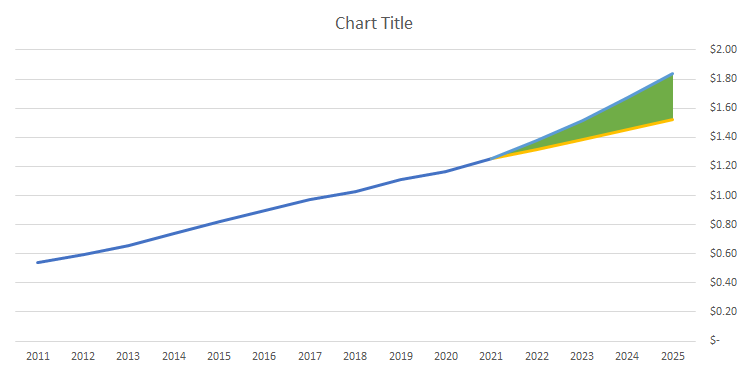
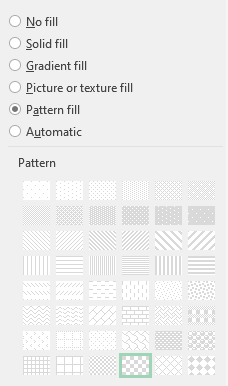
I’ll change the line color for the high amount to green, the low amount to red, and apply dashed lines to both. For the actuals, I’ll set that to a black line. And for the area chart that is in green right now, I will apply a Pattern Fill and use a checkered pattern:

Using a checkered pattern fill for a stacked area chart.

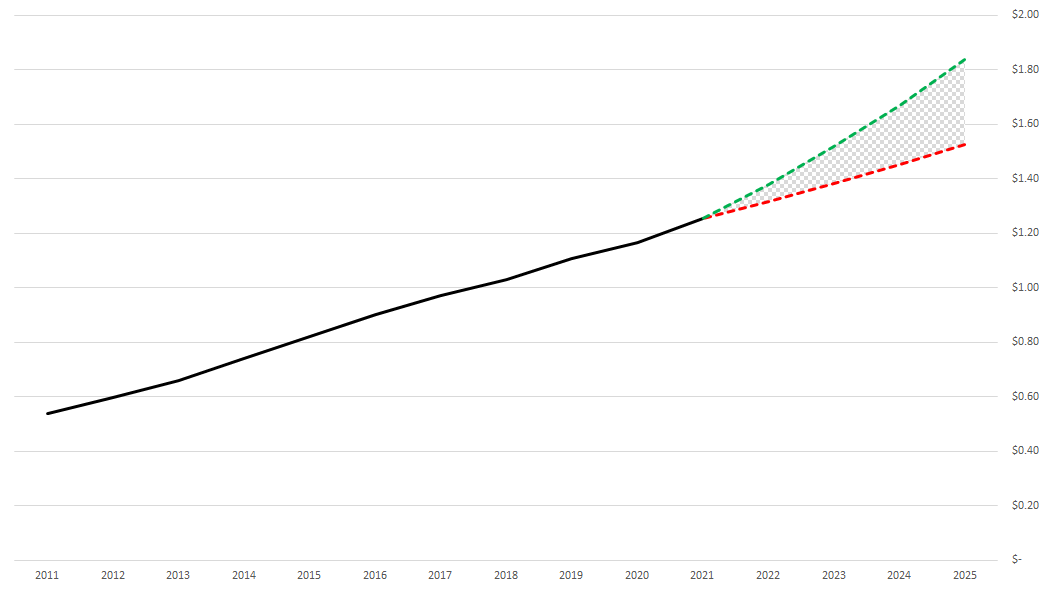
With all those changes, my updated forecast chart now looks like this:

Finished forecasted line chart showing a pattern fill area for the range of possible values.

If you liked this post on How to Make a Forecast Chart in Excel With a Dotted Line, please give this site a like on Facebook and also be sure to check out some of the many templates that we have available for download. You can also follow us on Twitter and YouTube.
H2EForecastChart

How to Make a Forecast Chart in Excel With a Dotted Line

Charts are an effective tool in forecasting. In this post, I’ll show you can show you can make an actual and forecast chart in Excel look like one continuous line chart, with the forecasted numbers being shown on a dotted line.

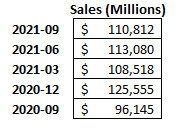
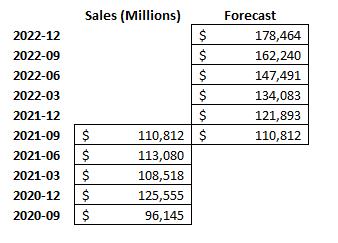
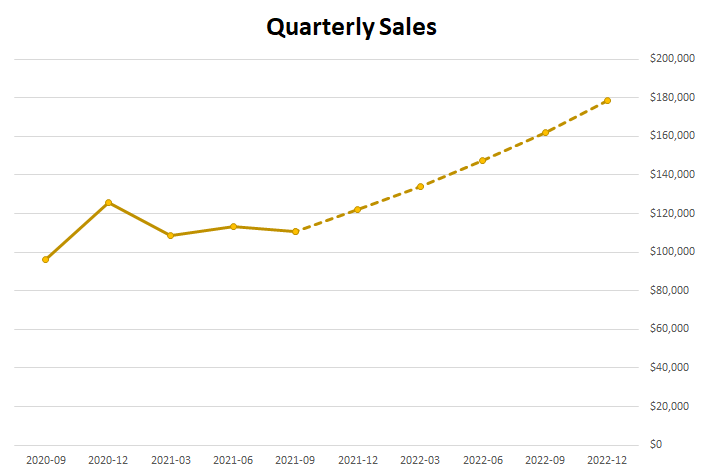
For this example, I’m going to use Amazon’s recent quarterly sales as my starting point:

Amazon's quarterly sales.

I’m going to create another column for forecasted amounts for future quarters. I’ll make a simple forecast and assume that sales will increase by 10% every quarter:

Amazon's quarterly sales alongside a forecast.

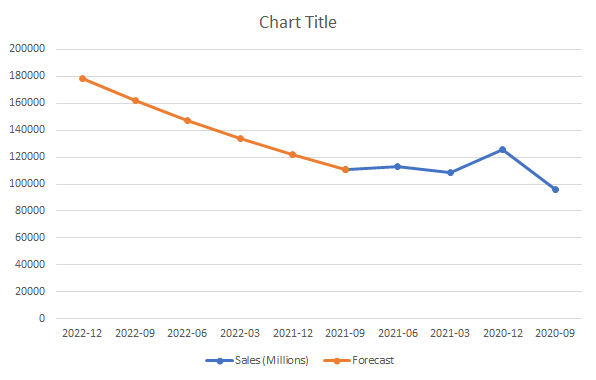
For the last quarter (2021-09), I’m including the same total in the Forecast column. This is to ensure that the new line chart picks up where the last one ends and that there isn’t a gap. Then, I’ll create a line chart for these data points, which, by default, looks like this:

Two line charts showing actual and forecasted amounts.

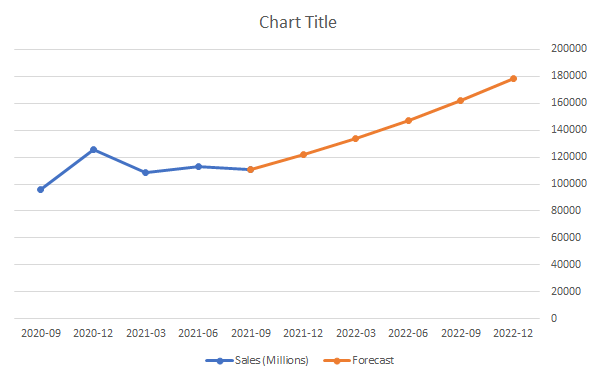
I’m going to flip this chart in reverse order so that the forecasted values are on the right. To do this, right-click on the x-axis and select Format Axis. Then, check off the box that says Categories in reverse order:

Categories in reverse order setting on Excel.

Now, at least my chart is going in the right direction (an alternative could be to structure your data in the opposite direction):

Two line charts showing actual and forecasted amounts with categories reversed.

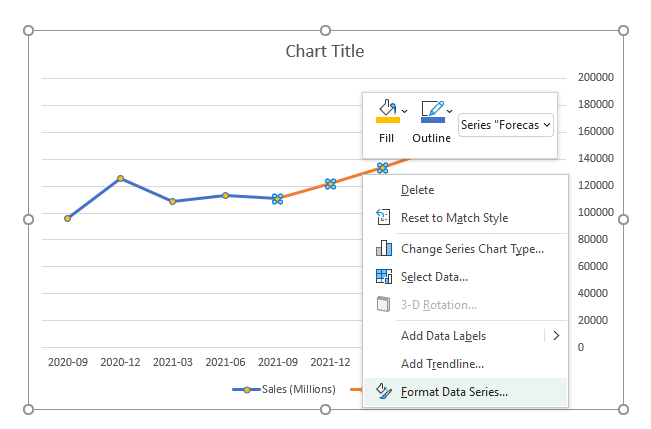
Because of the change in colors, this makes it easy to differentiate my actuals from my forecast. But I want it to be all the same color and only be differentiated by dotted lines. To do this, I will right-click on the forecasted line and select Format Data Series:

Formatting the data series on a line chart.

There will be an option to change the Dash type. The default is solid, and I’m going to change that to the second option from the top — Square Dot. After changing that and making the colors the same, and applying some formatting, here’s what my chart looks like:

Line chart showing Amazon quarterly sales with forecasted amounts as dashes.

If you liked this post on How to Make a Forecast Chart in Excel With a Dotted Line, please give this site a like on Facebook and also be sure to check out some of the many templates that we have available for download. You can also follow us on Twitter and YouTube.
mark-g9a0a06435_1280

5 Top Canadian Dividend Stocks to Buy for November 2021

Excel can be a useful tool in helping you make investment decisions. And in this post, I’ll use it to show you five excellent dividend stocks that you can buy on the Toronto Stock Exchange (TSX) that can help generate some strong recurring income for your portfolio for many years. Dividend stocks are great options to put into a tax-free savings account (TFSA), where you can earn recurring income without incurring taxes.

1. Fortis (TSX:FTS)(NYSE:FTS)

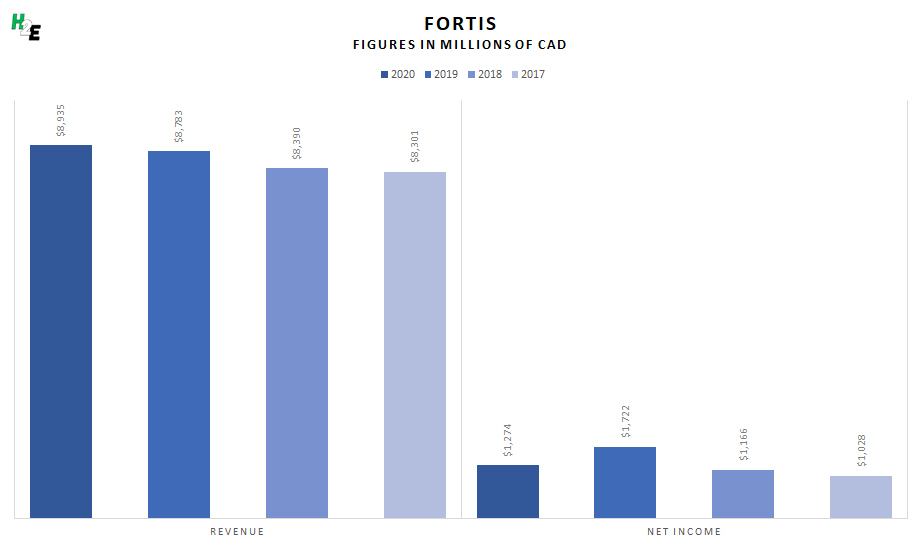
Fortis is a top utility company in Canada that also has operations in other countries. What’s great about the utility business is that it generates lots of recurring income; Fortis doesn’t need to constantly seek out customers to sell its services to, they are essential for millions of families. A great example of that consistency can be seen through its revenue and profit over the years:

Fortis revenue and profit history for the past four years.

You can see that even amid the pandemic, Fortis’ revenue actually increased. And its profits were in line with previous years. That’s a big part of the reason why the company can afford to not just consistently pay a dividend but also grow it over the years. As the business grows and expands to its operations, the company will have a greater pool of customers to collect revenue from.

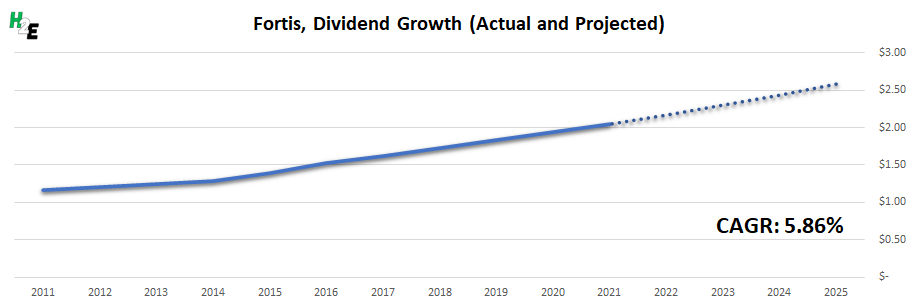
From an annual dividend payment of $1.16 in 2010, Fortis has increased its payouts to $2.05 in 2021. That averages out to a compounded annual growth rate (CAGR) of 5.86%. If Fortis were to continue raising its dividend by that rate, then by 2025, it will be paying an estimated $2.58 per share:

Fortis projected dividend growth.

What does that mean for an investor? If you invest in Fortis today, the stock pays a yield of approximately 3.9%. So on a $10,000 investment, you would be collecting roughly $390 in dividends for the year (based on the company’s current quarterly payment of $0.535). But by 2025, if the dividend is up to $2.58 per share, then you would be collecting $469 annually. That would mean you’re earning just under 4.7% in dividends on your initial investment of $10,000.

2. Canadian Utilities Limited (TSX:CU)

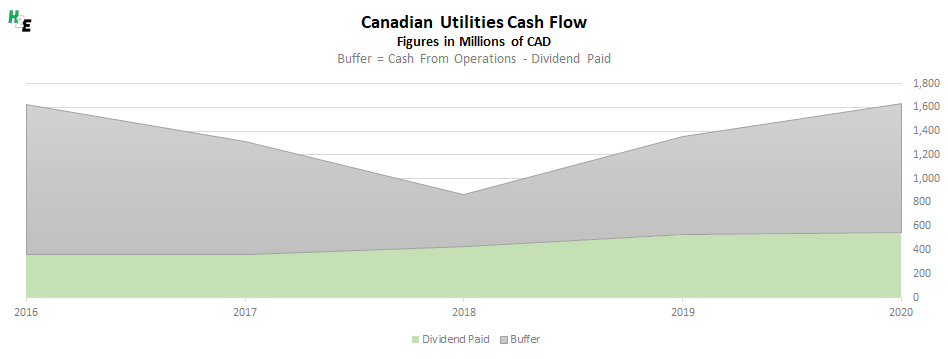
Another utility stock that’s on this list is Canadian Utilities. Like Fortis, this is another solid company that regularly posts strong numbers. This time, I’ll use the company’s cash flow to illustrate why Canadian Utilities is a reliable dividend-paying investment. Cash flow is arguably more important than just accounting income since it only involves cash and excludes expenses such as amortization.

Canadian Utilities cash flow analysis.

Over the years, Canadian Utilities has generally had a safe buffer between what it has brought in from its day-to-day operations and the amount of dividends it has paid out to its shareholders. This is important because it confirms, regardless of what accounting income says, the business is in good shape to continue making dividend payments.

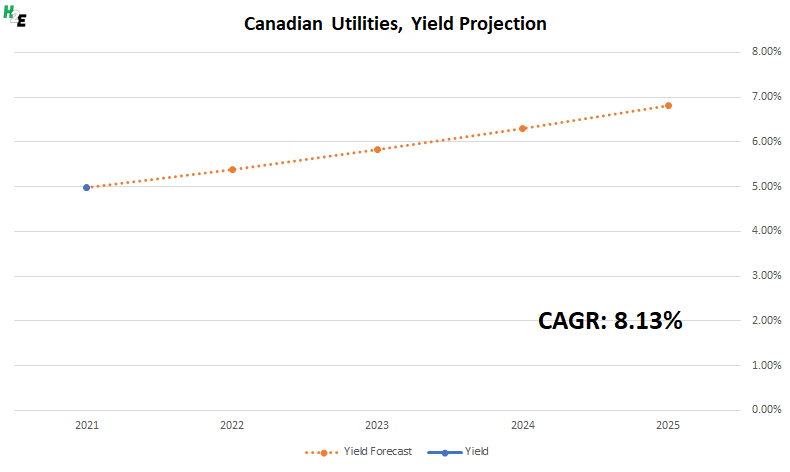
Like Fortis, Canadian Utilities has been one of the most reliable dividend growth stocks in Canada. From annual dividend payments of $0.81 in 2011, they have more than doubled to $1.76 today, averaging a CAGR of 8.13% during that time. For investors, that means the impressive 5% dividend yield today could eventually lead to you collecting more than 6.8% of your investment in dividends by 2025:
Canadian Utilities dividend yield projection.
3. Canadian Imperial Bank of Commerce (TSX:CM)(NYSE:CM)

One type of dividend stock that’s always a popular option for income investors is a bank stock. These are businesses that print money and make terrific margins simply because the rate they charge loans out is higher than what they pay depositors. And the higher the interest rate is, the more of an opportunity there is for them to profit from more of a spread. That’s why with interest rates potentially on the rise as early as next year, CIBC and other bank stocks could be in for great years.

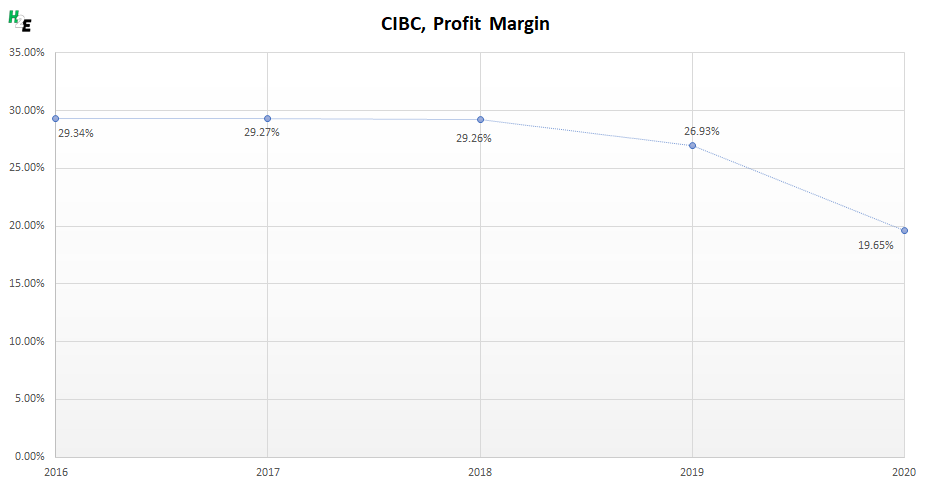
A simple way to illustrate the company’s strength is through its profit margins. Here’s how it has fared over the years:

CIBC historical profit margin.

Prior to the pandemic, the bank was consistently generating margins of around 27% to 29%. With the drop in interest rates in 2020 plus greater credit reserves needed to prepare for a potentially gloomier period amid the pandemic, the bank’s margins have suffered. But in the future, these margins should recover back to their pre-pandemic highs.

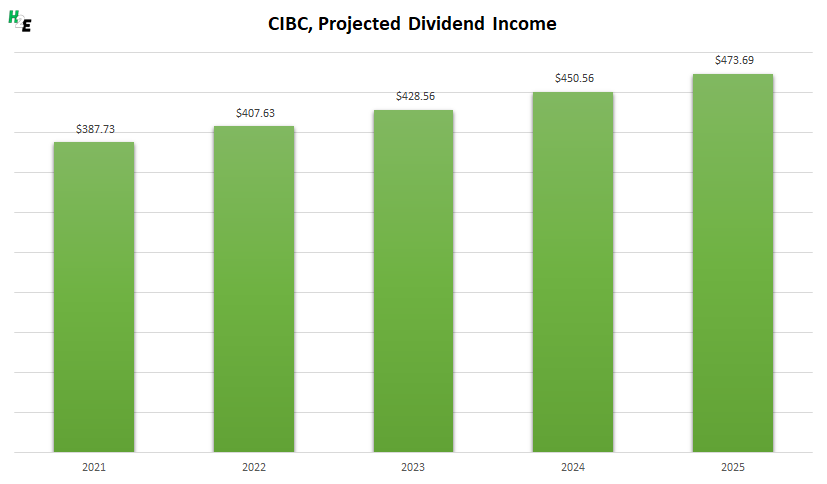
CIBC hasn’t raised its dividend since early 2020 but now that the bank’s profitability should improve, it’s likely that it will resume making more regular increases to its payouts. At close to 4%, the yield is reasonably high and over the past decade, CIBC has increased its dividend by a CAGR of 5.1% — that’s even with factoring in the recent slowdown. If the bank were to raise its dividend at that rate moving forward, here’s how much recurring income you could expect to collect:

CIBC projected dividend income on a $10,000 investment.

4. Enbridge (TSX:ENB)(NYSE:ENB)

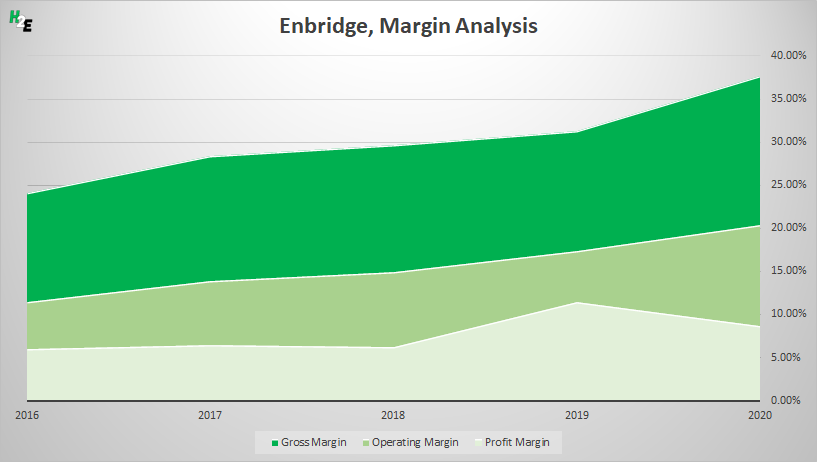
The highest-yielding stock on this list is pipeline giant Enbridge, paying its investors 6.3%. Although conditions in the oil and gas industry haven’t been great in recent years as low oil prices have squeezed profits for businesses, Enbridge has become more efficient and has benefitted from stronger margins:

Margin analysis for Enbridge.

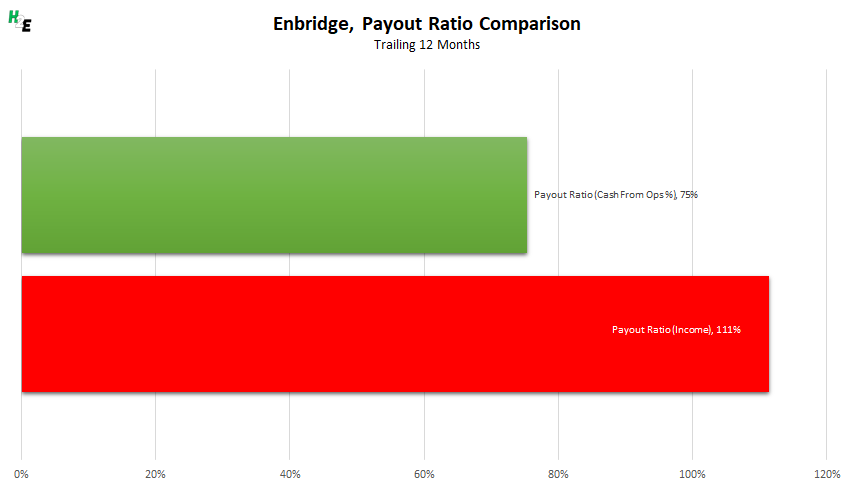
Enbridge is an example where looking simply at net income could give you a distorted picture of the company’s ability to pay a dividend. With high fixed costs and depreciation expenses, a look at its payout ratio as a percentage of net income can be very misleading. Over the trailing 12 months, here’s how Enbridge’s payout ratio looks like when you are comparing it as a percentage of net income and as a percentage of operating cash flow:

Enbridge payout ratio comparison.

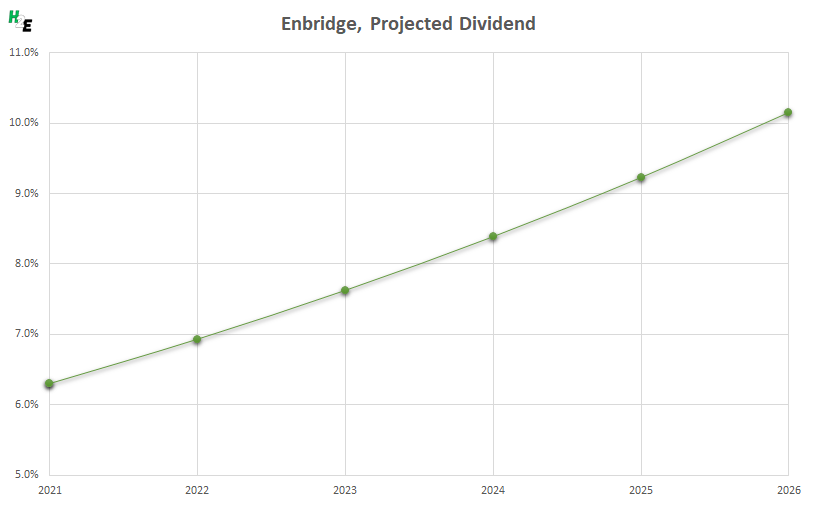
The company has increased its dividend by a CAGR of 10% over the past 26 years. If it were to continue to raise its dividend by that rate, then here’s how long it would take you to earn 10% on your original investment every year, just in dividends:

Enbridge projected dividend.

5. Telus (TSX:T)(NYSE:TU)

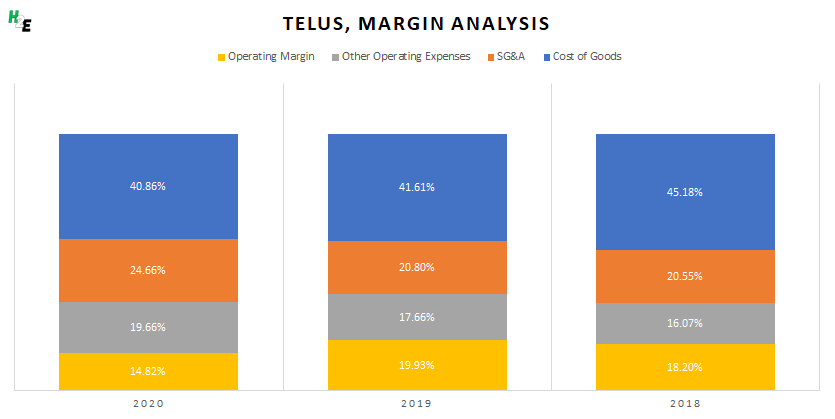
Telecom giant Telus is another safe dividend stock for Canadian investors. The business generates solid gross margins of around 60% of revenue and without significant expenses elsewhere, the company normally nets operating margins of 15% or better. Its strong position in the industry makes it likely that these percentages likely won’t change significantly in the future:

Margin analysis for Telus.

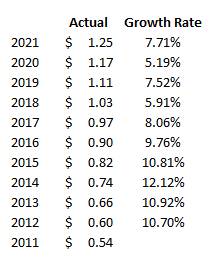
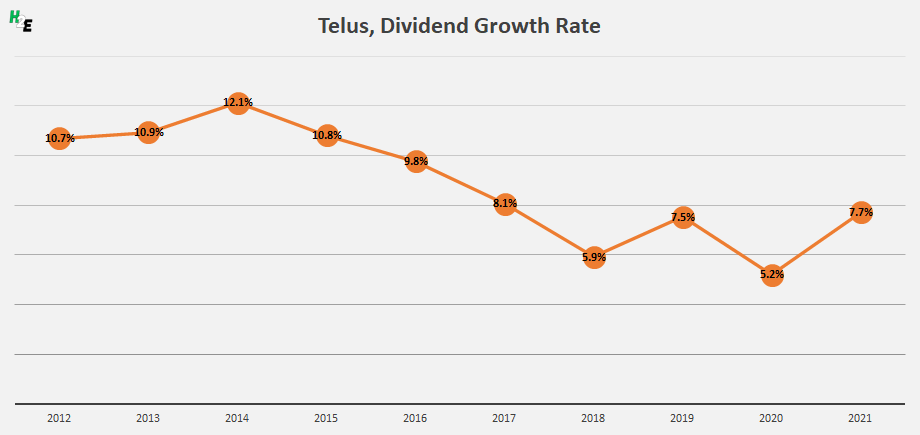
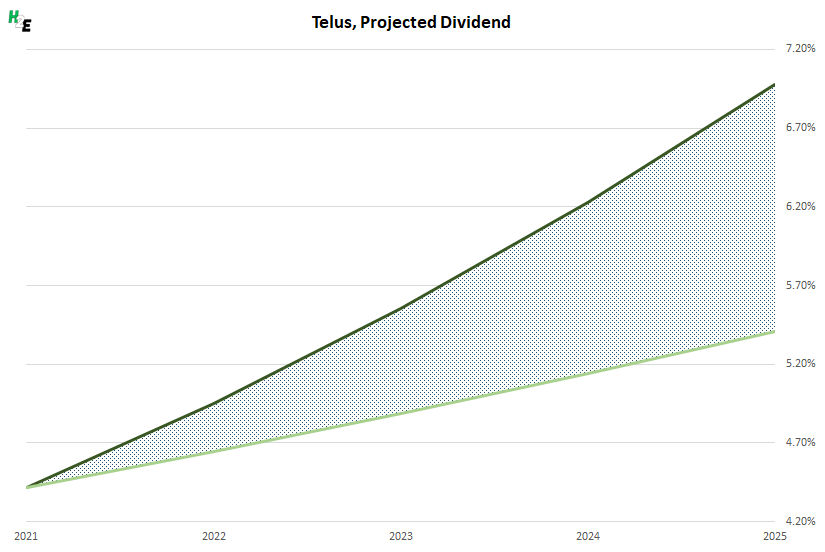
One of the challenges, with Telus, however, is in predicting the rate of dividend growth. Although it is a safe bet that it will continue raising its payouts, its growth rate has varied considerably in the past 10 years:

Telus historical dividend growth rate.

In some years, it has been as high as 12% while in others it has been barely above 5%. Today, the stock yields just over 4.4%, which is a fairly high payout. Here’s a look at how much you could be earning on your initial investment, given the possible variation in dividend growth rates:

Telus projected dividend.

In a best-case scenario, you could be earning more than 7% while under a more conservative estimate, you could be collecting approximately 5.4% by 2025.