SpillError

How to Fix #SPILL! Errors in Excel

If you’ve ever worked with dynamic arrays in Excel, you’ve probably come across the #SPILL! error. This error message may seem confusing at first, but it’s actually Excel’s way of telling you that there’s a problem with how it’s trying to display an array of results.

In this post, I’ll walk you through:

  • What causes the #SPILL! error
  • Common reasons you might see it
  • How to fix and prevent it

What Is the #SPILL! Error?

The #SPILL! error appears when a formula is trying to return multiple results, but Excel can’t display them all in the cells below or beside the formula. This happens when using dynamic array functions such as:

  • FILTER()
  • SORT()
  • SEQUENCE()
  • UNIQUE()
  • Or any formula that returns more than one value

For example:

=SEQUENCE(5)

This function is supposed to generate a column with 5 numbers (1 to 5). But if something is blocking the spill range, Excel will return a #SPILL! error instead. Consider the following example:
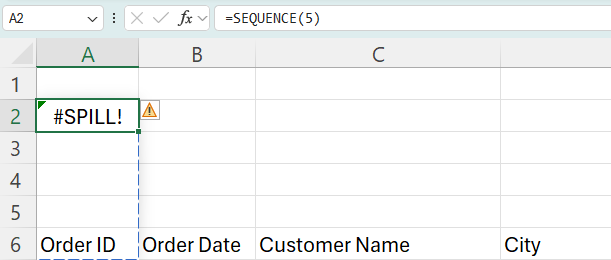
Spill error in Excel.

As you can see from the above image, there is a dashed line over the area that the formula wants to fill in. And one of those cells, A6, contains a value, which prevents the formula from entering a value there.

Common Reasons for #SPILL! Errors

Here are the most frequent causes for why you may encounter a #SPILL! error in Excel:

1. Blocked Spill Range

There’s data in one or more of the cells where the array wants to go. As in the example above, the formula can’t overwrite a value that’s already in a cell, and thus, it returns an error.

How to fix:
You can clear the cell(s) which are in the way of the array formula. Or, you can move your formula somewhere else in your file where it will have the room it needs for the results.

2. Merged Cells

Another issue that can arise is that even if one cell in the spill area is merged, Excel can’t write the array output.

How to fix:
You can either move your formula somewhere else, or else you’ll need to unmerge. To unmerge the cells in the spill range, first select them, and then follow these steps:
Home > Merge & Center > Unmerge Cells

3. Spill Range Goes Off the Sheet

If the array result is too large and extends beyond the edge of the worksheet, you’ll also get this error. In this case, you’ve probably made a mistake in your formula where you are returning too many rows or columns. In this situation, it’s probably a good thing that you’re getting an error, otherwise, you may end up with much more data than you anticipated, and that could slow down your spreadsheet.

How to fix:
Check if the result would go beyond column XFD or row 1,048,576. If so, reduce the size of your formula.


If you liked this post on How to Fix #SPILL! Errors in Excel, please give this site a like on Facebook and also be sure to check out some of the many templates that we have available for download. You can also follow me on Twitter and YouTube. Also, please consider buying me a coffee if you find my website helpful and would like to support it.
PivotTableDefaults

How to Change the Default Layout of Your Pivot Table in Excel

The default pivot table layout can oftentimes be suboptimal. The compact view doesn’t make it easy for analyzing data, especially when you have many fields. If you’re like me, one of the first things you probably do after creating a pivot table is to change the layout so it’s easier to view the data. The good news is you don’t have to keep repeating those steps. You can change the default so that when you create a pivot table, it’ll already have your desired settings applied. In this post, I’ll show you how to do that.

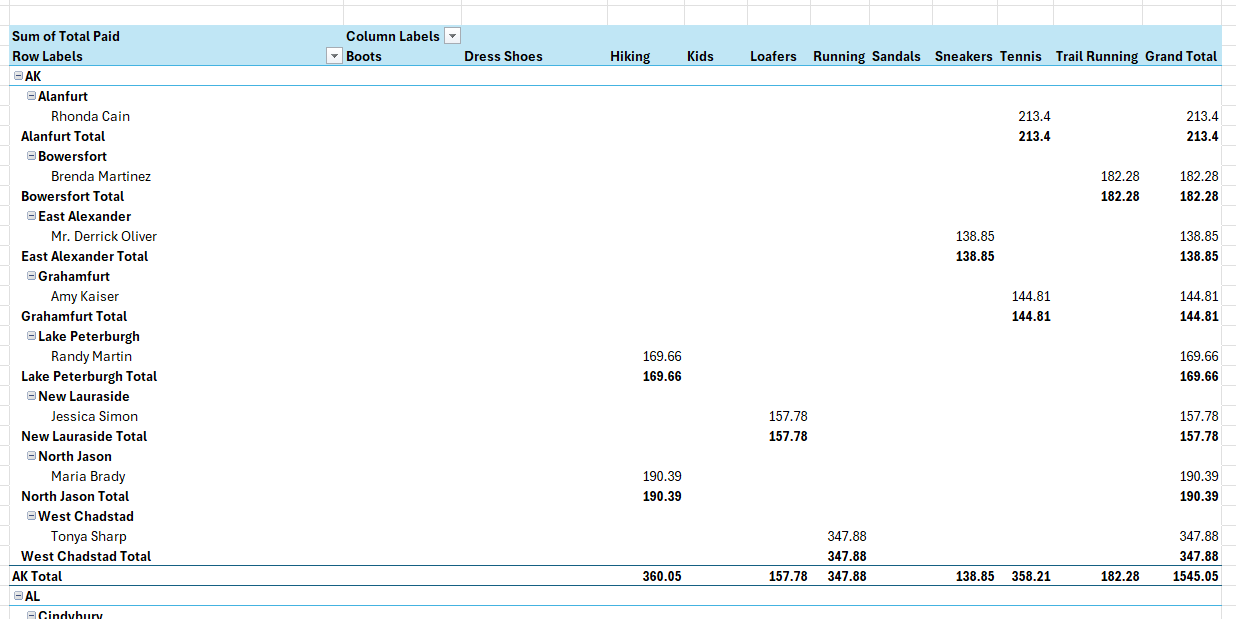
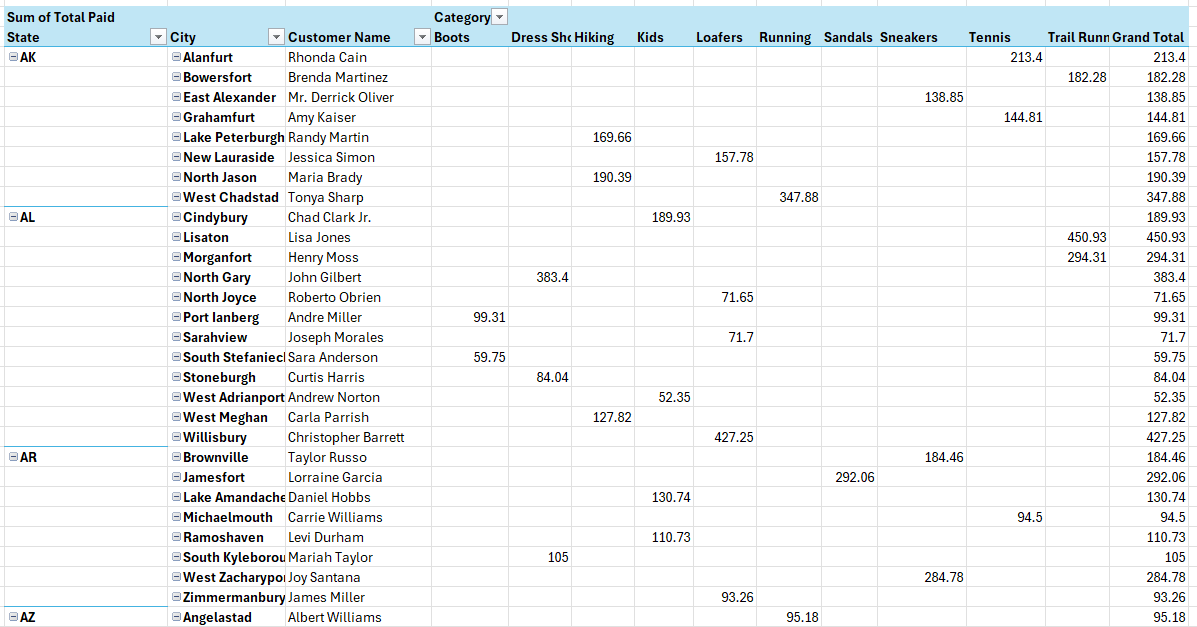
Here’s a sample pivot table, which shows you sales broken out by city, state, customer, and in this case, the type of product (shoe) sold:

A pivot table in compact form in Excel.

There are many things which are suboptimal here, including the following:

  • The compact format has put the customer, city, and state fields all in the same column.
  • There are many subtotals, which create repeating values in this data set and are unnecessary.

To start, I’ll make these changes manually and then save those options as my default.

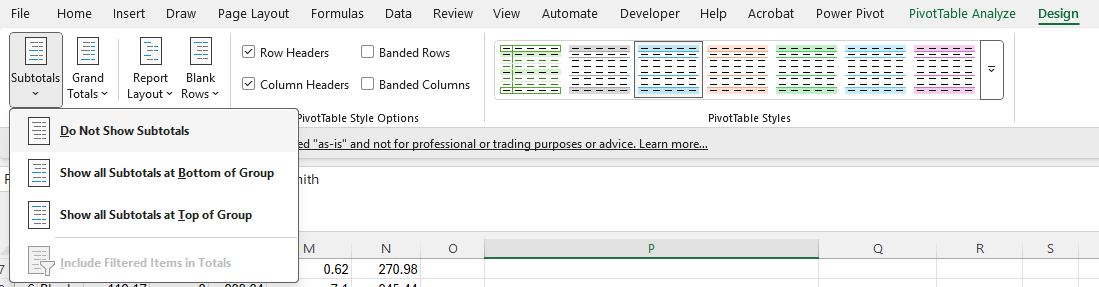
To turn off subtotals, I can go into the Design tab (the pivot table has to be selected for this to be visible) and under Subtotals, select the option to not show subtotals:

Turning off subtotals for a pivot table.

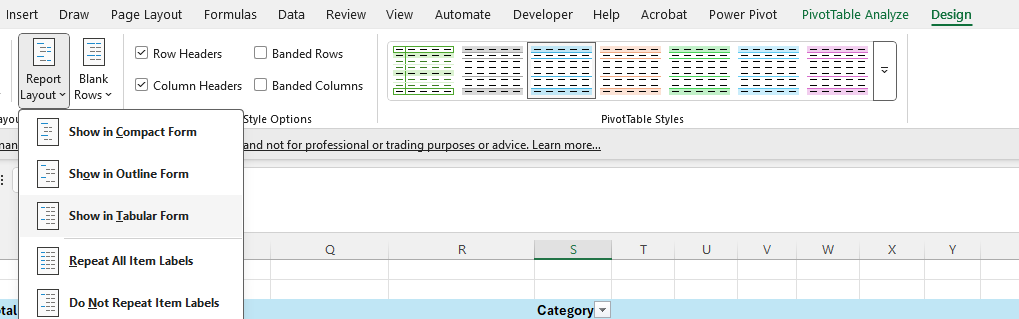
To change the layout from compact, I’ll stay in the Design tab and select Report Layout and choose Show in Tabular Form.

Selecting the tabular form for a pivot table.

This now produces the following pivot table:

Pivot table with subtotals off and in compact form.

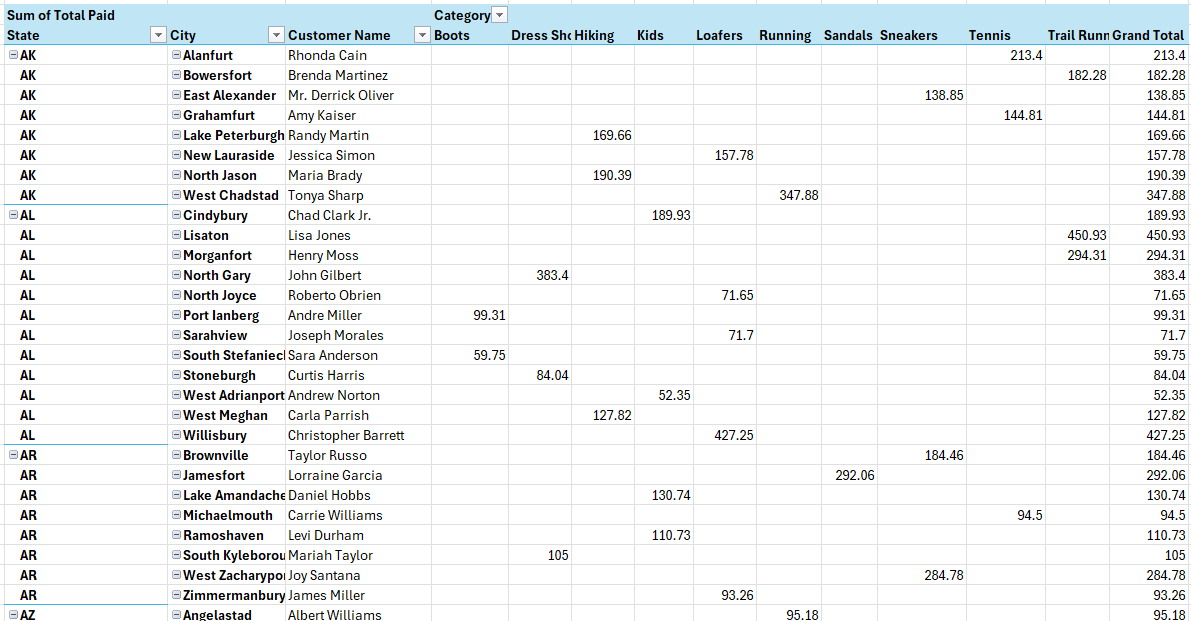
This, however, is still not ideal as the state values only appear once. Instead, I’d like to see the value repeating so that every line has every field filled in. This makes it ideal if you want to use any formulas that reference the pivot table. Back in the Report Layout section, there is an option to select Repeat All Item Labels. Upon doing this, now my pivot table is filled in for all possible fields:

Pivot table with subtotals off and in compact form and repeating items.

This is how I prefer to setup my pivot table. But rather than having to repeat the process each time, I can save these settings.

How to save your preferred pivot table layout as the default

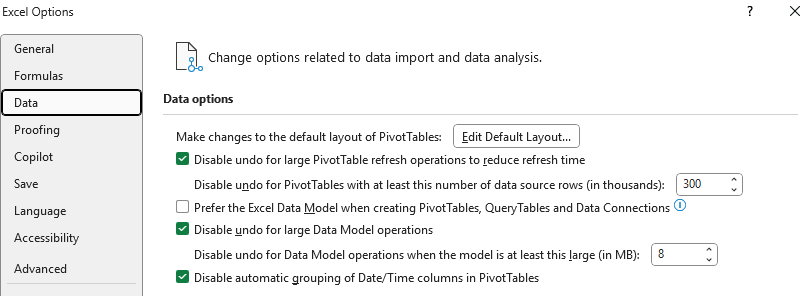
To save your preferred layout (after setting it up), go into the File tab and select Options at the bottom, which will open up the Excel Options. And if you navigate to the Data section, you will see the first option relates to the default layout of Pivot Tables — click the button to Edit Default Layout.

Changing the data settings under Excel Options.

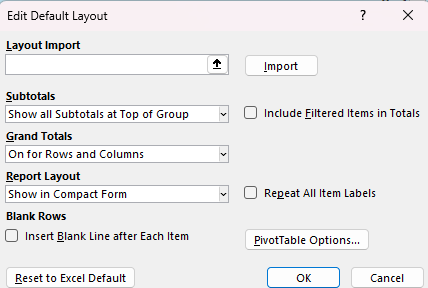
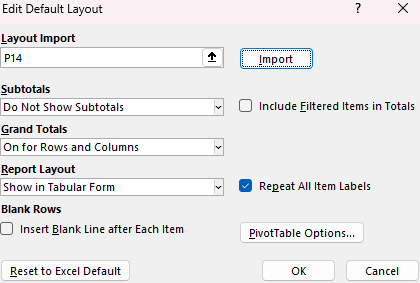
Next, you’ll find all the different options you can specify for your pivot table:

Default pivot table layout options in Excel.

You can specify these different settings for subtotals, grand totals, and labels. Or, what you can also do is import the layout. To do this, simply click on a cell in your pivot table, and then click on the Import button. In my example, cell P14 contains my pivot table:

Import a pivot table layout in Excel.

After clicking the Import button, the settings are automatically applied and updated:

Pivot table default layout in Excel after importing settings.

As you can see, it has applied the changes for me, without having to make the changes manually from the different boxes and drop downs. This can be helpful if you’ve already setup a pivot table the way you want, rather than determining which different settings you want to apply. When you click on OK, now your settings will be applied.

The next time you create a pivot table, these saved settings will be in place and you won’t have to change them again. These settings are saved to your computer and even if you open a new Excel file and create a new pivot table, they will take effect.


If you liked this post on How to Change the Default Layout of Your Pivot Table in Excel, please give this site a like on Facebook and also be sure to check out some of the many templates that we have available for download. You can also follow me on Twitter and YouTube. Also, please consider buying me a coffee if you find my website helpful and would like to support it.
PivotByFunction

How to Use the PIVOTBY Function in Excel

PIVOTBY is a relatively new function that Excel introduced in 2021. It is a dynamic, formula-based alternative to pivot tables. It’s part of Excel’s push toward more dynamic, flexible data analysis, especially for users who prefer formulas over the drag-and-drop interface of traditional PivotTables. In this article, I’ll walk you through what PIVOTBY does, how to use it, and provide some examples to help you master it.

What Does the PIVOTBY Function Do?

PIVOTBY summarizes data based on one or more grouping columns and returns an array with calculated values—similar to a pivot table, but directly inside a formula.

It allows you to group data by categories (like region, product, or date) and then apply an aggregation function (like SUM, AVERAGE, COUNT, etc.) on another column. Here are the main arguments for the function:

PIVOTBY(row_fields,col_fields,values,function,[field_headers],[row_total_depth],[row_sort_order],[col_total_depth],[col_sort_order],[filter_array],[relative_to])

Only the first four arguments are required:

  • row_fields: this the range which will be used to group rows.
  • col_fields: this is the range which will group the columns.
  • values: this is a range for the data which is to be aggregated.
  • function: this determines how the data should be aggregate (e.g. SUM, AVERAGE, COUNT)

How the PIVOTBY Function Works

Here’s a sample data set that I am going to use to illustrate how the PIVOTBY function works:

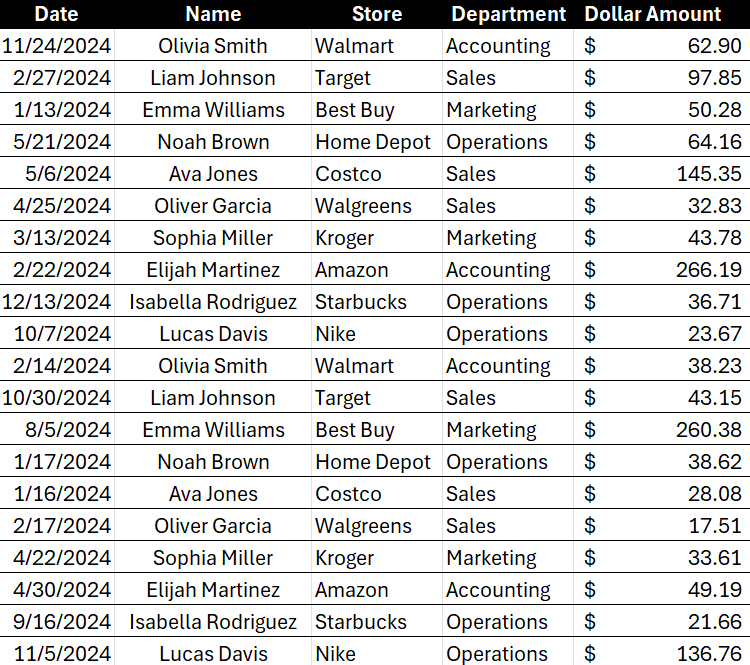
Excel table showing expenses by department and employee.

In the above table, dates are in column A, the name is in column B, followed by store in column C, department in column D, and amount in column E. Assuming my data is in a table called tblData, I can use the following syntax to create a pivot table showing sales by name and store:

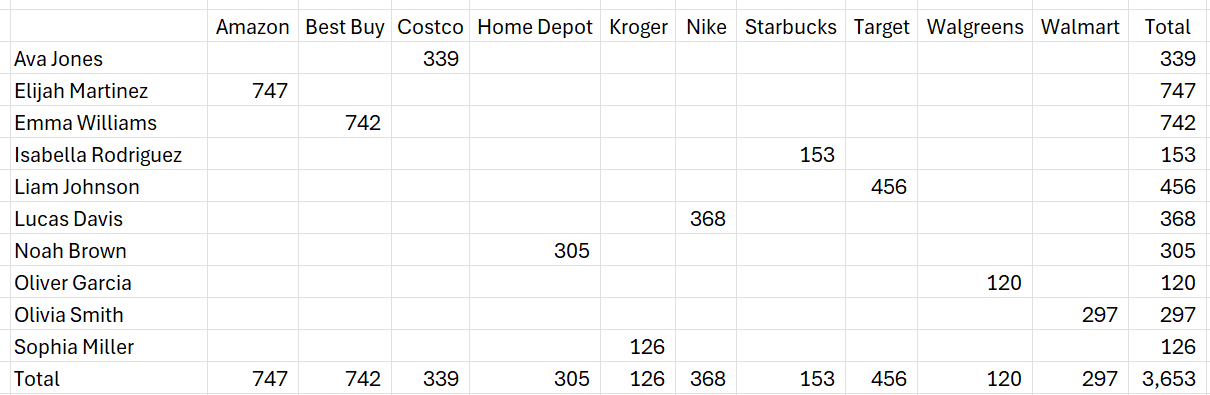
=PIVOTBY(tblData[Name],tblData[Store],tblData[Dollar Amount],SUM)

This produces the following values:

Summary of values generated in Excel using the PIVOTBY function.

If you want to turn off totals for the rows, then you can set the row_total_depth argument to 0, as is the case below:

=PIVOTBY(tblData[Name],tblData[Store],tblData[Dollar Amount],SUM,,0)

And if you want both column and row totals off:

=PIVOTBY(tblData[Name],tblData[Store],tblData[Dollar Amount],SUM,,0,,0)

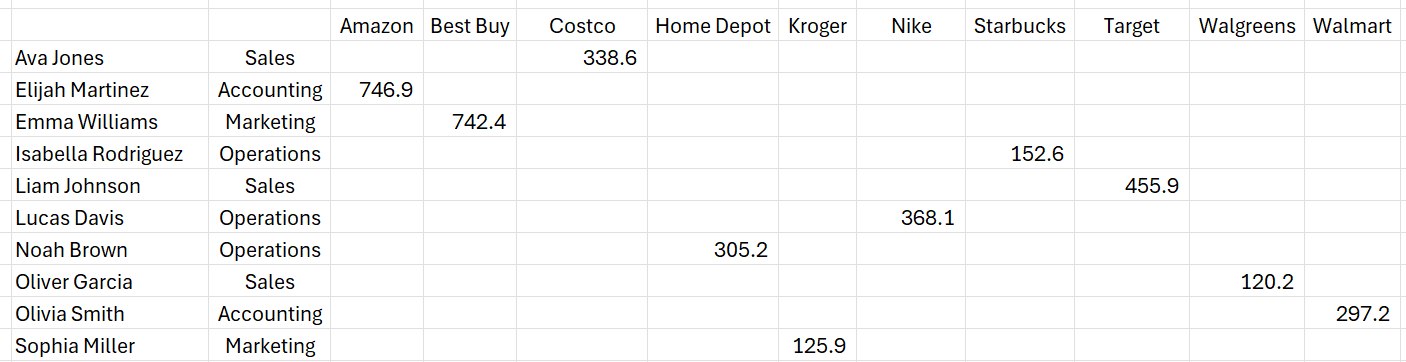
You can also pull in multiple columns or rows with the help of the CHOOSE function. Suppose you wanted to pull in both the name and the department a person is from. Here’s how you can accomplish that, while also removing totals:

=PIVOTBY(CHOOSE({1,2},tblData[Name],tblData[Department]),tblData[Store],tblData[Dollar Amount],SUM,,0,,0)

This produces the following report:

Pivotby report showing expenses by employee, department, and store.

The benefit of this setup is that since this is a spill function, it will automatically update and populate the data and no refresh is necessary. There are, however, downsides to consider:

  • If there is not enough space for the pivot table, you will encounter a #SPILL! error.
  • Unlike a conventional pivot table, you can’t drill down to see the details
  • This won’t work on versions of Excel prior to 2021.

If you just want an easy way to summarize your data without the need for drilling down, then the PIVOTBY function can work well and be a suitable replacement for a normal pivot table. For more of a comparison between the function your typical pivot table, check out this video:


If you liked this post on How to Use the PivotBy Function in Excel, please give this site a like on Facebook and also be sure to check out some of the many templates that we have available for download. You can also follow me on Twitter and YouTube. Also, please consider buying me a coffee if you find my website helpful and would like to support it.
MultipleSheetsPivotTable

How to Make a Pivot Table From Multiple Sheets in Excel (Step-by-Step Guide)

Creating a Pivot Table is one of the fastest ways to summarize large amounts of data in Excel. But if your data is spread across multiple sheets, it can seem a little overwhelming. The good news is: you don’t have to manually copy everything into one sheet. You can easily combine multiple sheets into a single Pivot Table.

In this Excel tutorial, I’ll walk you through how to make a Pivot Table from multiple sheets, step-by-step, with the help of Power Query. If you want to follow along, download the practice file here.

Loading the data into Power Query

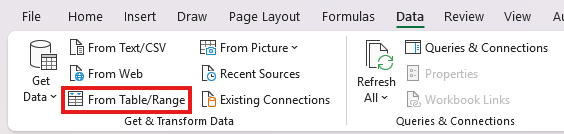
You will need to have your data setup in tables in order to combine all of it. However, you can do that all at once. Go through each tab and select your data, and under the Data tab, click on the option to get data From Table/Range:

Selecting from table/range when getting data into Power Query.

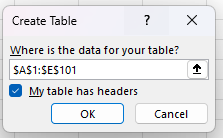
Excel will automatically detect your range. You can adjust if need be, otherwise, you just need to confirm whether it contains headers (which it should to avoid issues later on):

Creating a table before loading it into Power Query.

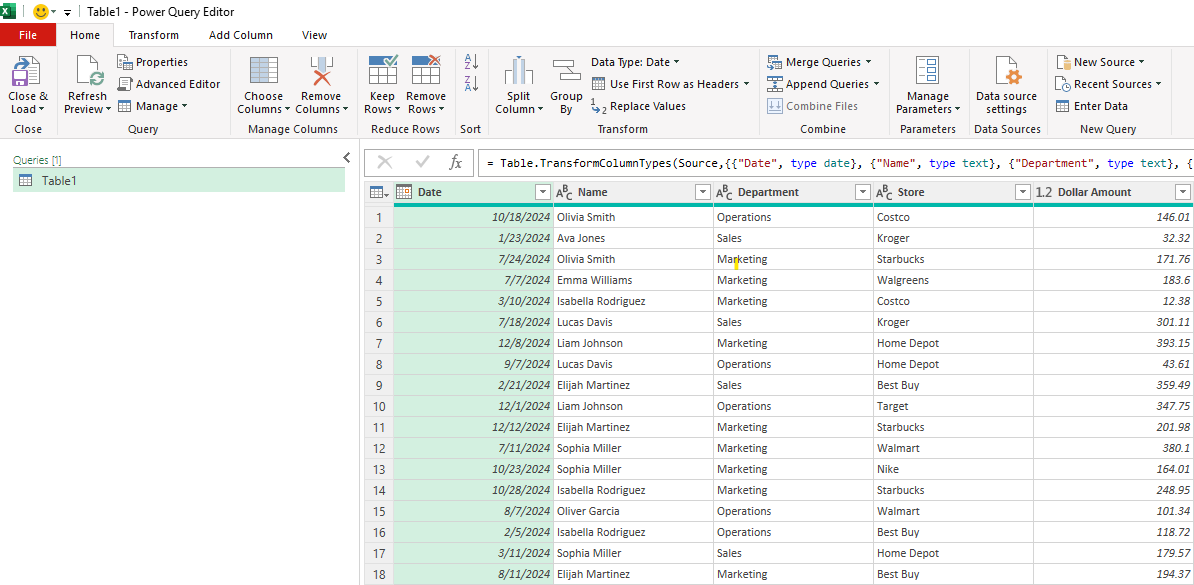
This now opens up Power Query, where your data is now visible:

A table loaded into Power Query.

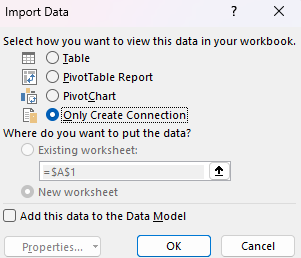
On the Home tab, select the option for Close & Load and select Close & Load To and choose Only Create Connection.

Creating a connection to the data only in Power Query.

This ensures the data is added into Power Query but it does not create a new tab. Repeat these steps for the other tabs.

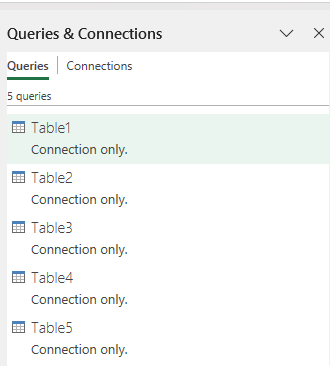
If you forget to select the option to only create a connection, then you can just delete the tab that is created afterwards; the result is the same — only a connection will be created. After loading five tables in this practice file and creating the connections, you should see the following queries under the Queries & Connections pane on the right-hand side (this should automatically display when you first add a table to Power Query).

The queries & connections pane showing multiple connections in Power Query.

With the data loaded, now let’s go into Power Query by right-clicking on any of these connections and selecting Edit.

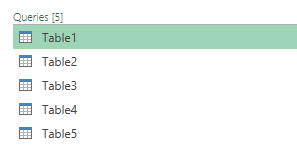
In Power Query, on the left-hand side, you can edit the table names so that you know what they relate to:

Table names listed in Power Query.

By right-clicking on the table names, you can change them. I’ve renamed them so that it is clear which regions they relate to:

  • Table1: Northwest
  • Table2: Northeast
  • Table3: Southwest
  • Table4: Southeast
  • Table5: Central

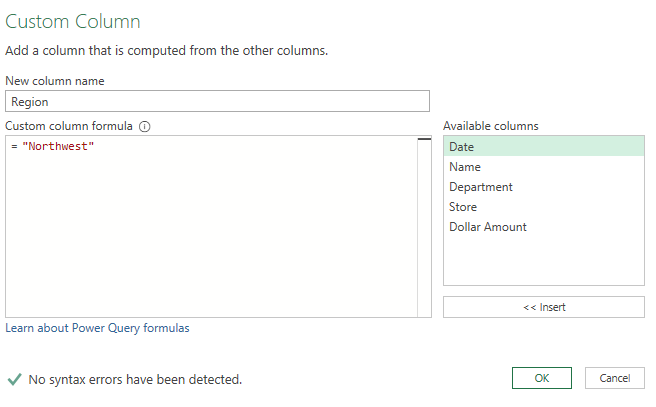
In each table, I’m also going to add a field called Region, where I will list the names of those tables. By going into the Add Column tab and selecting Custom Column, I can enter in the new column name as well as the value. This is the custom column I’m creating for the Northwest table:

Creating a custom column in Power Query to match the table name.

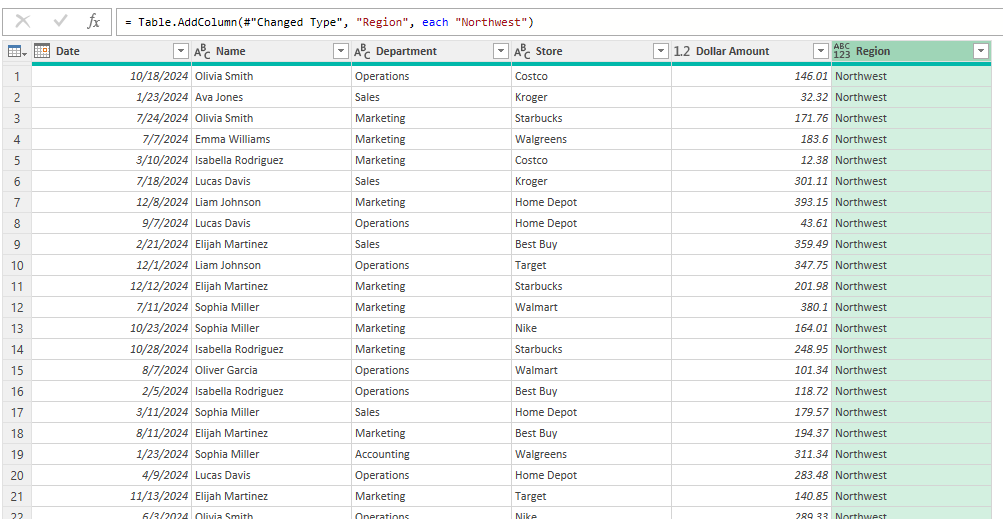
After creating the column, this is what the updated table looks like:

Power Query table with the region field added.

Repeat these steps for the other tables, entering their specific regions for the Region field. In order to ensure the data is consolidated correctly, you’ll want to ensure that the field names are the same.

Appending the queries together

With all the data in Power Query, we can append the queries together, to create one large table. To do this, go to the Home tab and select the Append Queries as New option, which will create an entirely new query:

Appending queries in Power Query.

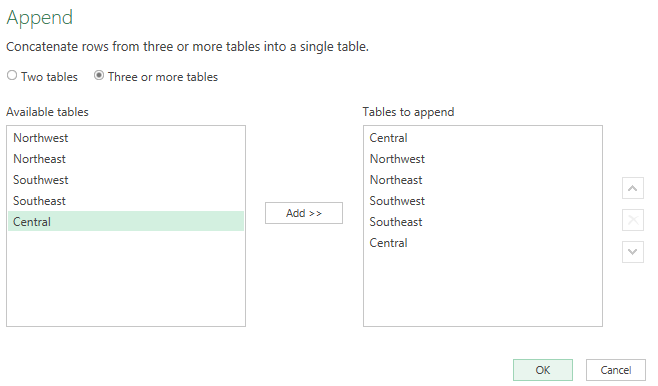
Select the option to append three or more tables and select all of them and then click OK:

Appending multiple tables in Power Query.

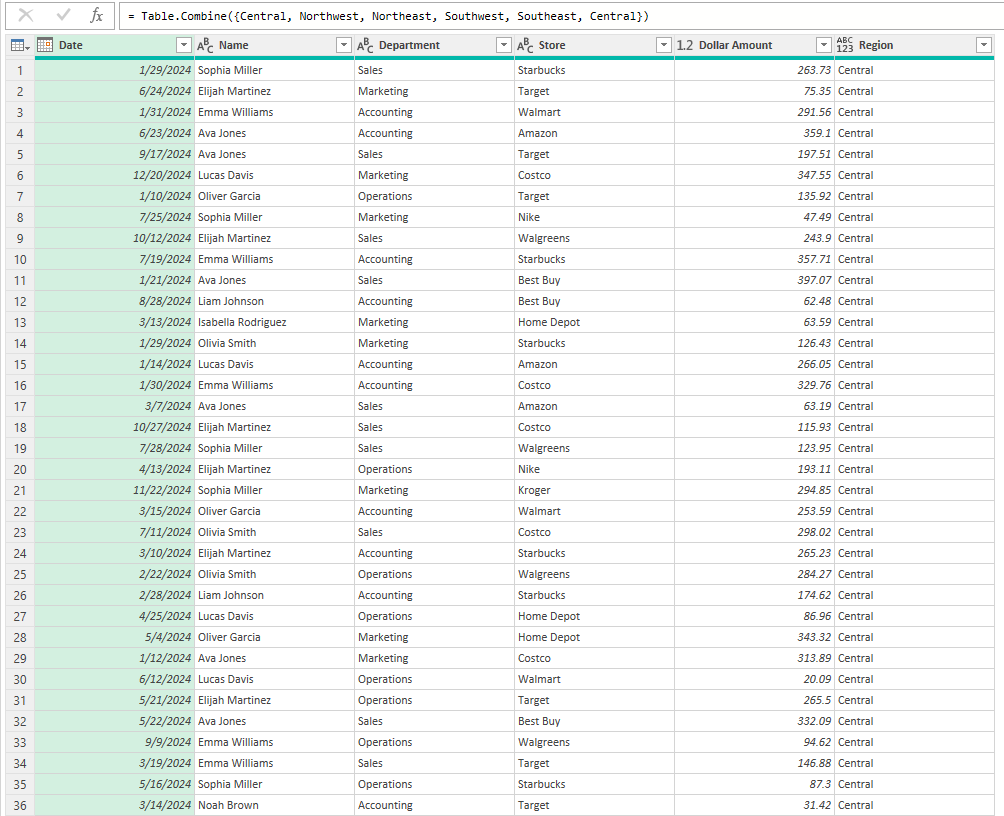
Now, all the tables are appended into one query:

Appended table in Power Query.

Now, this appended table can be loaded into Excel. In this instance, you don’t want to create just a connection but instead download the entire table into Excel.

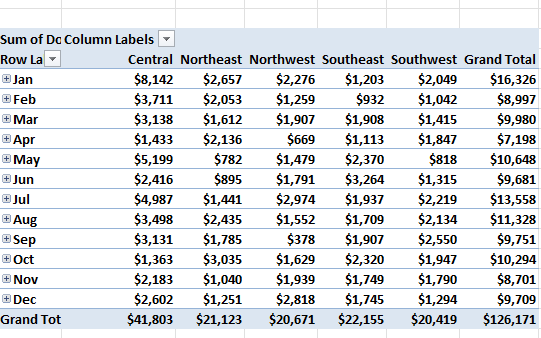
This table can now be used to create a Pivot Table as you normally would, through the Insert -> Pivot Table option. And now, when creating your pivot table, you’ll see the values from all regions combined. You can now slice the data based on region and month, and whatever other fields are in the data set.

Pivot table with data from multiple sheets.

If you enter more data and want to update your pivot table, what you first need to do is go to the Data tab and click on Refresh All. This will refresh your queries. You will also need to do another refresh to ensure that the pivot table updates after that. This can be done by just right-clicking on the pivot table and clicking refresh rather than doing Refresh All again, which will also update the queries and may be more time consuming.


If you liked this post on How to Make a Pivot Table From Multiple Sheets in Excel (Step-by-Step Guide), please give this site a like on Facebook and also be sure to check out some of the many templates that we have available for download. You can also follow me on Twitter and YouTube. Also, please consider buying me a coffee if you find my website helpful and would like to support it.
TRIMMEAN Function

How to Use the TRIMMEAN Function in Excel

What is the TRIMMEAN function?

The TRIMMEAN function has been available on Excel since the 2016 version. What it does is return the mean (average) of your data set, but it excludes a portion of your data. This can be useful if you want to exclude outliers and data that may not be typical. Small and large numbers can sometimes skew a data set and while you could use the MEDIAN function to get the middle value, you may also prefer to just exclude the highest and lowest values.

It offers another way to calculate an average, which may be more representative than the MEDIAN. What you may want to consider is using the function alongside the MEDIAN and AVERAGE functions, to see just how much of a disparity there is in your data set.

How the TRIMMEAN function works

The TRIMMEAN function has just two required arguments: array and percent. The first argument is the array of numbers you want to calculate for the average. The second argument is where you specify the percentage of outliers you want to exclude. If you have 10 data points and enter 0.2 for 20%, that would eliminate 2 data points — 1 from the top and 1 from the bottom.

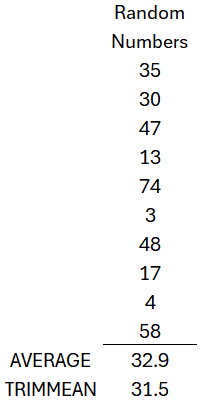
In the below example, I have a list of 10 random numbers between 1 and 100:

A list of 10 random numbers in Excel, showing the results of the AVERAGE and TRIMMEAN function.

Using the AVERAGE function, it calculates a value of 32.9 as the average. But if I apply the TRIMMEAN function as specified above, where I exclude 20% of the values, then the value I get is 31.5. Here’s how that is calculated:

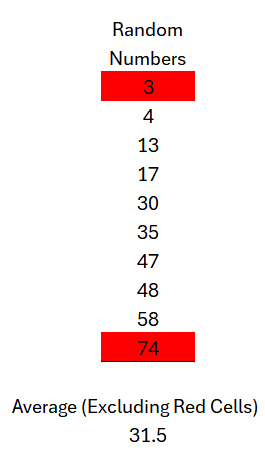
Random numbers averaged in Excel when excluding the largest and smallest values.

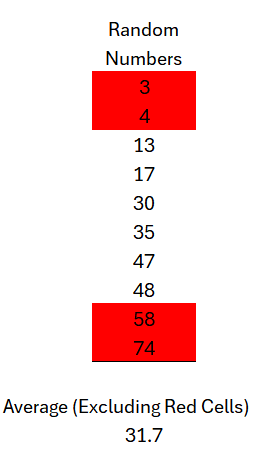
If you sort the data and exclude the largest and smallest number, the rest will average out to 31.5. If I were to change my percentage argument to 0.4 and 4 numbers are excluded, the top 2 and bottom 2 numbers will be excluded:

Random numbers averaged in Excel when excluding the largest and smallest values.

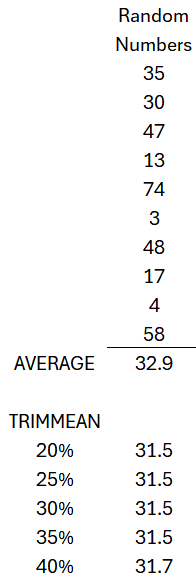
But what if the percentage you specify doesn’t result in an even number to remove from the top and bottom? For example, what if you want to exclude 30% of the numbers from a list of 10 values? In that case, the TRIMMEAN function still excludes just 2 numbers. Until it can remove an even number from both the top and the bottom, it won’t exclude any further numbers. Here’s how it calculates as you increase the percentage:

How the TRIMMEAN function calculates in Excel at varying percentages.

As you can see, the TRIMMEAN function doesn’t return a different amount until it gets to 40%, at which point it can remove an even numbers from the top and bottom of the range (2).

This is an important thing to keep in mind when using the function as it can result in an incorrect assumption that you are ignoring a certain percentage of numbers when really, it won’t be excluding that many unless you enter a high enough percentage where it can trim an equal number from the top and bottom of the range.

How does this compare against the MEDIAN calculation?

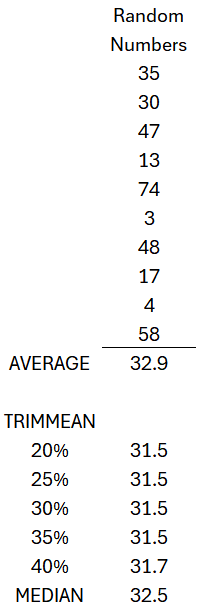
The big question is whether this TRIMMEAN function is still useful given the noted limitations. Here’s how it calculates versus the MEDIAN function, which simply takes the middle number (or averages the two middle values):

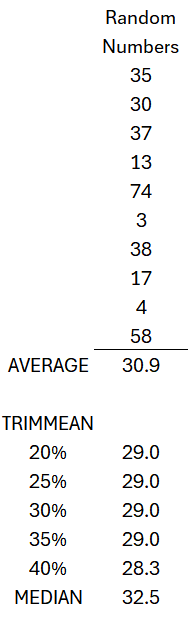
How the TRIMMEAN function calculates in Excel at varying percentages compared to the MEDIAN.

In this example, the TRIMMEAN function returns a lower value. However, if the values 47 and 48 and changed to 37 and 38, then the result would be as follows:

How the TRIMMEAN function calculates in Excel at varying percentages compared to the MEDIAN.

The MEDIAN function is the only one which returns the same value, since it is averaging the middle two values (30 and 35). However, both the AVERAGE and TRIMMEAN functions return lower values.

There is no right or wrong function to use but using all three can help you gain some insights into your data and how much variance there is in it.


If you liked this post on How to Use the TRIMMEAN Function in Excel, please give this site a like on Facebook and also be sure to check out some of the many templates that we have available for download. You can also follow me on Twitter and YouTube. Also, please consider buying me a coffee if you find my website helpful and would like to support it.
MapChartExcelZipCodes

How to Create a Map Chart in Excel Showing the Most Expensive Zip Codes in Each U.S. State

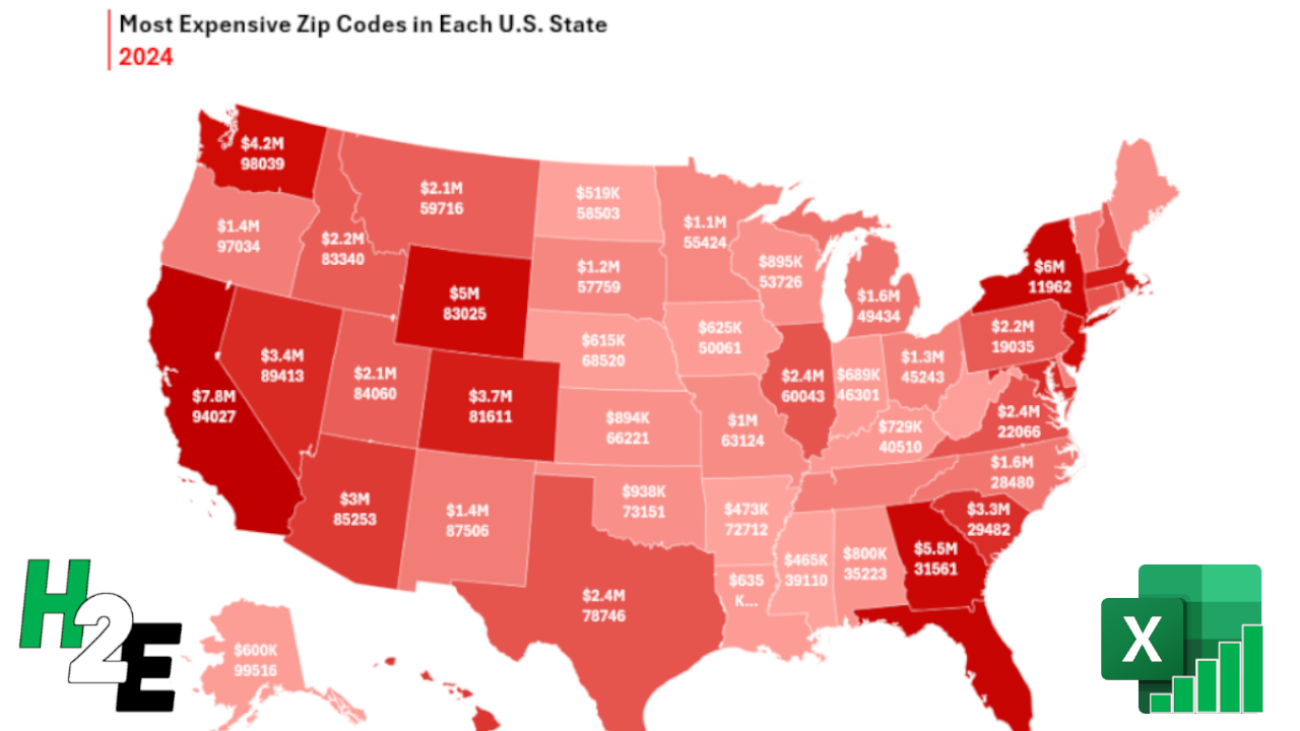
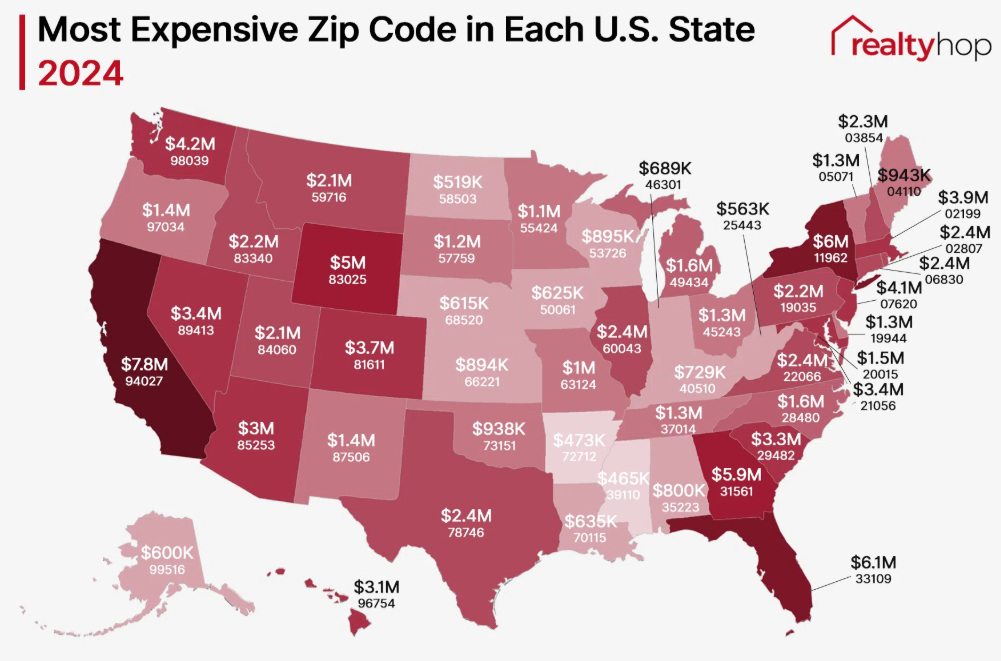
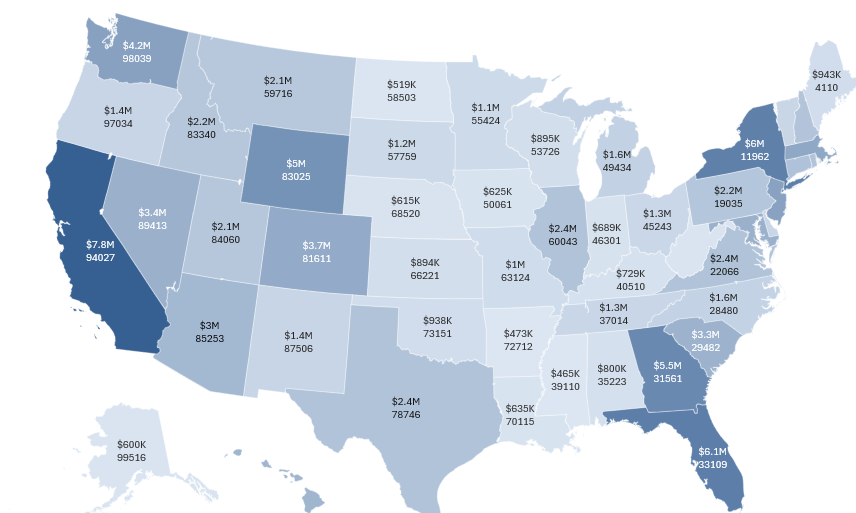
Map charts can help display a lot of data, showing you not only the largest values relative to other values. Below, I’m going to walk you through the steps of creating a map chart using real-world data, which looks similar to the one below:

This is a chart I found on realtyhop.cm that I thought would be good to create from scratch. If you want to follow along, you can download the data from their website.

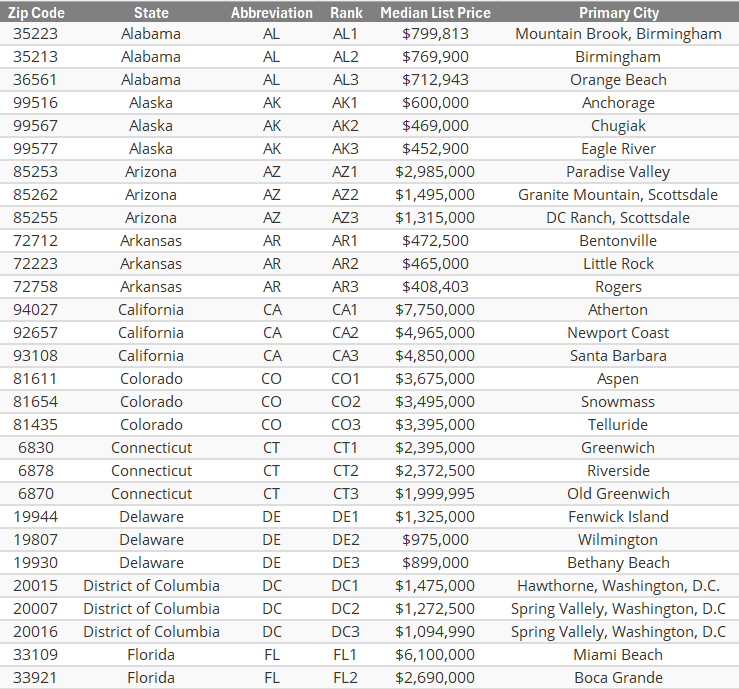
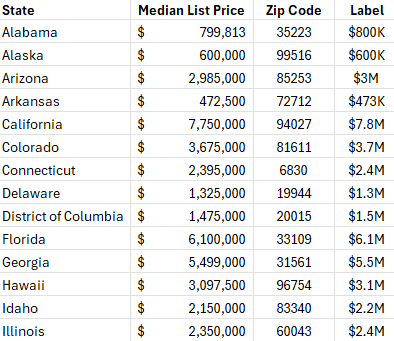
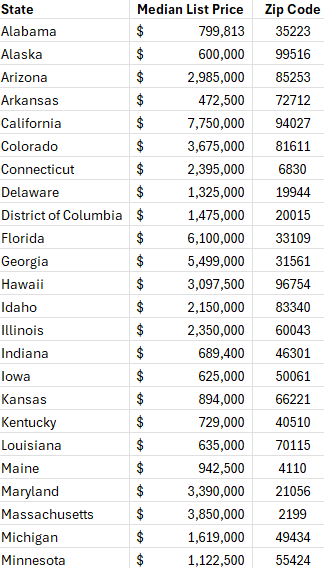
Here is a snippet of what the data looks like, loaded in Excel:

Table showing Median List prices of homes in the U.S.

You’re not able to create a map chart with a pivot table, so instead, I’ll create the data that is necessary for the map chart. For starters, I’ll use in the UNIQUE function to grab a list of the unique values from the table:

=UNIQUE(Table1[State])

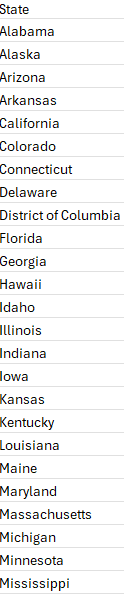
My table is called Table1, with the State field referring to the specific states. This produces a list of unique state values:

A list of U.S. states in an Excel spreadsheet.

Next, I’ll pull in the largest price in the table based on state, using the MAXIFS function:

=MAXIFS(Table1[Median List Price],Table1[State],H2)

Where H2 is the state in my list. After doing that, I also need to lookup the related zip code. For this, I can use the INDEX and MATCH functions to look up multiple criteria:

=INDEX(Table1[Zip Code],MATCH(H2&I2,Table1[State]&Table1[Median List Price],0),1)

Where H2 is the state value and I2 is the median list price. I now have a table that following extracted values:

A table in Excel showing the highest median list price for a home in the U.S. by zip code and state.

In order for the labels to display correctly on the chart, I also need to convert the values so that they show K for thousands and M for millions. The initial formula look as follows:

=IF(I2>=1000000,"$"&ROUND(I2/1000000,1)&"M","$"&ROUND(I2/1000,0)&"K")

What this formula does is checks if the value is at least $1 million, and if it is, then it adds an “M” to the end and converts it to a decimal. If it’s in thousands, then it divides it by 1,000 and adds a “K” to the end.

Here’s what the output looks thus far:

Excel table with list prices converted into K for thousands and M for millions.

The ROUND function is used to limit the decimal places.

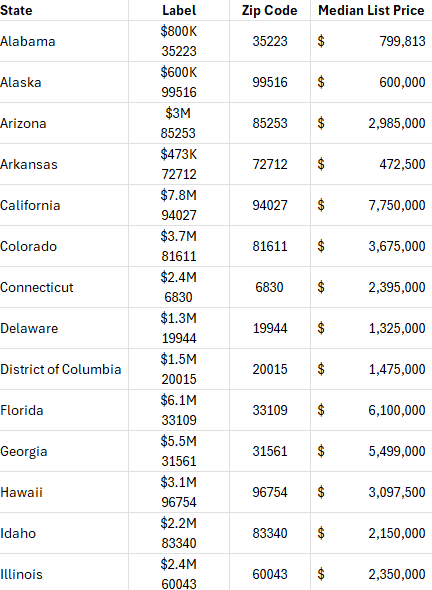
Since the labels also incorporate the zip code, that will also need to be added to the label. And since that value needs to be forced onto a separate line, I’ll need to use character code 10 to do that. I need to apply text wrapping to ensure it is displayed correctly in the table. The last thing I’ll do is move the median list price to the end and the label next to the state, making it easy to separate the values.

Excel table that is ready for use in a map chart.

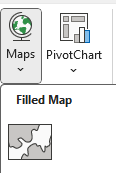
Now with the table setup, the next step is to create a map chart. From the Charts section on the Insert tab, there is an option to select Maps and there is an option for a Filled Map:

Selecting a Filled Map chart in excel.

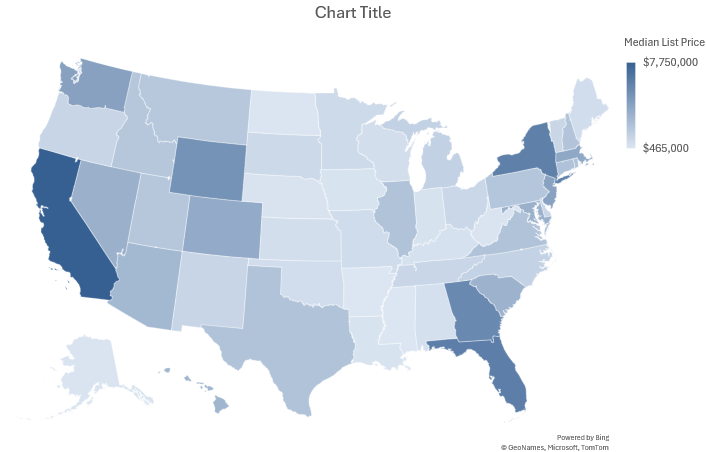
To ensure the data is selected correctly, right-click on the chart once it is setup and click on Select Data. Under the Legend Entries, ensure that just the column related to the Median List Price is selected. And for the Horizontal Category, just the first two columns for State and Label are selected. If you’ve set it up correctly, you should see something like this:

Map chart in Excel.

Next, it’s time to add the labels. Right-click anywhere on the chart and select Add Data Labels. Then right-click on any of the labels and select Format Data Labels. From here, you want to select the Category Name option — this pertains to the label column that was created earlier, which combines the value along with the zip code. Now the chart looks as follows:

Map chart with labels displaying values.

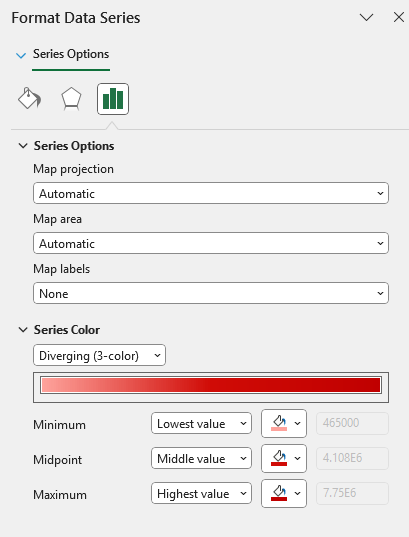
Now, let’s adjust the color scheme so that it is red. Right-click on the data series again, then open up a section under the series option which says Series Color:

Adjusting the series color for a map chart in Excel.

You can adjust the color based on the minimum, midpoint, and maximum values, and the gradient will update accordingly.

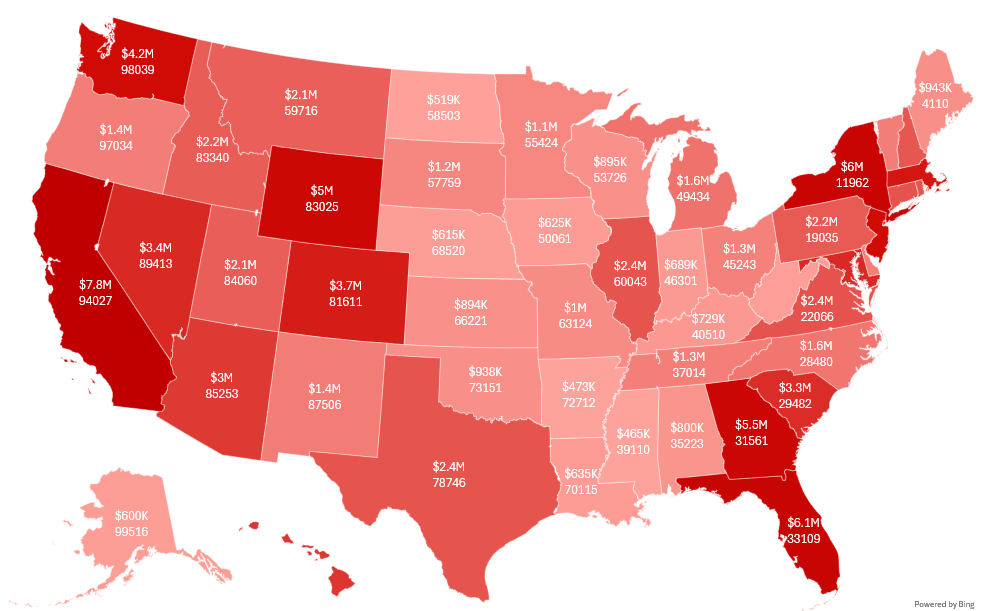
This now gives me a map chart that is highlighted in red:

Map chart in Excel highlighted in red.

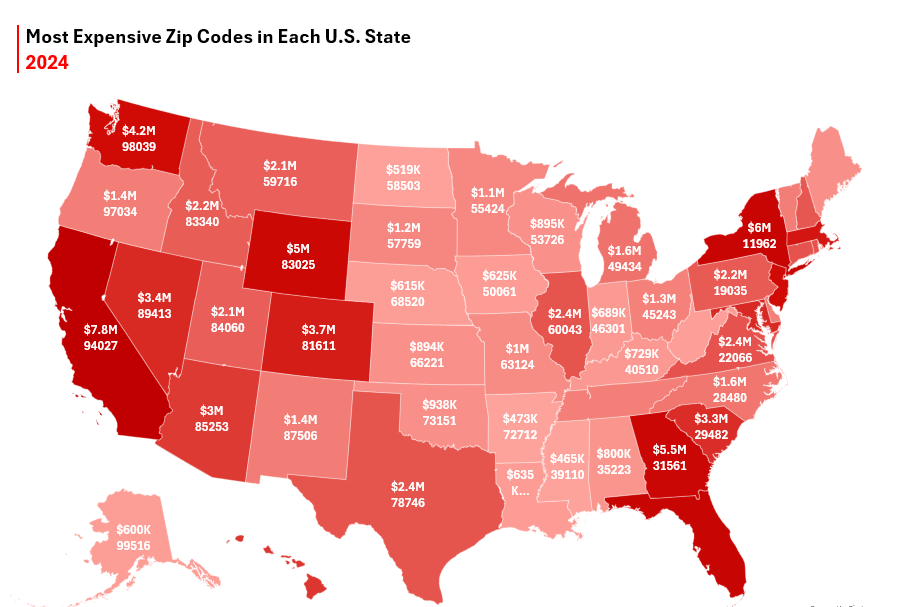
All that’s left at this point is to apply a title, and this can be done with the use of a text box. And after adding vertical red line next to the title, we get a fairly similar chart to the one initially shown:

Map chart in Excel highlighted in red with a title.

If you liked this post on How to Create a Map Chart in Excel Showing the Most Expensive Zip Codes in Each U.S. State, please give this site a like on Facebook and also be sure to check out some of the many templates that we have available for download. You can also follow me on Twitter and YouTube. Also, please consider buying me a coffee if you find my website helpful and would like to support it.
RandomNonRepeating

How to Generate a List of Non-Repeating Random Numbers in Excel

Do you want to create a list of random numbers in Excel, but avoid repeating values? Below, I’ll cover how you can set that up to ensure that no number is shown more than once — all through just a single formula.

Start with the SEQUENCE function

The first thing that’s necessary is to create a list of numbers to choose from. It needs to be in the form of an array, which can then be sorted. Using the SEQUENCE function, I can create an array which goes from 1 to 10 with the following formula:

=SEQUENCE(10,1)

The first argument specifies the rows to fill in, and the second one is the number of columns. If you wanted to start from the number 2 and jump by 3 values at a time, the formula would be as follows:

=SEQUENCE(10,1,2,3)

This produces the following, unsorted list:

List generated by using the sequence function in Excel, which starts from the number 2 and jumps by 3s.

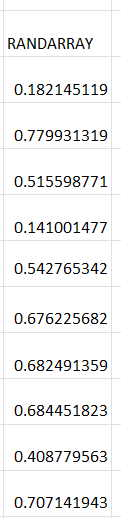
The next step is where the numbers get reordered. Another array of numbers needs to be created. This time, I’ll use the RANDARRAY function, since I want the array to be entirely random. I will again need to specify the number of rows and columns to fill in:

=RANDARRAY(10,1)

This produces a list of random numbers, similar to how the RAND function works. The only difference is that it creates a list for you:

Using the RANDARRAY function to create an array of random values.

Next, let’s combine these two formulas, within the SORTBY function. With the SORTBY function, you can specify the range you want to sort, and how you want it to be sorted. The complete formula is displayed as follows:

=SORTBY(SEQUENCE(10,1,2,3),RANDARRAY(10,1))

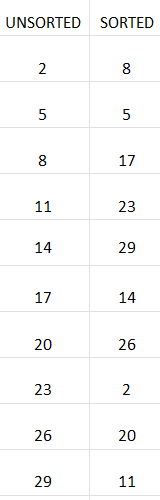
And this will now sort the sequence randomly. Here is the sorted and unsorted sequence, side by side:

Unsorted and randomly sorted columns in Excel.

The column on the left, shows the unsorted values, as they have been created with the SEQUENCE function. The column to the right, however, has applied a random sort with the help of the RANDARRAY and SORTBY functions. The values are randomized and do not repeat. If you want to re-sort them, you just need to trigger a recalculation. This can be done by just pressing the delete key on any cell.

For this to work, both arrays have to be sized the same. In both functions, 10 rows and 1 column are used. However, if they are not the same size, the formula will produce an error. You could decide to have 1 row and 10 columns to display the values horizontally, with the following formula:

=SORTBY(SEQUENCE(1,10,2,3),RANDARRAY(1,10))

This will produce a randomized list which goes horizontally:

Random list without repeating numbers in Excel.

At this stage, you could use this random list as is or you could also combine it with a lookup function to extract a certain item based on a pre-defined value.


If you liked this post on How to Generate a List of Non-Repeating Random Numbers in Excel, please give this site a like on Facebook and also be sure to check out some of the many templates that we have available for download. You can also follow me on Twitter and YouTube. Also, please consider buying me a coffee if you find my website helpful and would like to support it.
TRIMRANGE

How to Use the TRIMRANGE Function in Excel

Microsoft Excel has recently rolled out a new function, TRIMRANGE. And as its name suggests, it will help you trim a range, to ensure that your formula is efficient and isn’t including unnecessary blank values in calculations. Here’s a breakdown of the function.

The inputs for the TRIMRANGE function

There are three arguments to enter for the TRIMRANGE function:

Range: the range that you want to trim.

Trim_Rows: specify which rows to trim from the specified range. 0=no rows; 1=leading blank rows; 2=trailing blank rows; and 3=both leading and trailing blank rows (this is the default).

Trim_Columns: specify which columns to trim from the range. 0=no columns; 1=leading blank columns; 2=trailing blank columns; 3=both leading and trailing blank columns (default).

If you just want to trim everything, then you don’t need to worry about entering any arguments beyond just the initial range you want to trim.

How to function works

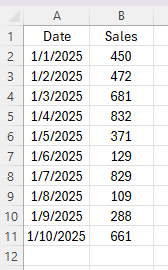
In the following example, I have values filled in only up until row 11:

Values in Excel filled up until row 11.

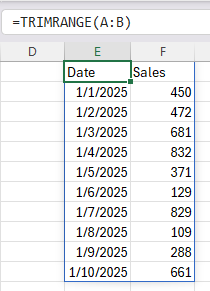
With the TRIMRANGE function, I can select the entire range A:B, and it will return an array of the values which only contain values. The formula only requires that one range.

=TRIMRANGE(A:B)

This is the result:

Result of the TRIMRANGE function.

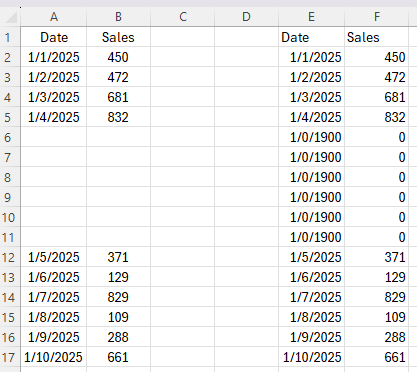
If, however, there are gaps within the data set, then it will return zero values:

Result of the TRIMRANGE function when there are gaps within the range.

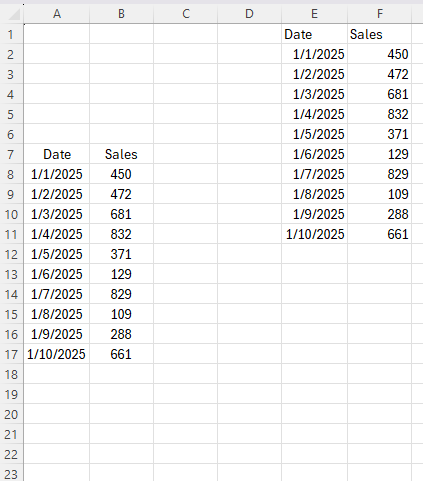
Where it performs well is when it excludes leading and trailing empty spaces:

Result of the TRIMRANGE function when there are gaps before or after a range.

If you like this post on How to Use the TRIMRANGE Function in Excel, please give this site a like on Facebook and also be sure to check out some of the many templates that we have available for download. You can also follow me on Twitter and YouTube. Also, please consider buying me a coffee if you find my website helpful and would like to support it.

GoogleSheetsDynamicCalendar

Free Google Sheets Calendar Template to Track Bills and Events

Want to track events, bills, and tasks easily? Rather than using different apps, you can do all of that right within Google Sheets. Whether you’re using your home computer or using your phone, it’s easy to access Google Sheets — all you need is a link to the sheet that you’re using. In this article, I’m going to share with you my free Dynamic Calendar Template which will make it easy to keep track of all your important dates and deadlines. Below, I’ll leave a link to the file, where you can create a copy of it and use it for your own personal needs, and it’s completely free.

How the Dynamic Calendar Template works

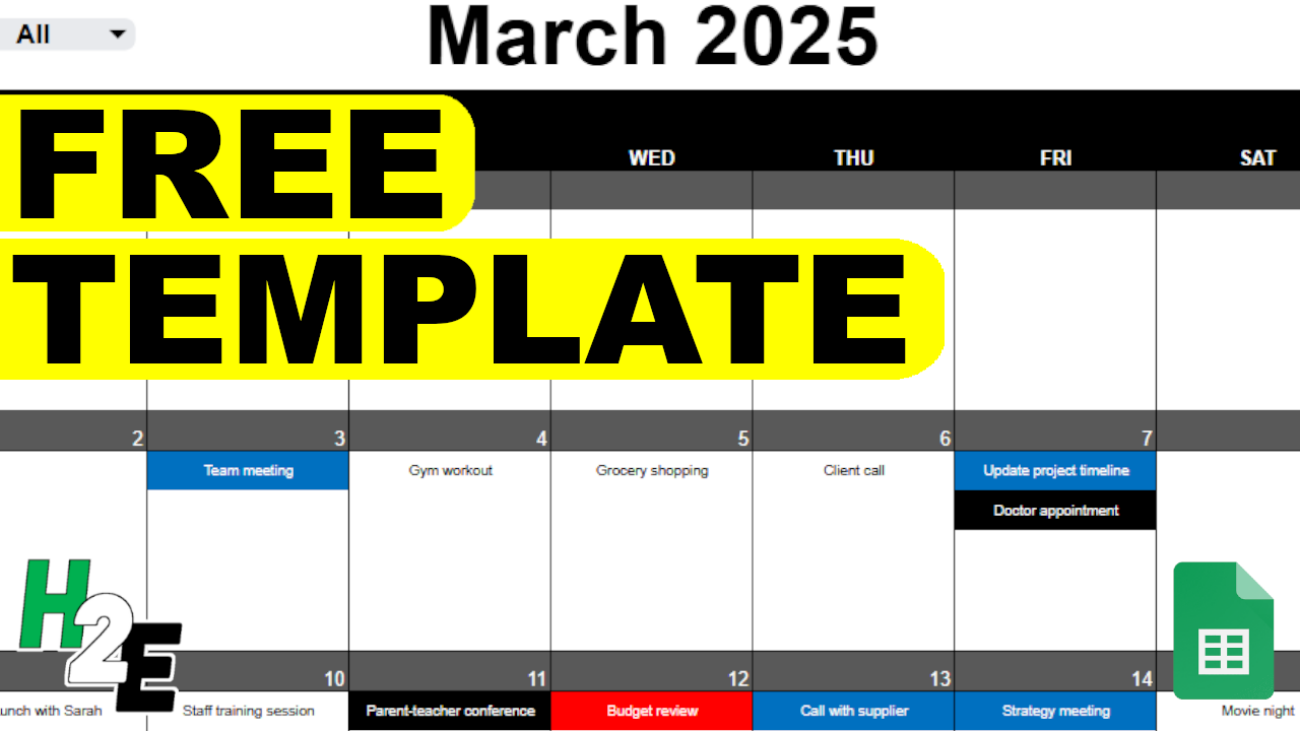
There is just one main tab on the Dynamic Calendar Template, where you can enter your events and see your calendar at a glance. In its most basic form, it gives you an easy way to view the current month, and easily change from one period to another.

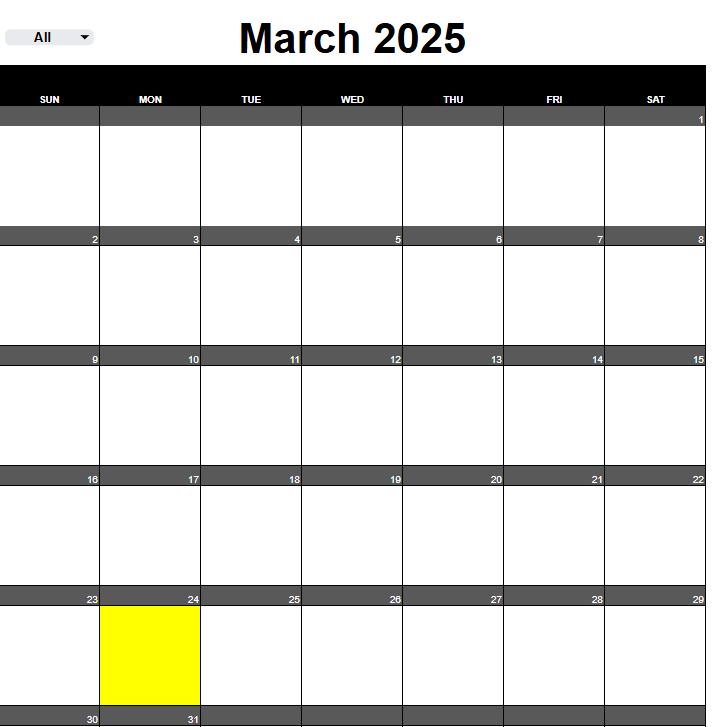
Dynamic calendar template in Google Sheets.

By default, it will automatically set to the current month. If, however, you prefer to change the period, you can override the formula in cell C3 by just entering the month and year. For example, typing in ‘April 2025’ will update the calendar to that month and year. Simply enter it in that format and it will update accordingly.

You’ll notice that the current day is highlighted in yellow. And at the top, there is a drop-down option next to the date. This allows you to use to swap between different calendars. If you want to see all due dates and events, simply leaving the ‘All’ option selected. But each day is limited to five events, so if you have more than that, you’ll want to consider using more than one calendar type.

Setting up different calendars

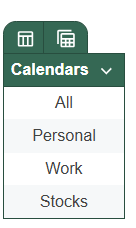
In column Q, there is a table for different calendars. In addition to All, there are Personal and Work calendars setup as well. If you select All, however, all of your items will be included on the calendar, regardless of which option you designate for your event. But if you select Personal, Work, or another calendar type, only entries for that calendar will be displayed. If you want to enter a new calendar type, simply enter a value below the latest one, the Work calendar, so that the table expands:

Different calendar types.

In the above example, I’ve added a ‘Stocks’ calendar to track events related to stocks, potentially including earnings dates and other stock-specific events.

Creating events

Once you’ve setup your calendars, you can begin entering events in columns L:O. While this is called ‘events’ it can technically include anything you want to keep track of — meetings, bills, etc.

There are just four fields to enter values for:

  • Date: the day the event takes place
  • Event Description: what the event is
  • Calendar: which type of calendar it falls under
  • Flag: if you want to flag this with a certain color (currently you can use black, blue, or red flags)

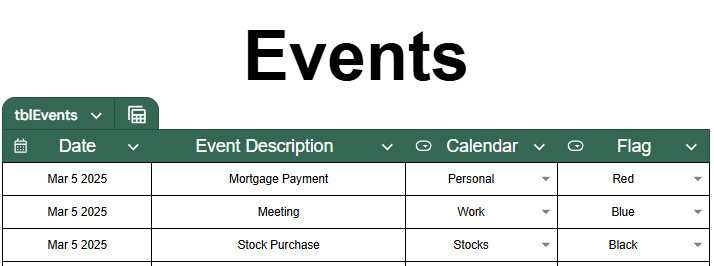
In the following example, I’ve entered three events for March 5, 2025:

Events entered on the dynamic calendar template.

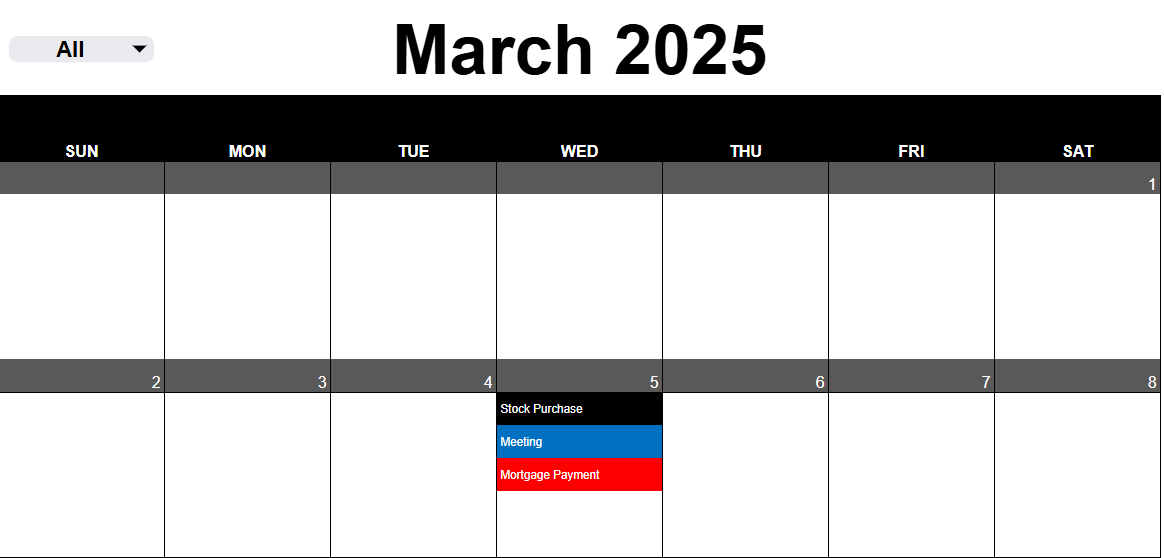
While I have entered in a value for a flag, this is not necessary. With my ‘All’ calendar drop-down option selected, I see all of these events displayed for March 5:

Dynamic calendar template showing multiple events.

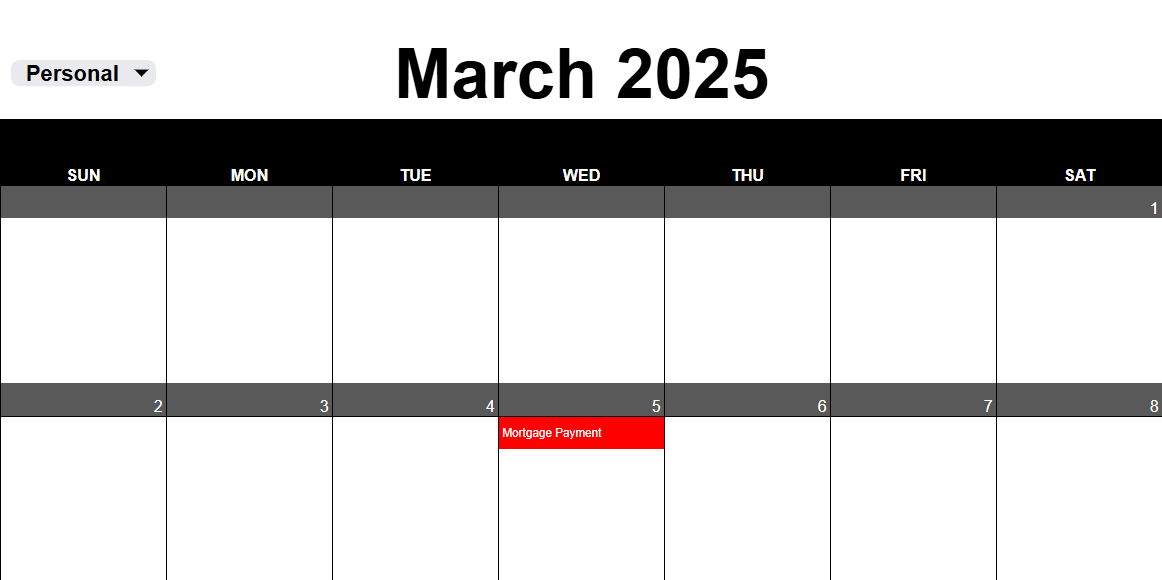
However, if I change the calendar to show only Personal, only the Mortgage Payment event which was tagged with that calendar, will appear:

Dynamic calendar template showing events for the personal calendar.

Download the free template

You can download the Dynamic Calendar Template from this link, which will prompt you to create your own copy. In order to ensure it works as designed, please avoid making changes to other cells. The only places you should make inputs are in the month and year (should you want to change the default from the current period), and the two tables — one to manage events, and the other for the different types of calendars. If have also created an Excel-based calendar, which you can check out here.


If you like this Free Google Sheets Calendar Template to Track Bills and Events, please give this site a like on Facebook and also be sure to check out some of the many templates that we have available for download. You can also follow me on Twitter and YouTube. Also, please consider buying me a coffee if you find my website helpful and would like to support it.
VisualizeRanges

How to Create Dynamic Min-Max Range Charts in Excel

A good chart in Excel can display a lot of useful information in one visual. In this example, I’m going to show you how to display minimum and maximum values, as well as the range between them. This can be helpful in reviewing products to identify not only how cheap or expensive they may be, but also how much the price has fluctuated in the past. Narrow ranges may imply not a lot of movement, whereas wide ones could mean that there’s a lot of variation, and opportunity to buy that product at a lower price, assuming that past trends repeat.
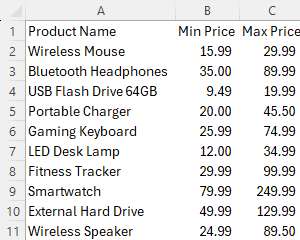
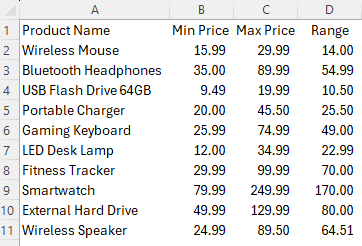
For this example, I’m going to use some tech products and use sample price ranges that might be applicable to them:

A table of tech products, showing minimum and maximum values.

Calculating the range between min and max values

Determining the range can help you analyze just how large the delta is between two values, particularly the high and the low. To calculate it, simply take the maximum value and subtract the minimum. Assuming my first max price is in C2 and the min price is in B2, here’s how the formula will look:

=C2-B2

This value is entered into the next column, resulting in the following column added to this table:

Table in excel showing a list of tech products, displaying their minimum and maximum values, along with their ranges.

You can quickly spot the product with the largest range — the smartwatch. The high-priced item can have significant fluctuations depending on the quality and features it offers. The more modestly priced flash drive, however, has a much smaller range and less room for variance.

Plotting the values on a bar chart

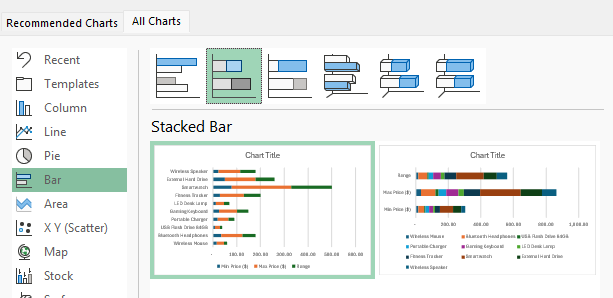
The next step involves putting all this data on a chart. In particular, you’ll want to create a stacked bar chart. When selecting your data ensure you select the first option on the stacked bar section, which doesn’t contain a large legend. In this example, there should only be three different series: min, max, and range.

Selecting a stacked bar chart in excel.

Modify the bar chart hierarchy

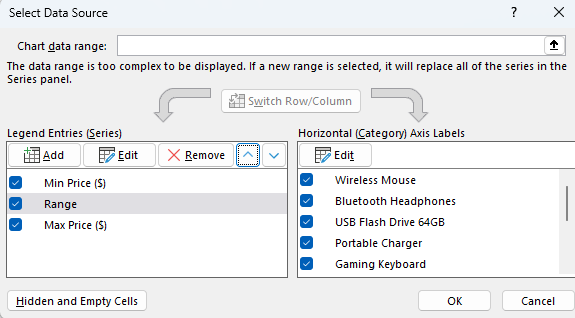
In order to ensure that your bar chart is displaying correctly and stacking properly, you’ll want to modify the way the different series are ordered. Right-click on the chart and click Select Data. By default, it will arrange the data in the order of the columns. However, I want to ensure that the range comes between the min and max values. That way, the min value is added first, then the range is stacked, followed by the max value. By using the arrow keys under the Legend Entries, you can adjust the order of the series. This is how it should look:

Data in a bar chart with the legend first stacking the minimum value, followed by the range, and then the maximum price.,

Adjusting the fill colors

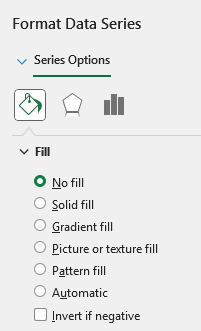
By changing the hierarchy, you can ensure the chart is stacked in the correct order. But you’ll still want the min and max bars to not be visible. The point is to plot those values but to only show the range. To do this, right-click on any bar chart and select Format Data Series.

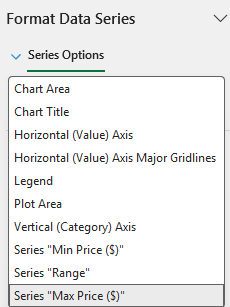
Select the fill bucket, and ensure that the series you’ve selected is either the min or the max. This can be done click clicking on the down arrow next to Series Options:

Selecting the correct series using the series options drop-down menu in Excel.

This can be an easy way to select the correct data series. Now, with the correct field select, you can go back to the fill settings and chose the option for No fill.

Selecting the no fill option in Excel for a bar chart.

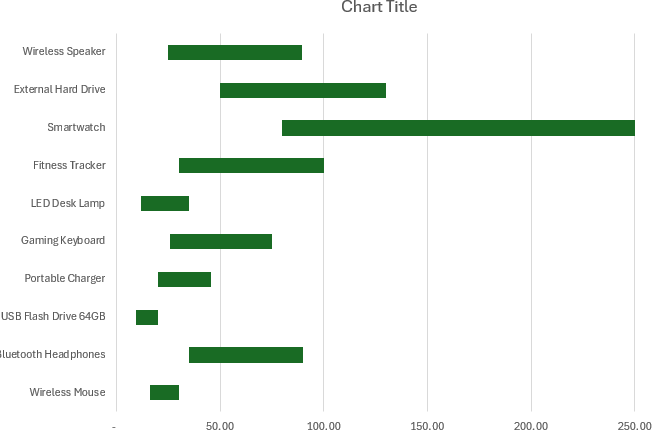
Now, repeat these steps for the other series. In my example, that’s going to be the Min price. And now, after selecting no fill, I’m only left with a chart that shows the range:

Chart in excel showing a range of values.

Adding min and max labels to the chart

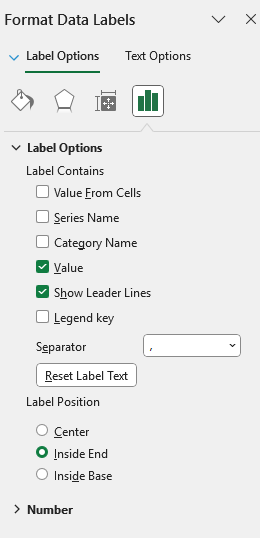
What you may also want to do is add labels to the chart, to display the maximum and minimum values. To do this, right-click on either one of the bars that doesn’t pertain to the range, and select Add Data Labels. You’ll see a number displayed, and if you right-click on it, you can select the option to Format Data Labels.

Formatting data labels on an Excel chart.

You can adjust the label to show it in the center, inside end, or inside base. Inside base will put at the start of the bar value, while inside end will display it at the end. In my example, I’m selecting inside end for the minimum value, so that its shows towards the right.

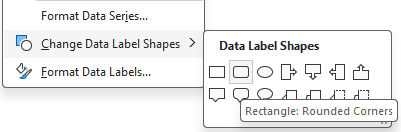
I’m also going to right-click on the label and select Change Data Label Shape and select a rounded rectangle, to ensure the value is easy to see.

Changing the data label shapes on a chart in Excel.

I’ll repeat the steps for the maximum value label, and select inside base. And with the rounded rectangle added, this is how my chart looks after these changes:

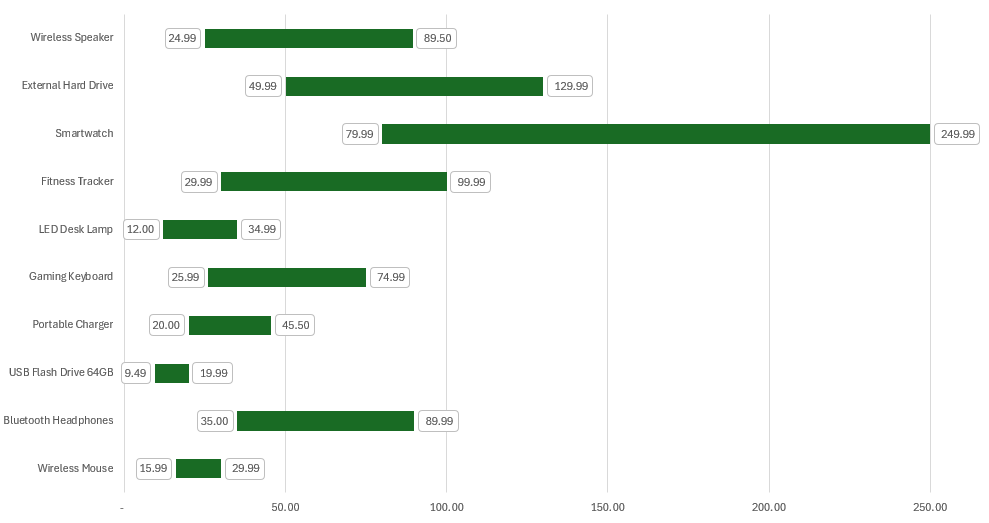
Chart in excel displaying min, max, and range values.

Formatting changes and final adjustments

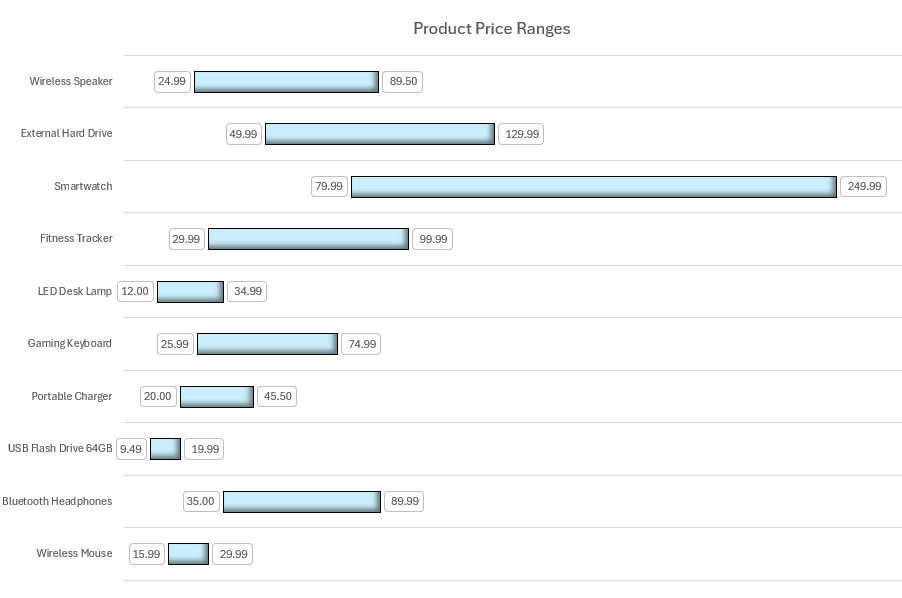
The only thing left to do at this stage is to apply any final changes. Since I have the min and max values listed, I’m going to opt to remove the axis at the bottom, and add only horizontal gridlines. I can also remove the legend since the min and max values should be self explanatory. I’ll also change the bar chart color to a light blue color.

Chart in excel displaying min, max, and range values.

If you like this post on How to Create Dynamic Min-Max Range Charts in Excel, please give this site a like on Facebook and also be sure to check out some of the many templates that we have available for download. You can also follow me on Twitter and YouTube. Also, please consider buying me a coffee if you find my website helpful and would like to support it.