An NFL Squares game can make watching NFL games more interesting and fun with friends. And in this post, I’m going to share with you a free template I’ve created that will make it easy to set it up. Whether you’re putting any money on the line or just having a friendly competition, this template is fairly easy to setup. There are two versions of the file, one which is entirely based on user inputs and another which contains macros.
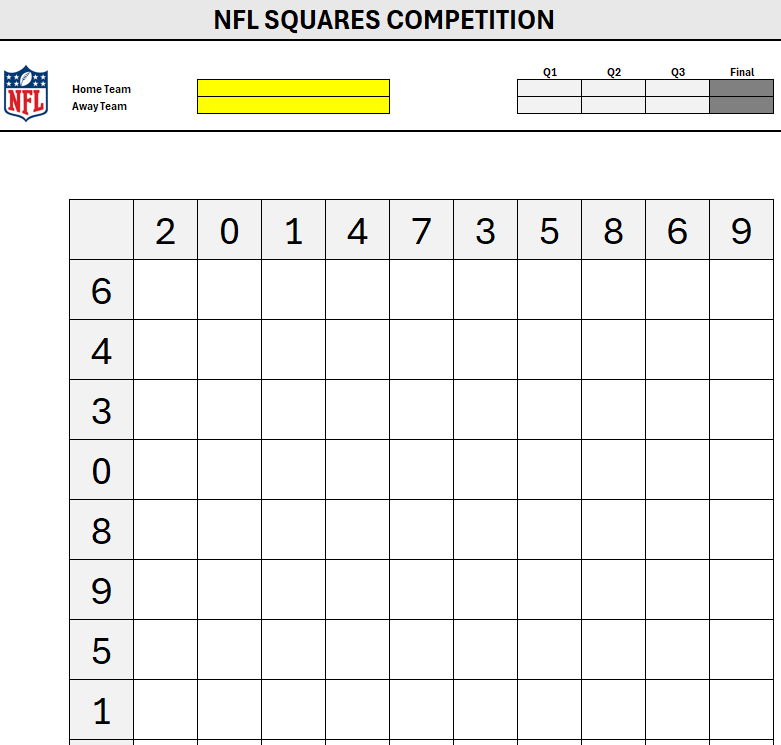
Here’s how the template looks:
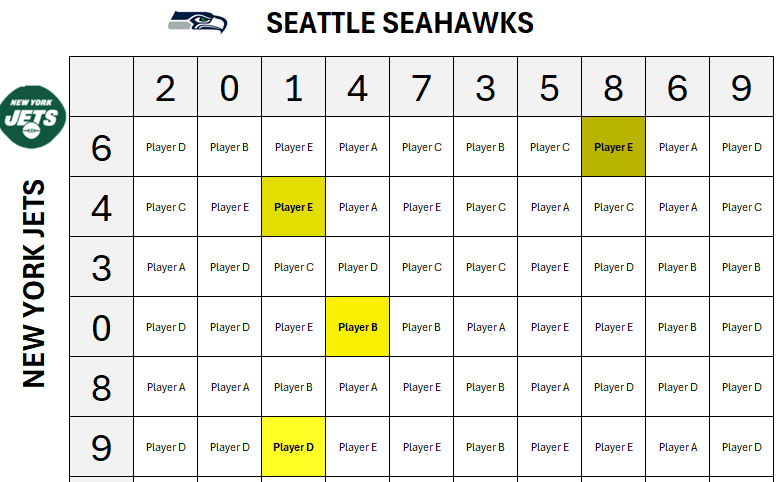
How the game works is the winner is determined by who has the correct winning combination. In the above matchup, the final score was 28 for Seattle and 26 for New York. The squares game looks at the last digit for each team, which would be 8 for Seattle and 6 for New York. Whichever player has that square is the winner. You can also determine winners by individual quarters, rather than just the final score.
How to use the NFL Squares template
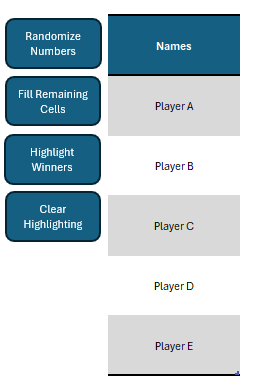
To use this template, start by entering in your own title and selecting the individual teams from the yellow drop-down fields. In the macro file, you can either select which player gets each square, or you can randomize the picks — this can be useful if you want to avoid picking every possible square or having blank ones. Off to the right, there is an option to enter the player names and then you can press a button to Fill Remaining Cells.
As the button’s name suggests, it will go through all player names and randomly assign them to the remaining squares. For this to work and to ensure fairness, however, there needs to be an equal number of cells available to fill in for each player. If there five players, the remaining spots available need to add up to a multiple of five. For example, if there are only 9 spaces, and extra space would need to be cleared out before the macro can run.
Other buttons include the option to randomize numbers, highlight winners (based on the score), and to also clear highlighting. The highlighting will be based on the score that is entered in the top half of the template:
Upon clicking the Highlight Winners button, the template will highlight all the winning squares, for each quarter, and the total:
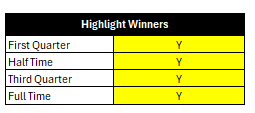
You can also specify if you want to highlight winners for every quarter and/or the final score:
If you make any changes, you’ll need to clear any highlighting and re-run the Highlight Winners button to display the updated highlighting.
If you prefer not to use macros, you can use a more basic version of this template you can download here. Since there are no macros in here, the main difference is that there is no automatic highlighting or randomization. Instead, you’ll have to enter all the values yourself, as well as do any highlighting.
If you liked this Free NFL Squares Template for Excel, please give this site a like on Facebook and also be sure to check out some of the many templates that we have available for download. You can also follow me on Twitter and YouTube. Also, please consider buying me a coffee if you find my website helpful and would like to support it.
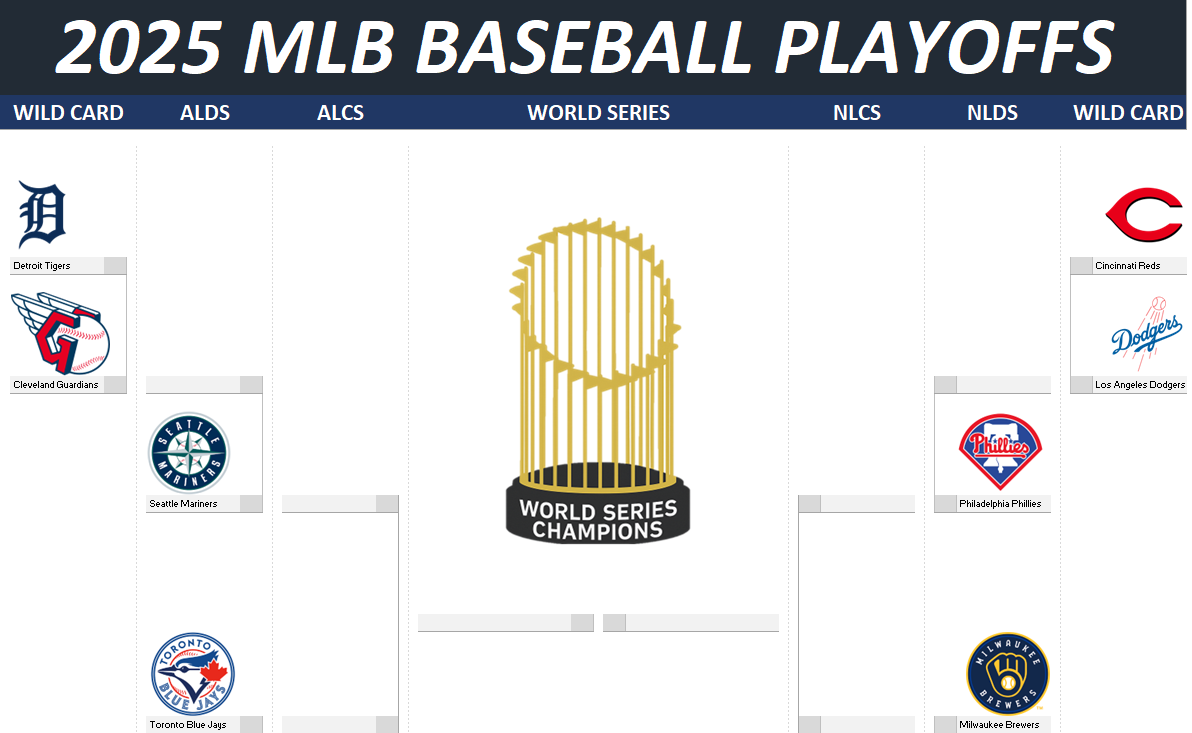
The MLB playoffs are approaching and I have created a template for you to track the games and also make predictions. The playoff picture and standings are as of today’s date, Sept. 26. However, I will update them at the end of the season and make any necessary changes, if necessary. This is how the template currently looks like:
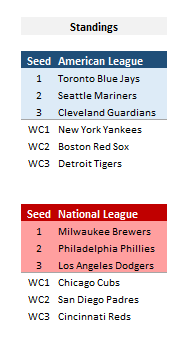
If you don’t want to wait for my updated file and the standings do change, you can adjust them yourself. Next to the playoff tree, there is a section where you can update the seeding and wild card positions.
The division winners are highlighted in blue for the American League and red for the National League. The seeding will determine who plays who in the template.
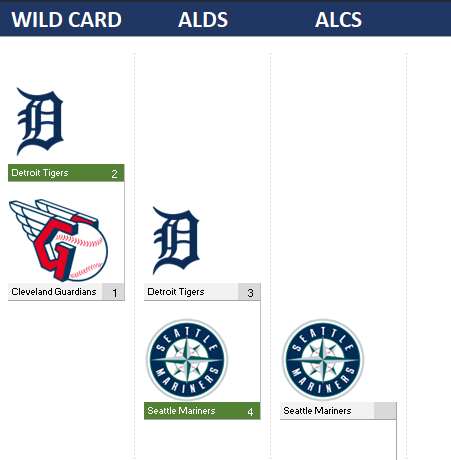
As for making predictions, simply enter the number of games you are predicting each team to win. The team with more games will highlight in green as the winner, and they will be displayed as the team that advances to the next round. Since there is no re-seeding that takes place, the bracket remains unchanged.
This template can be useful if you want to make predictions with your friends and compare how you did. You can just create copies of each person’s predictions and then compare how you did at the end of the playoffs.
If you liked this Free 2025 MLB Playoff Template for Excel, please give this site a like on Facebook and also be sure to check out some of the many templates that we have available for download. You can also follow me on Twitter and YouTube. Also, please consider buying me a coffee if you find my website helpful and would like to support it.
The NFL season is approaching and I have created a free template in Excel that will make it easy to keep track of your favorite teams. You can also use it to make predictions and compete against your friends and colleagues. Here’s a look at how the template works.
Updating scores, the schedule, and your time zone
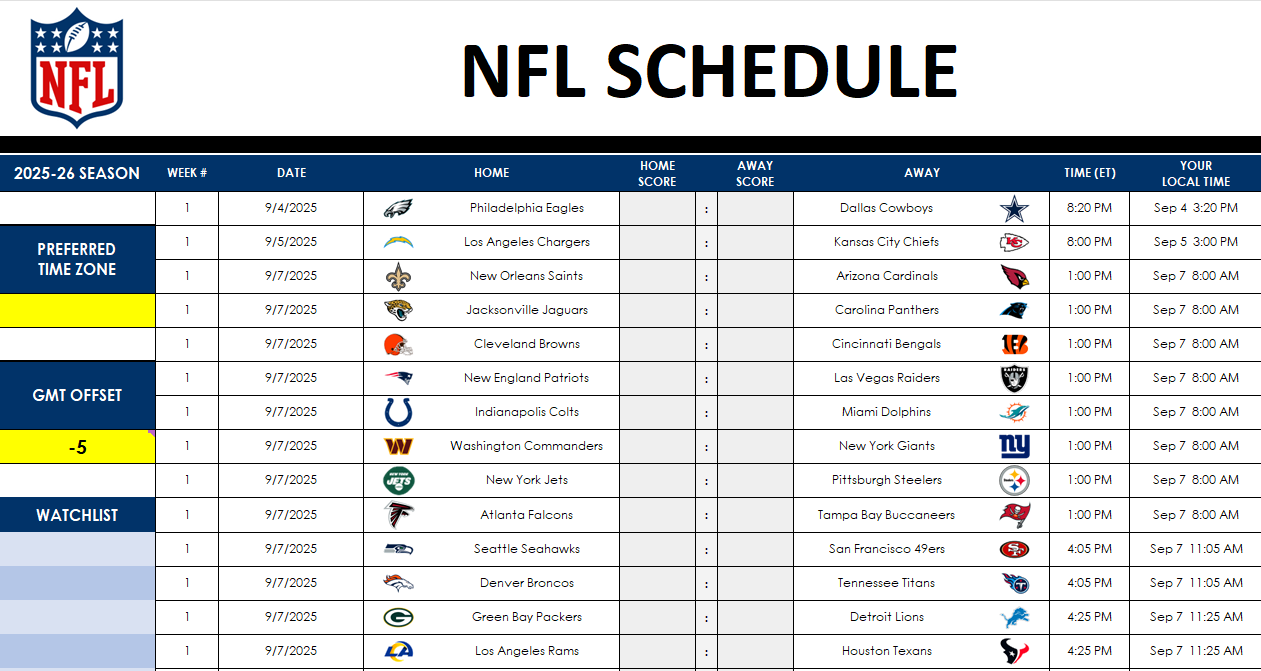
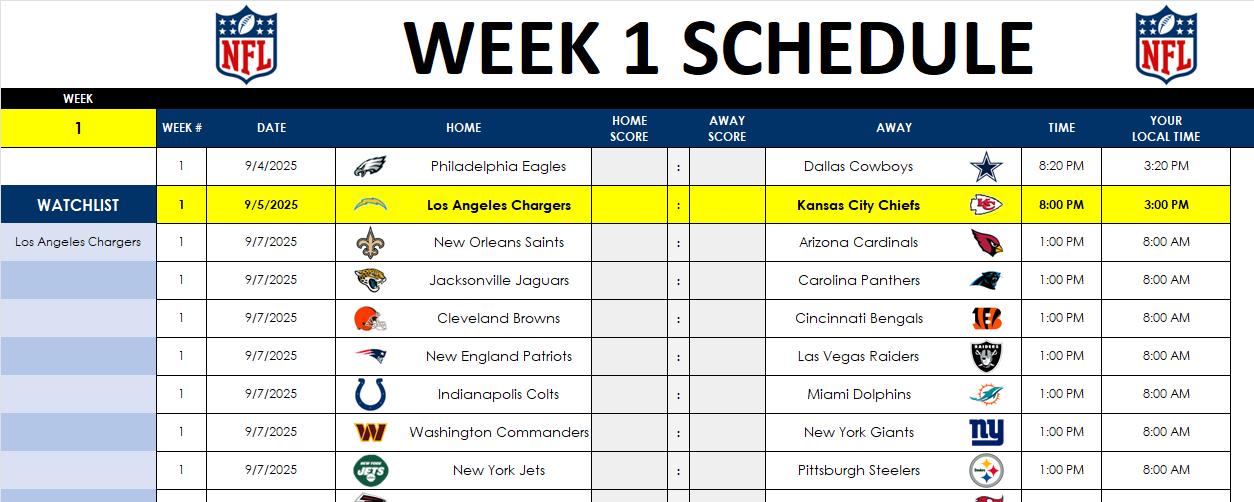
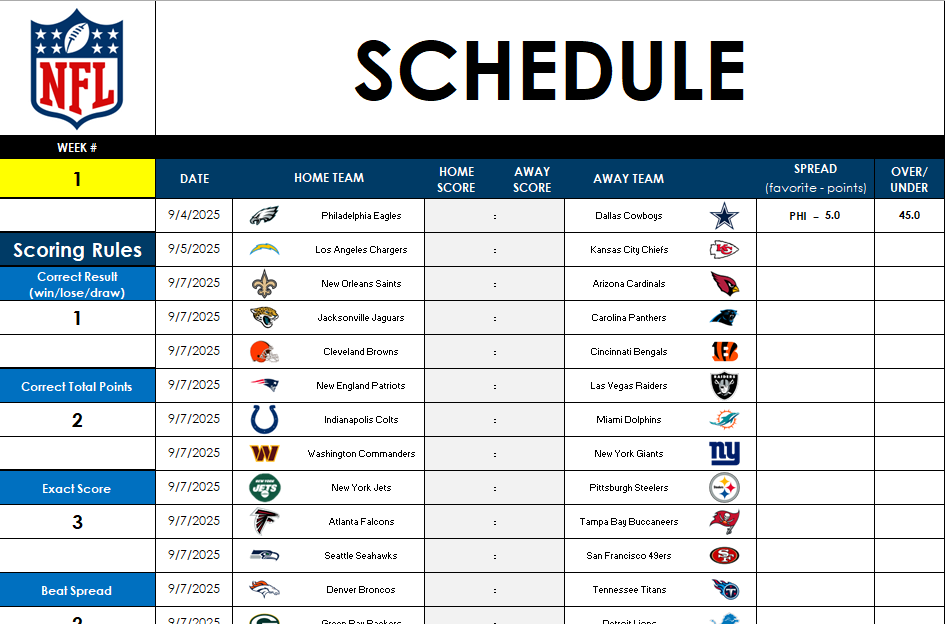
On the Master.Schedule tab, you’ll see a list of games for the NFL season. As the games are played, this is where you can update the scores. You can also update the schedule. Currently the Week 18 schedule is still to be determined, and while the matchups are known, the dates and times of those games won’t be set until towards the end of the season, after Week 17.
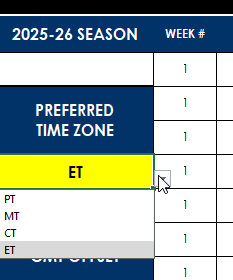
There is a time field showing when all the games are scheduled, which by default is set to ET. However, if you’re in a different time zone you can select your preferred time zone from the drop-down option on the left. You can change to PT, MT, or CT.
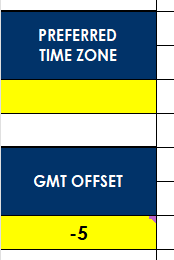
If your time zone isn’t listed here, then you can delete the selection, and change the time zone in the GMT offset section below:
This value will only apply if the preferred time zone is cleared out. After updating your time zone settings, you’ll see that in the Your Local Time field, the time of the games will be updated to reflect your local time zone.
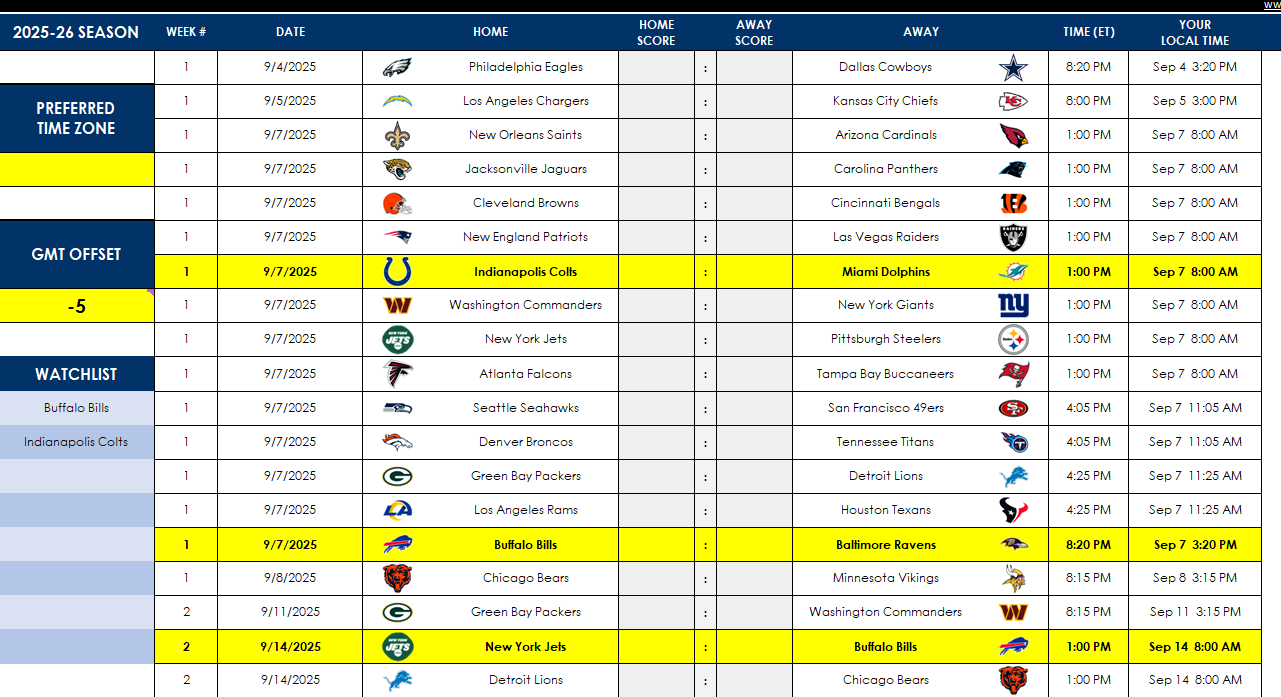
You can also specify a watchlist of teams you’re interested in following. You can select multiple teams, and upon doing so, the schedule will update to highlight the games they are involved in:
Viewing a complete schedule for a full team
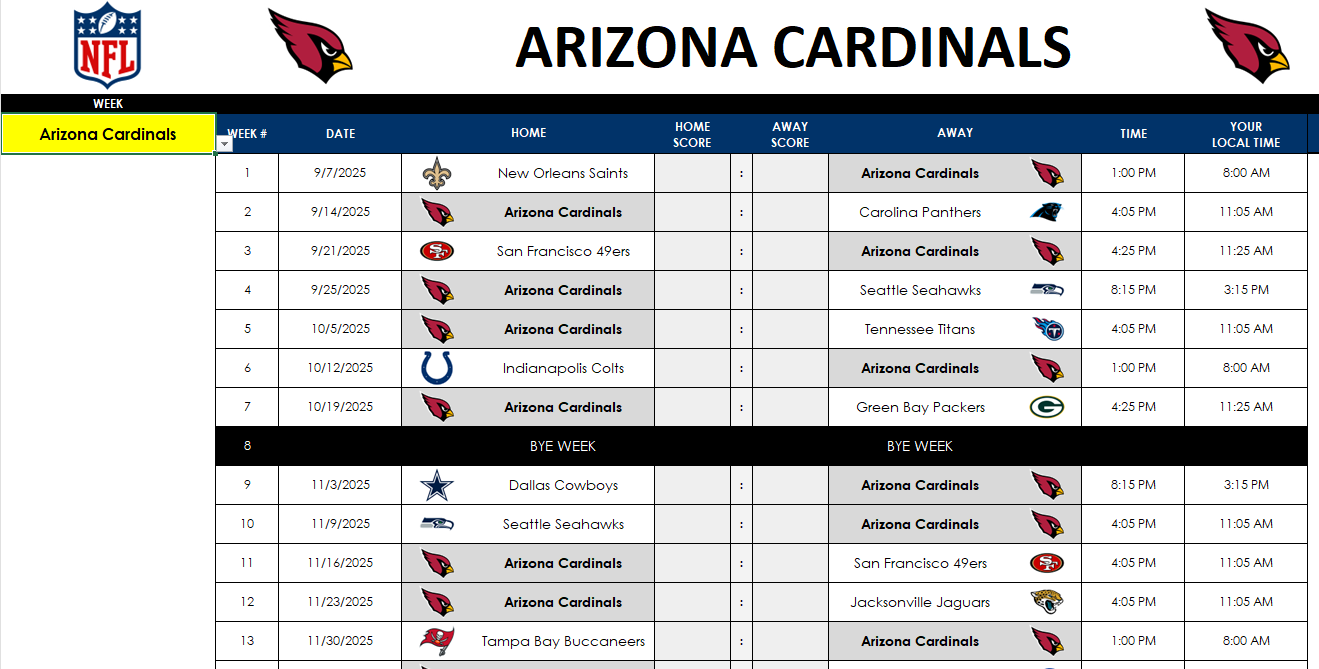
If you just want to track the games involving a specific team, you can do that on the Team.Schedule tab. From the drop-down on the left-hand side, you can select the team you’re interested in, and their schedule will update, including their bye week.
This page is formatted to make it easy to print out on a single sheet of paper, in landscape mode.
Viewing the full week schedule
If you prefer to see the list of games for the full week, you can utilize the Weekly.Schedule tab to do that. Similar to the team tab, here you’ll update the week with the Week number. You can also use the watchlist to track teams you are interested in, just as on the Master.Schedule tab.
Viewing the entire NFL season on a grid format
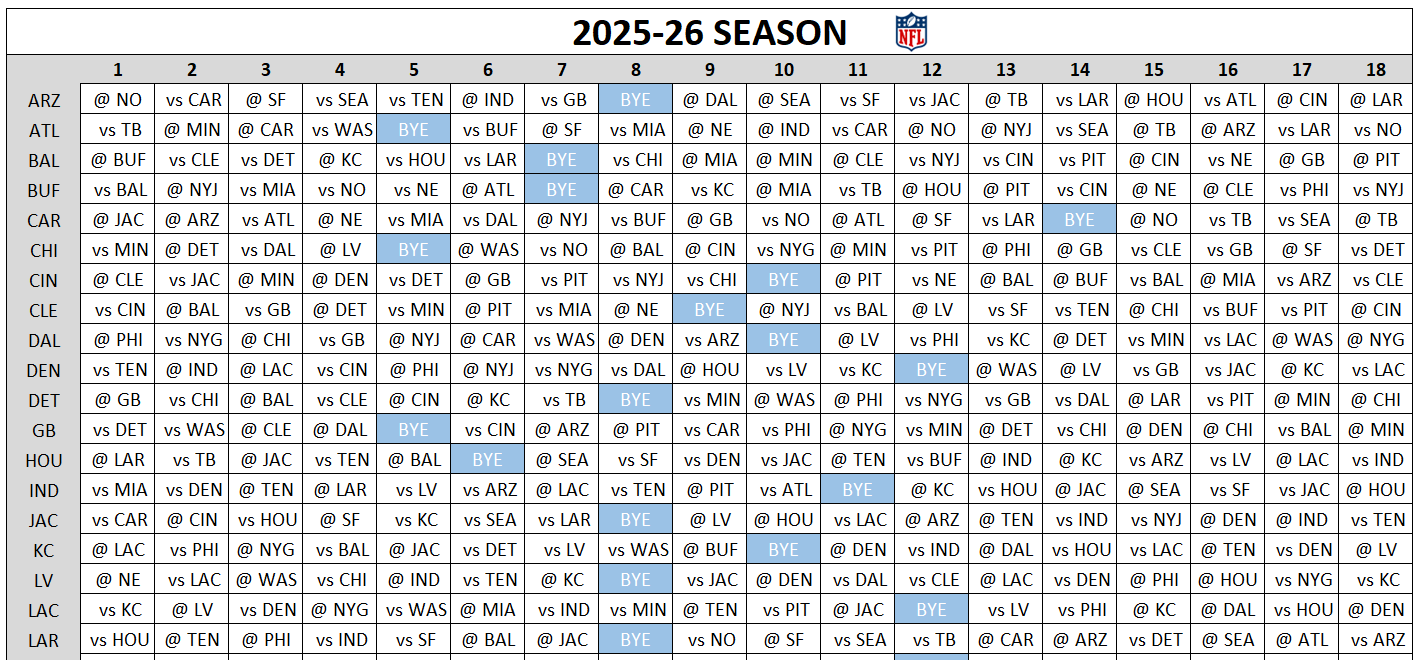
On the Schedule.Grid tab, you have a list of the entire games by team, for the entire season. Here, you can see the opponents they are playing, as well as their bye weeks.
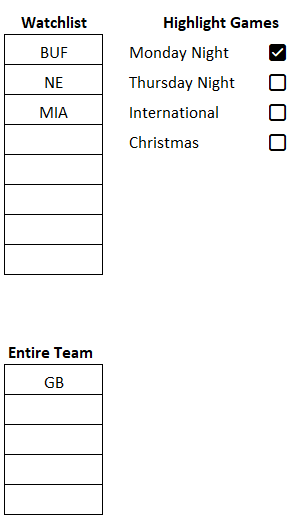
There are also different settings you can apply, such as a watchlist to show any key matchups you are interested in. You can highlight the schedule for an entire team, highlight Monday night games, Thursday night games, international games, and Christmas Day games. Below, I’ve flagged games involving Buffalo, New England, and Miami. I’ve also highlighted the full schedule for Green Bay, and have checked off the option for any Monday night games.
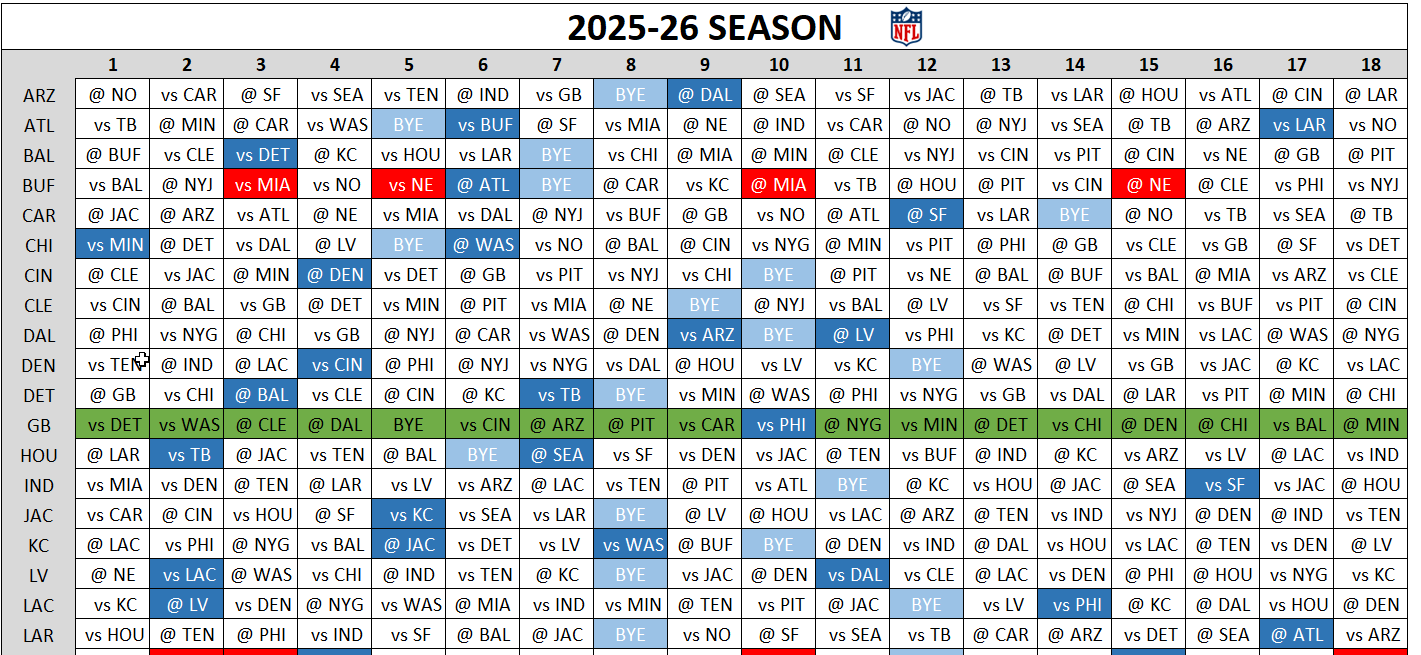
This results in various cells being highlighted on the grid:
The red highlighted cells are for any games involving the teams on the watchlist. These cells will only highlight if two of the teams from the watchlist are playing. In this example, any games involving a combination of Buffalo, New England, and Miami will be highlighted. It won’t simply highlight any games involving them.
The dark blue highlighted cells are for Monday night games. And the cells are green when an entire team is selected. Yellow highlighting will apply for Thursday night games, while cells will highlight in purple if you want to see international games. Christmas Day games will highlight in green with a red font color.
Standings will update as you enter results
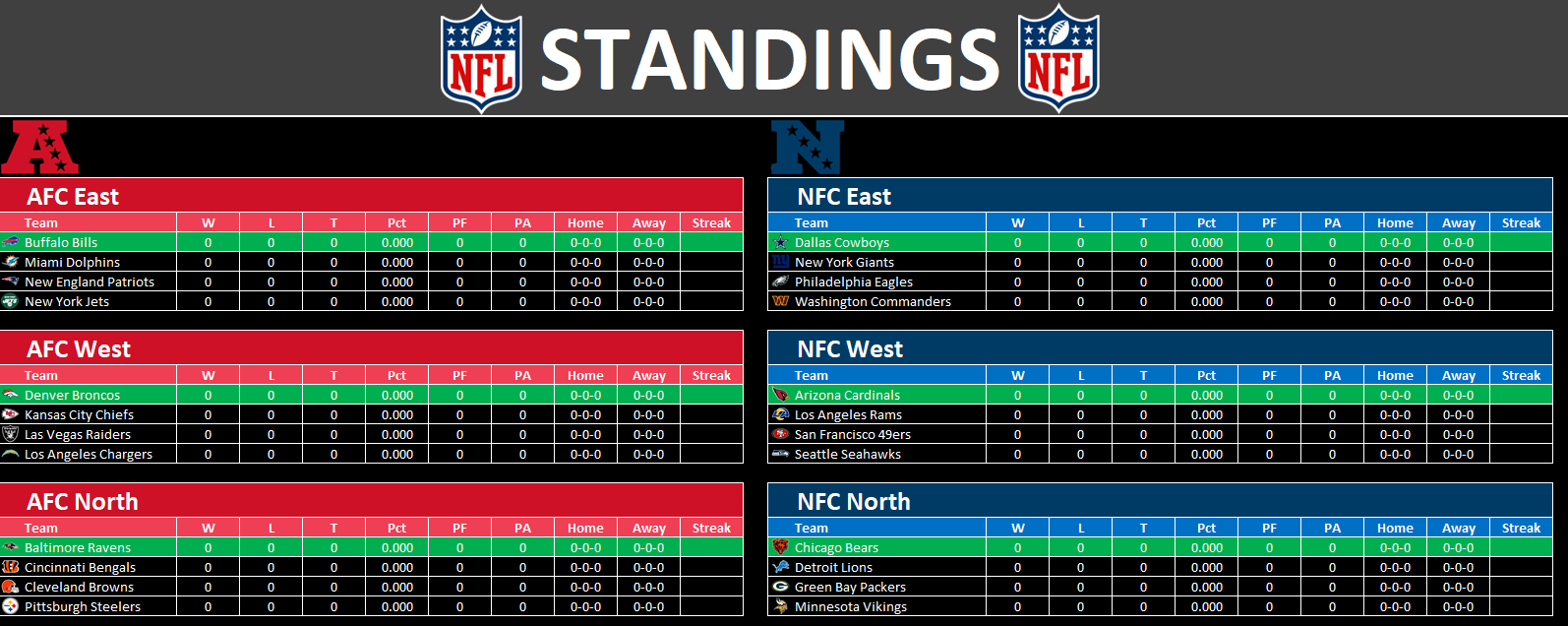
As you update the scores on the Master.Schedule tab, the Standings tab will also update, showing you the ranking of each division.
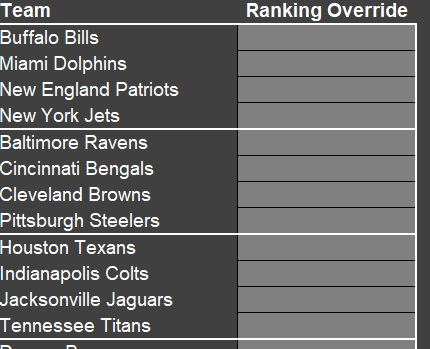
If at the end of the season, the standings are very tight and tiebreakers need to be applied, you may need to use the Override tab to manually put the correct standings. This is only if the positioning is incorrect on the Standings tab. While some tiebreakers are factored in, it won’t account for every possible scenario.
By entering values 1 through 4 on the Ranking Override column, you will assign specifically where those teams should rank. They are grouped by division. As the column name suggests, it will override the rankings here. To ensure no issues, if you use this column, enter all the rankings for any division where the standings are not correct.
Making predictions on the NFL template
On the Weekly.Predictions tab, you’ll see a list of the week’s games, similar to the Weekly.Schedule tab. But in addition to the schedule, you’ll also have an area to determine scoring rules for your predictions. You can specify the number of points awarded for a correct result, correct # of total points, if the exact score is correct, if the person beat the spread, if they got the over/under correct, and if there was a push on either the spread or the over/under.
If you are making predictions based on the spread and the over/under, you will need to manually update those columns .
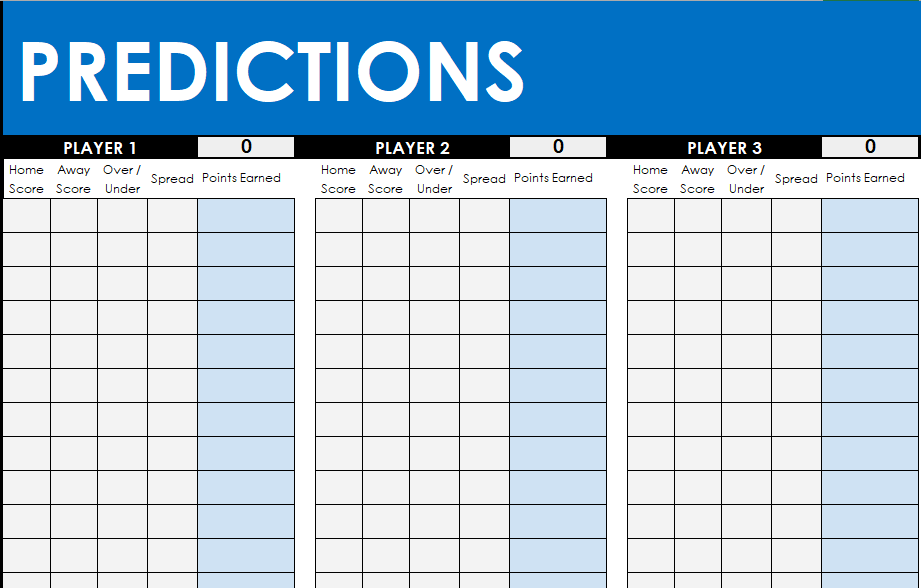
On the other side of the sheet, there is an area for players to make their predictions for each game.
You can change the names from Player 1, Player 2, etc. to the actual names of the people making the predictions. The sheet supports up to 25 players. If you don’t need that many, simply delete the values in those cells for the names.
The points will total once both predictions are made and there are actuals that have been entered on the Master.Schedule tab (those values will populate on the Weekly.Prediction tab).
Lastly, on the Leaderboard tab, you can copy the results for the current week into the actuals section. The current week’s scores will populate below the row highlighted in yellow, which indicates that there are formulas below:
Copy these values above to the corresponding week, in the Actuals section:
As data is entered and updated, the cumulative results and chart at the top will update. However, to update the chart, you will need to refresh the data. This can be done by going into the Data tab and clicking Refresh Data.
Try out the NFL prediction and schedule template today!
If you have any feedback or suggestions on the template, I’m always happy to hear them as I’m always lookin for ways to make the template as best as it can be!
If you liked this NFL Schedule and Prediction Template, please give this site a like on Facebook and also be sure to check out some of the many templates that we have available for download. You can also follow me on Twitter and YouTube. Also, please consider buying me a coffee if you find my website helpful and would like to support it.
Are you looking for a free English Premier League Prediction Template to track matches, make weekly predictions, and see how your forecasts stack up against your friends’? This all-in-one spreadsheet is perfect for EPL fans who want an easy way to manage the 2025–26 season.
What’s Included in the EPL Template?
This English Premier League prediction spreadsheet has five tabs:
Master.Schedule
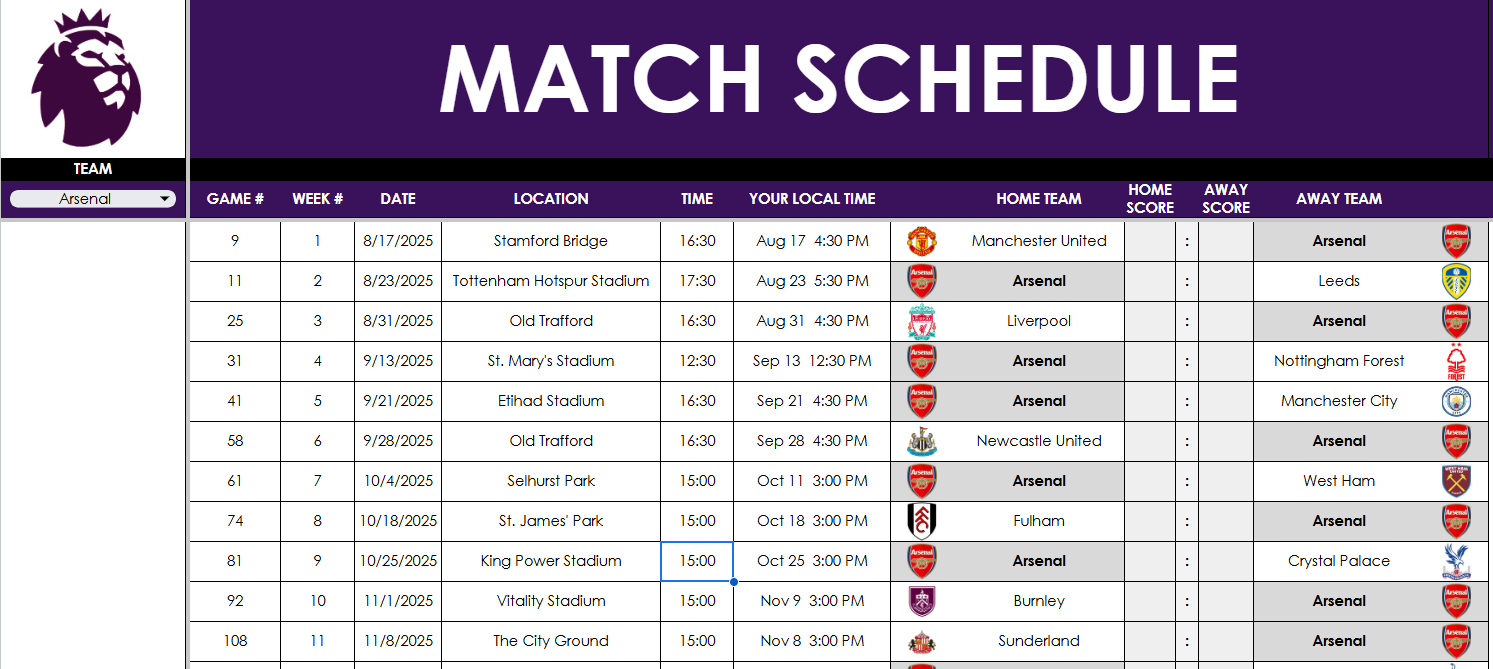
Team.Schedule
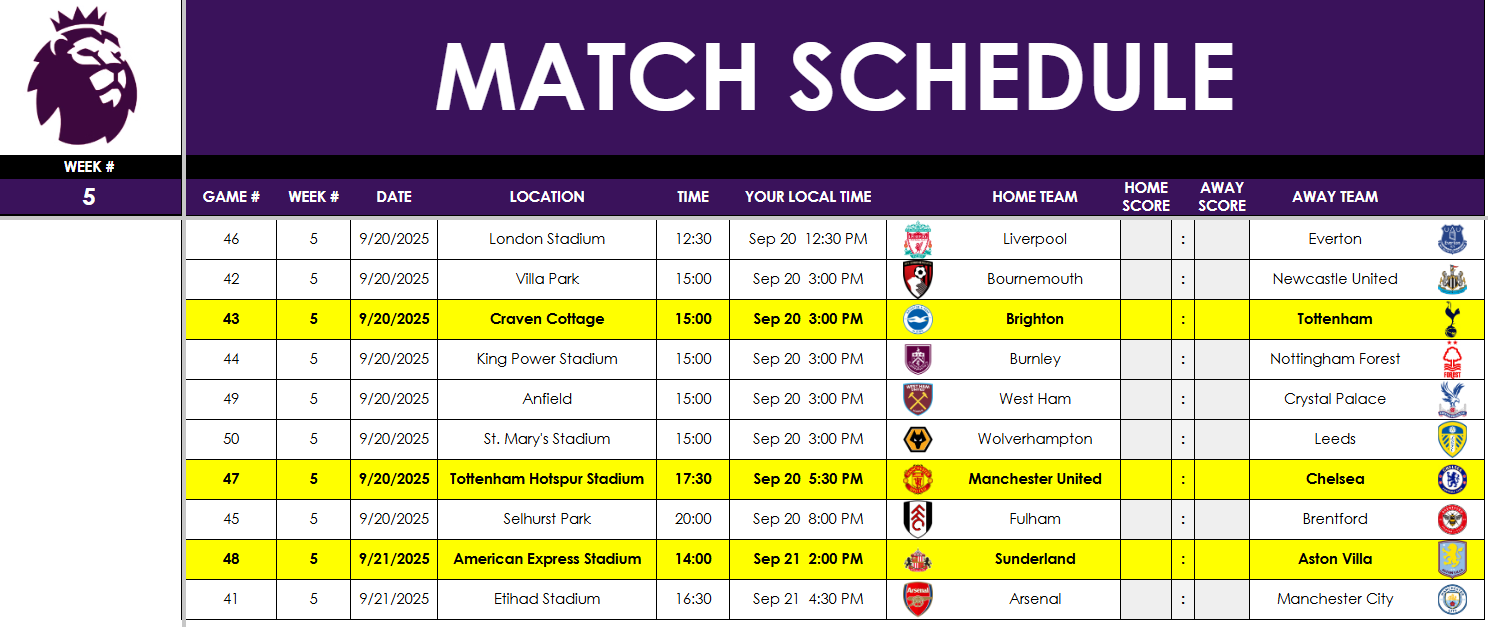
Weekly.Schedule
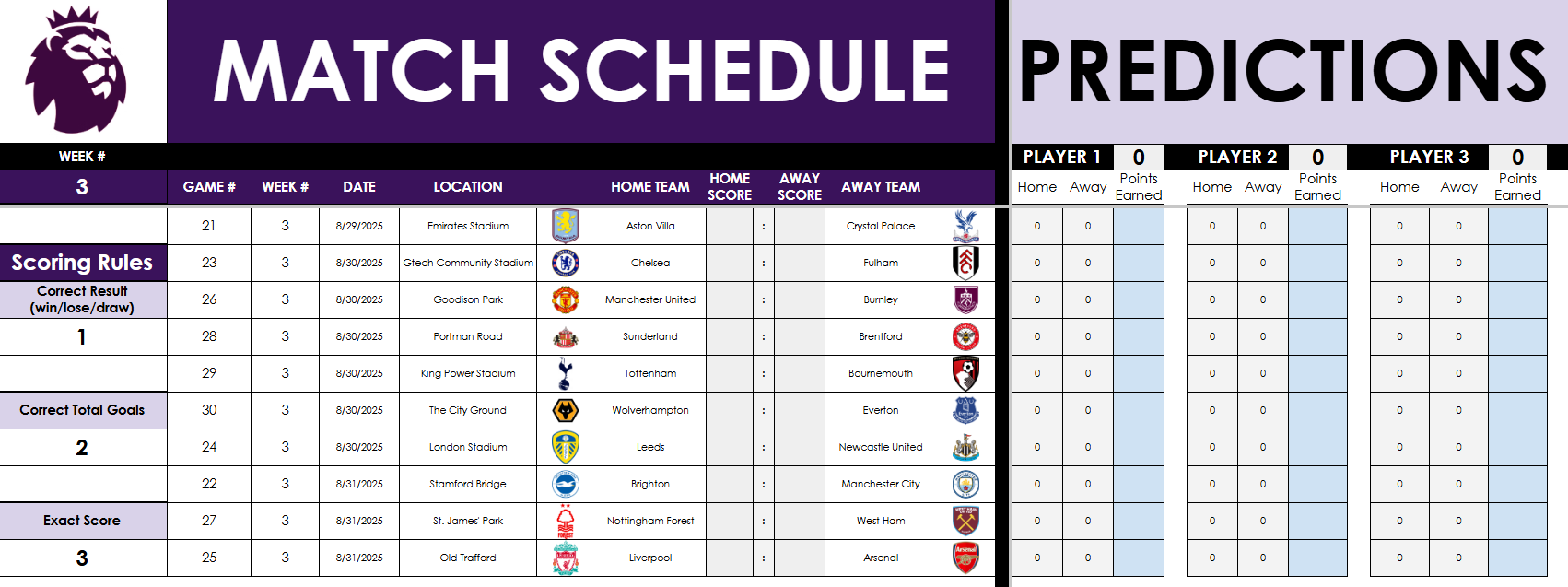
Weekly.Predictions
Leaderboard
Master.Schedule: The Core of the EPL Template
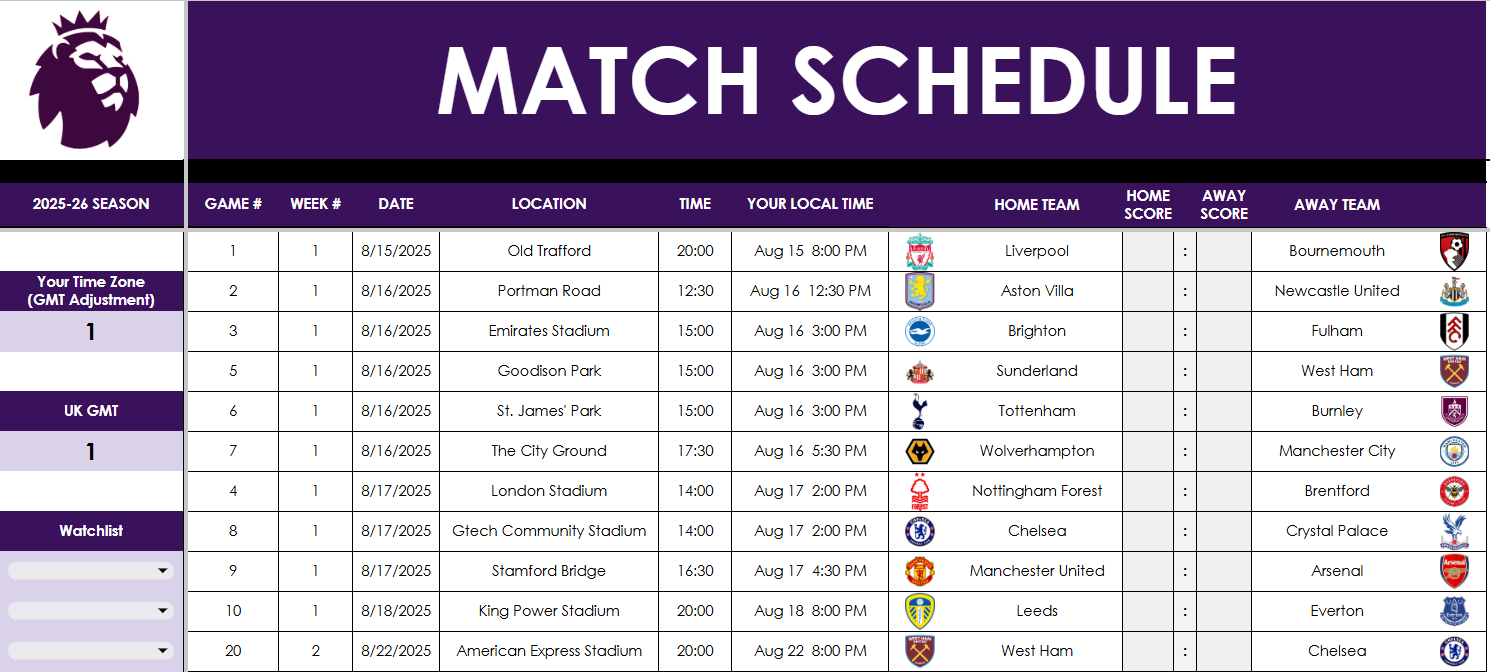
This is the main tab where you manage all fixtures and results. Update scores in columns J and L, and adjust for your time zone using the fields in column A if you want the time and date to update in columnG for the schedule.
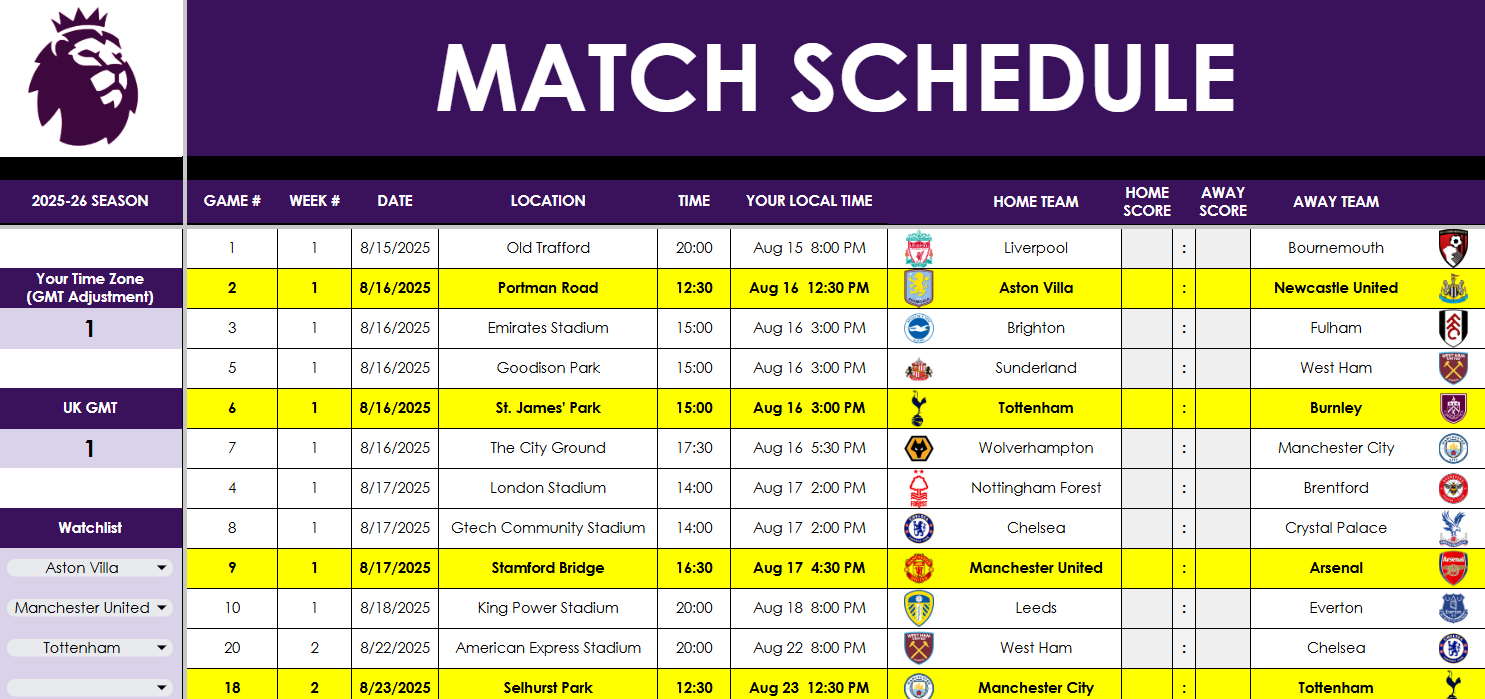
Want to follow your favorite clubs? Use the watchlist starting at cell A12 to highlight one or more teams. This affects other tabs like Weekly.Schedule, helping you quickly spot the matches that matter most to you.
As you update the results, the standings update automatically in columns AF:AI. If necessary, you can manually set tiebreaker positions in column AK, should the tiebreakers get to that point.
Team.Schedule: View Fixtures for a Single Team
In this tab, pick your team from the dropdown in cell A3, and their schedule auto-populates in columns B:N. It’s a clean, filtered view for tracking just one EPL team. The team is highlighted in grey, and no manual editing is required—this tab pulls directly from the master schedule tab.
Weekly.Schedule: Focus on One Week at a Time
In this tab, enter a week number in cell A3, and the tab displays all fixtures for that week. Matches involving any teams in your watchlist are highlighted for quick reference. Again, no need to manually enter anything—scores flow from the master tab.
Weekly.Predictions: Compete with Friends
Want to run a weekly EPL prediction game? This tab lets up to 10 players make predictions and earn points. And with this, you can specify the week you want to make predictions for — there’s no worry if you start late or haven’t been making predictions since the start.
Enter the week number in cell A3.
Customize the scoring system (e.g., 1 point for the correct result, 2 for correct goals, 3 for exact score).
Add player names in row 2 and enter predictions starting in column P. There is room for 25 players. If you don’t need them, just delete the names, and they won’t populate on the leaderboard tab.
Scores will auto-update based on the scores from Master.Schedule – do not make changes and enter actual results on this sheet.
Leaderboard: Track Your Prediction Results
The current week’s results will populate on the leaderboard, in row 72:
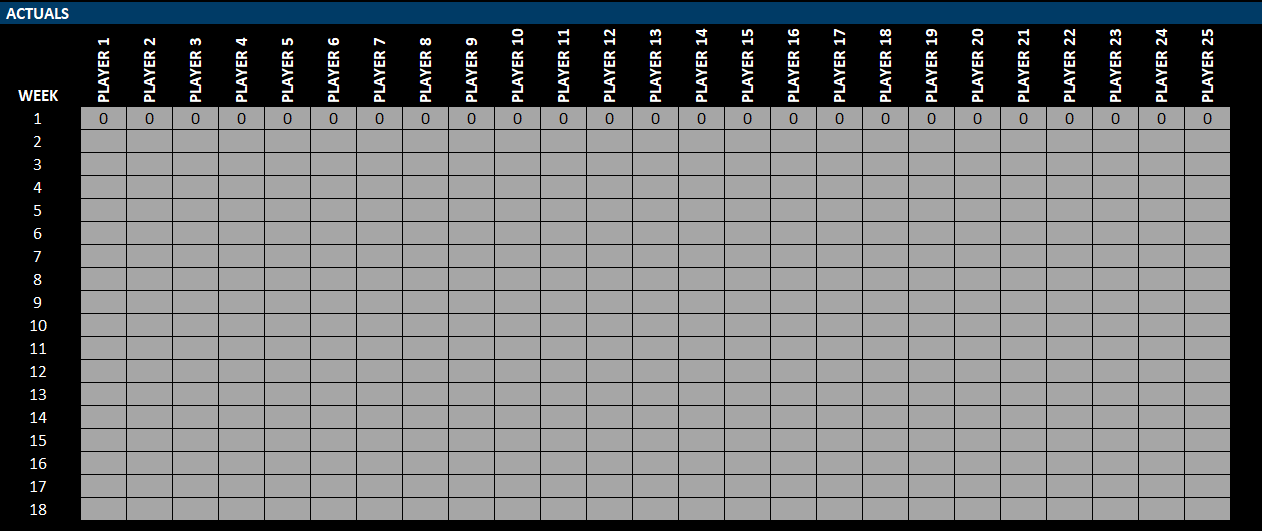
When the week is complete, copy the values to the table above, which is where you can update the points per week, in the actuals section.
In the above example, I’ve filled in values 1 through 25 for each of the players. You will override this with your own prediction results for week 1. And then as the following week completes, copy the scores (from row 72) to the correct section on the actuals.
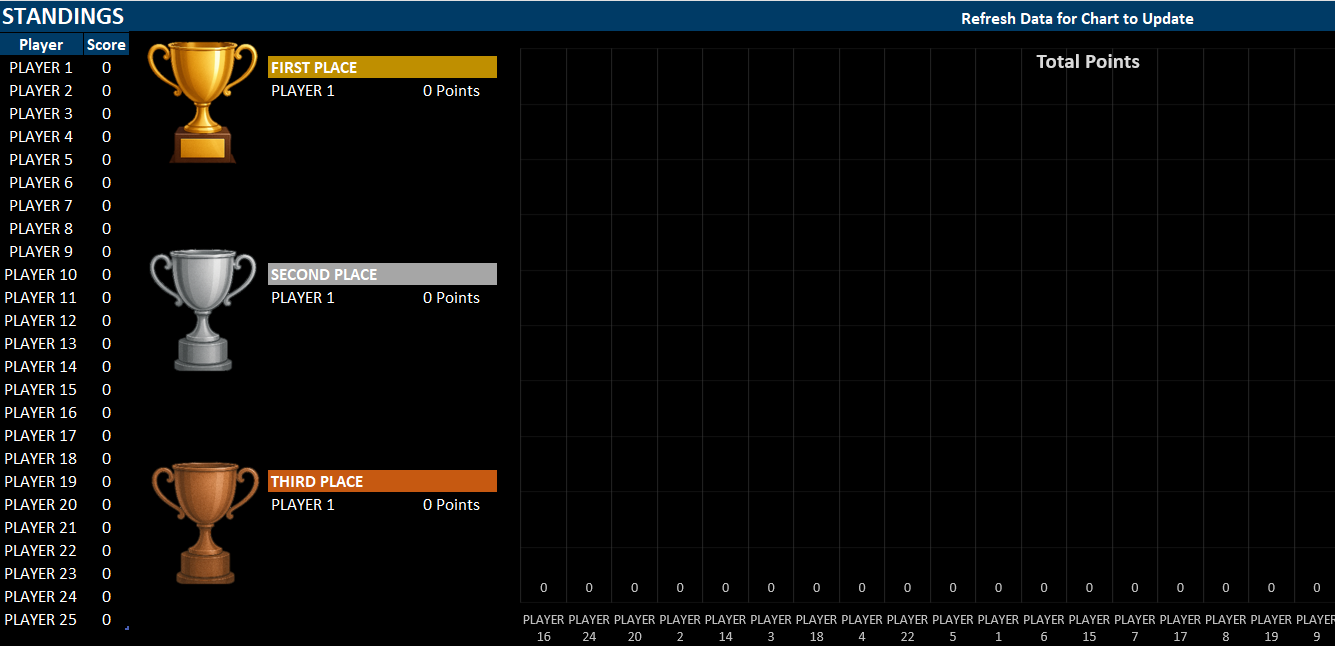
The data will then populate above, giving you a cumulative score for each player, along with a chart, showing the results visually.
On the Google Sheets version, the chart will automatically update. However, on Excel, since a pivot table is used to show only the active players, you will need to Refresh the data (from the Data tab). Otherwise, the chart will not update. There is a reminder on the Excel workbook to do this refresh.
Updated scores will now update via Power Query and Google Sheets
8/20 Update: With the latest file, you no longer have to manually input the scores anymore. I have a file that will update with the latest scores, and that will flow through to the Google Sheets and Excel files. For Excel, you will need to refresh the query to get the latest data, it will not pull in automatically. To do this, go to the Data tab and click on Refresh Data. By doing this, the file will download the scores.
Please note the scores are not live or up to the minute. I’m using AI to periodically update the data, and while I will attempt to update it by at least the end of each day that there is a game, I cannot guarantee that will always be the case. If you prefer not to wait, you can still update the scores and override the formulas within the file. But at the very least, you won’t have to input all the scores anymore.
Download the English Premier League Prediction Template
If you’re ready to go and want to give the template a try, you can get started right now:
When you click on the link, you’ll be prompted to make a copy of the file. This is to ensure that you have your own unique version of the file to work with.
This Premier League Prediction Template for Excel and Google Sheets is completely free to use and customize.
If you have any comments, questions, or suggestions about the template, please contact me!
If you liked this English Premier League Prediction Template for Excel and Google Sheets, please give this site a like on Facebook and also be sure to check out some of the many other templates that we have available for download. You can also follow me on Twitter and YouTube. Also, please consider buying me a coffee if you find my website helpful and would like to support it.