How to Freeze Panes

Freezing panes in Excel is useful when you want to still see certain rows or columns as you scroll through a large data set. Without doing so you could easily get lost in your data trying to figure out which header or category the value you are looking at belongs to.

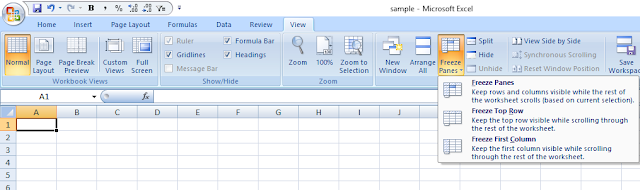
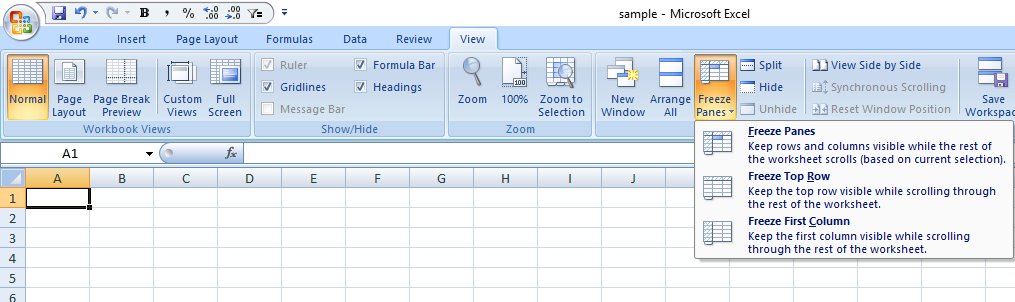
Under the View tab select Freeze Panes and if panes are frozen you will see an option to unfreeze panes. Otherwise you can choose to select to freeze panes, freeze top row, or freeze first column. Freeze top row will ensure that row 1 is frozen is you scroll down and ensure you will see your headers. Freezing the first column will make sure column A is always visible as you scroll to the right.

Now but what if you wanted to freeze both rows and columns, or multiple rows or multiple columns? That is where you would just use the regular Freeze Panes option. The key here is to select the correct point of intersection. When you press freeze panes the active cell will determine which rows and columns are frozen. Any rows above and columns to the left of the active cell will be frozen.

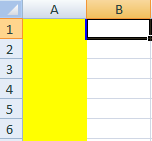
For example, if you wanted to freeze just the first row, you would select cell A2. Since there is nothing to the left of it, it would only freeze row 1 which is above.

Above I have highlighted the frozen row as well as which cell I would need to select to achieve that.

If you wanted to freeze just column A, you would select cell B1. Since nothing is above row 1, only column A is to the left of B, so only A would be frozen.

See above for the highlighted column and what cell I would need to select to freeze it.

 If you wanted to freeze column A and row 1 then you would need to select cell B2 since row 1 is above that cell and column A is to the left. See below:

Similarly, if you wanted to freeze the first two columns and the first two rows you would select cell C3 – see below for results

awater

How to Make a Waterfall Chart in Excel


waterfall chart
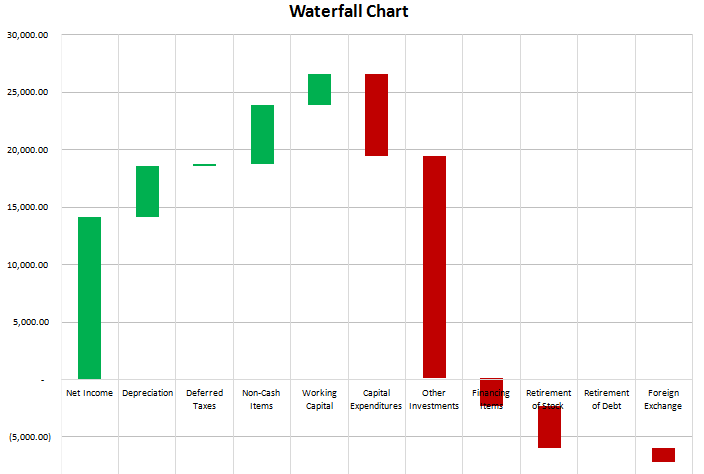
This is a chart that is useful in reviewing variances and monitoring change from one period to another. Favourable (positive) variances are green, and unfavourable (negative) variances are red. In this example I used a statement of cash flow. Increases or inflows in cash are favourable, while decreases or outflows of cash are unfavourable.


On the data tab all that is required is the change column (B), and the remaining formulas can stay intact.

If you were to track the changes in an income statement, you want to be careful to make sure favourable changes are positive and unfavourable ones negative. For example, if sales are up 100,000, that should be favourable since it has a positive impact on net income. However if expenses are up 100,000 that is unfavourable since it has a negative impact on net income, so although it is technically an increase, the change should be negative. This is where the cumulative change column is helpful because it shows you the running balance, and the ending figure in that column is what you are reconciling to. If that number is not correct then you know somewhere a sign is wrong or an amount is missing.


The remaining columns (D:H) simply have to do with the appearance of the chart. Columns D:E are positive changes, G:H are negative, and F represents the amount that is not visible or blank. The purpose for the blank values is what allows the waterfall chart to create the effect of starting from the last position and just showing the change in the cumulative value.


aproject

Project and Special Event Budget Template


The project budget template is designed to help track expenses that you do not need to compare against multiple time periods. That being said you could copy the template and create a separate instance for each period you want to cover. This template does not use macros so does not requiring enabling content.


The budget categories can easily be added by just entering a new category in the space below and the formulas will autofill and the chart adjust to contain the new category. To remove a category you can delete the cells and adjust the table by pulling on the corner in the bottom right section of the table (in the overbudget column). This will re-size the data to ensure the chart is not pulling up blank values and making the chart show blank values.


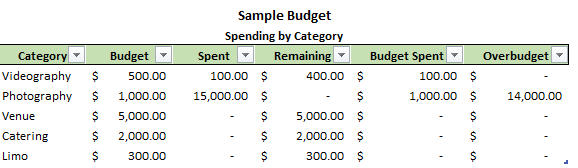
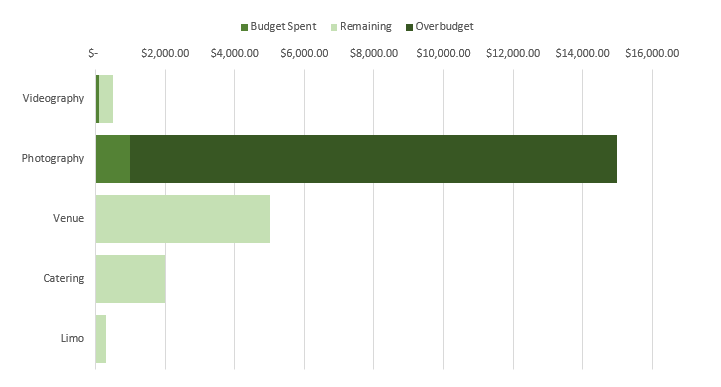
See above for the sample categories, and the chart below summarizes the data visually to show how much of a budget remains, how much has been spent, and how much is overbudget.
 
aexpmanager

Expense Manager Template: Maintain Budgets, Manage and Review Expenses

This template is designed to allow you to easily track and manager your expenses using budgets and copying transactions downloaded from your bank or credit card statement.
 
The template can be downloaded here
 
DOWNLOADING TRANSACTIONS

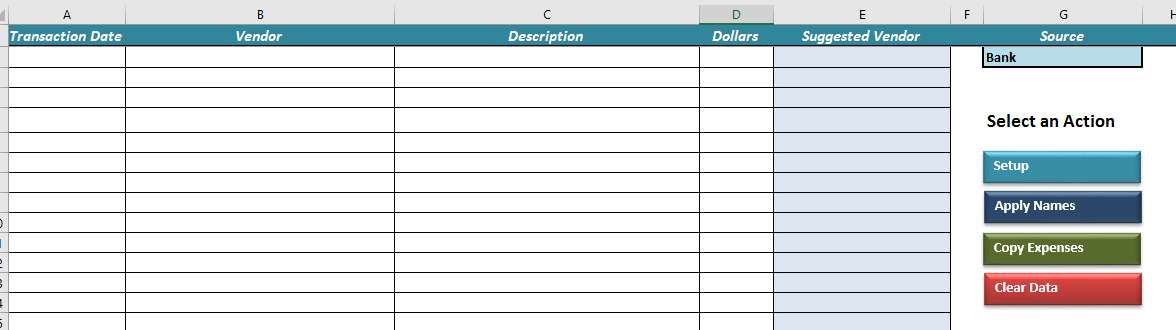
Once you have a download of your transactions from your statement, copy the data into the Import tab. The transaction dates into column A, the description from your statement in column C, and the amount in column D. Important to note that expenses should be positive (refunds negative), as should income. For payments/transfers I will cover further down but it will be negative if it is an outflow from the account/payment source or positive if an inflow. The source of your transactions will be selected in cell G2.
 
 
The suggested vendor column will autofill once it finds vendors matching the description you copied in column C. If not, you will want to setup the vendors using the setup button on the right of the page and click on manage vendors from where you can add, modify, and delete vendors. Once vendors are setup and all the suggested vendors are filled, click on the next button which is to Apply Names. This will fill the vendor column. After this is done you are ready to click on Copy Expenses. This will now move your transactions into the All Transactions tab. We focus on this tab next to go over how to manually enter transactions.
 
MANUALLY ENTERING TRANSACTIONS

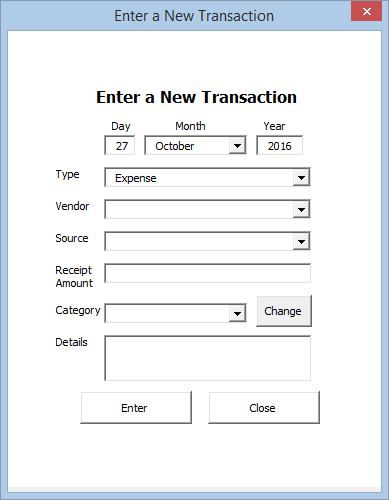
You can manually enter transactions from the All Transactions tab by clicking the New Expense button at the top (or CTR:+SHIFT+T as the shortcut key is noted in each of the buttons up top).


MODIFY TRANSACTIONS AND ALLOCATIONS

You can also modify existing transactions by clicking on the Modify Transaction button on the same tab which is the same screen as the new expense screen (see below) except filled out with the selected transaction’s details.
 
 
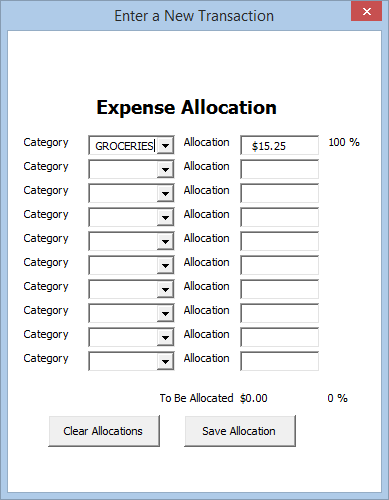
 Additionally, you can change the allocation. When setting up a vendor you assign a default category. However in this template you can break out a line item into as many as ten different cost categories. For example, if you go to a department store it may not be as simple as saying all those expenses relate to groceries, clothing, baby items, electronics, or whatever else is sold there. You could have all those cost categories and more in one receipt. This is where you can break out that detail, by clicking on the Change button next to the category drop down.
 
 
ACCOUNT TRANSFERS/CREDIT CARD PAYMENTS

Payments from one account to another are not an expense and may not be important enough for you to track. However, for the sake of completeness and making sure all your transactions are accounted for and balances reconciled, this can be accomplished here by setting up a vendor equal to the name of another payment source. In this template if you make a payment from one payment source to another it is recognized as a transfer rather than an expense (in the manual entry screen you can also specify transfer rather than expense). If the source of your payment is the bank and your vendor is your credit card (e.g. you are paying your credit card from your bank account) then on your bank account this amount should be negative and on the credit card it will be a positive. Transfers should add up to 0 every month unless you are missing one side of the entry. You can also manually enter transfers from the AllTransactions tab. Again, transfers are not necessary but helpful for the sake of reconciling to make sure all balances match.
 
ACCOUNT BALANCES

The Balances tab is used for reconciliation purposes to make sure the balance on your statement at the end of the month matches the balance here. It will reconcile according to the statement month and year rather than just looking at the calendar month and year. This will allow you to more easily reconcile to a specific statement. In row 17 you will want to enter any opening balance you have from these accounts.
 
BUDGET CATEGORIES

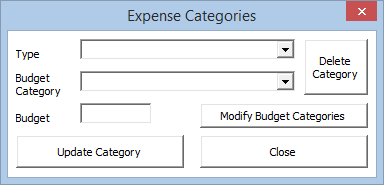
You can create budgets and also break them into multiple categories. By default I have setup my categories into whether the expenses are essential, discretionary, or irregular. However you can change these from the setup button (from the All Transactions or Import tabs), selecting Manage Expense Categories, and then selecting Manage Budget Categories.


From the Managing Expense Categories section you can create, modify, and delete budgets as well as change monthly amounts.
 
CASH FLOW AND PER DOLLAR SPENDING

These tabs show spending based on the budgets created and arranged in accordance with the different budget categories.
 
SUMMARY
 
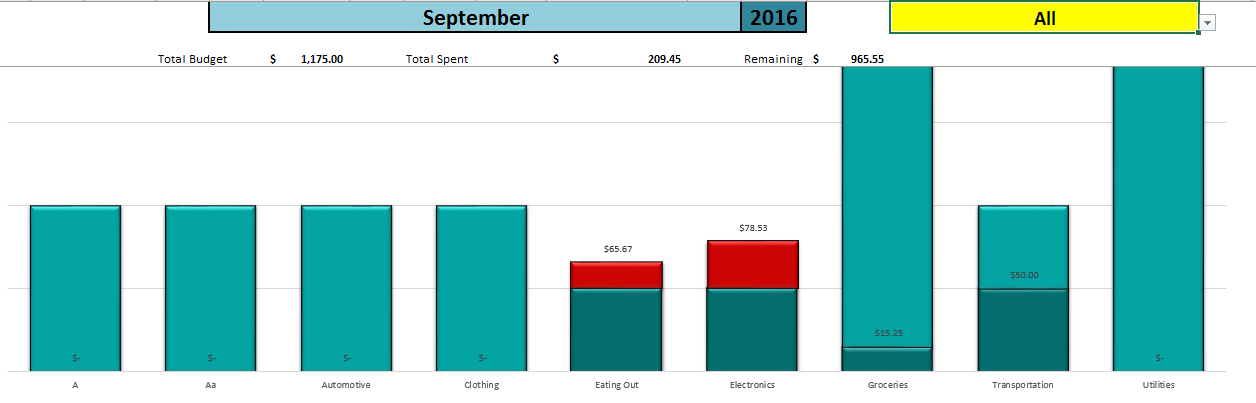
Lastly, the summary tab provides a summary of the expenses. In row 1 you can specify the month, year, and budget category you wish to review. The bar graphs below show in red how much an expense is over budget, and if there is dark green that indicates the budget has been partially used and the dollar amount specifies how much has been used with the light green portion what is remaining
 
 
Further down below the graph you will see a summary of the largest expense items, as well as top items by category where you will be able to select multiple expense categories to review at once. Alternatively, you could also go to the All Transactions tab and filter the data from there to view what made up an expense category.

NOTE ABOUT CUSTOM FUNCTIONS

There are multiple custom functions in this template and occasionally they might get stuck – show an error instead of the calculated value. To correct this just hit ctrl+alt+F9 if you notice error values as this should fix the issue.
aprogress

Show Progress Using a Picture in Excel

Please note this works only on versions of Excel 2010 and newer

There are many different ways to show progress in Excel, and in this post I am going to provide you a template to show you how you can do this through an image. Link to the template is here
In my example, I’ve inserted a picture of a glass of beer from clip art. In order for this to work I need two pictures of the same image. One that shows what the image looks like when at 100%, and one when it looks like when it is at 0%.
Certainly you don’t need to use clipart for this and can do it in a photo editing program but what I did was just used the picture editor to recolour the image with white, or ‘washout’
Now I have two images, I need to name the one that is empty as pictureempty, and the one that is 100% as picturefilled – this image needs to be on top of the pictureempty image. To do so you right click on the picturefilled image and select bring to front. Now, importantly, the images need to overlap one another. Carefully align the pictures so they are exactly overtop of one another. If they’re not, you’ll notice after running the macro anyway and can adjust accordingly.
Once you’ve got them aligned then all that’s left to do is change the percentage and click the update button and you will see the picture be filled from bottom to top based on the percentage you have entered in. Without clicking the button it will not update.
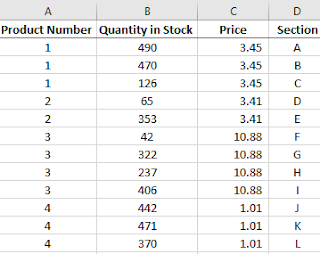
Inventory count sheet showing data by product number.

How to Sort Data in Excel Without Messing Up Formulas

If you have a formula that involves multiple sheets and you later sort that data you may notice your cell references are now out of order and need to be corrected. It can be frustrating and dangerous because you may not realize your formulas are now calculating different cells.

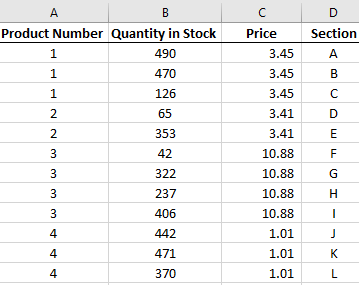
For example, I have created a sheet called InventoryCount and another called Total. The InventoryCount sheet acts as a tally of all the locations a certain product number is found:

Inventory count sheet showing data by product number.

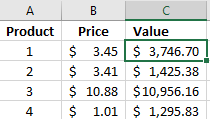
On the totals sheet, I have a summary of these product numbers using a SUMIF formula that multiplies by the price.

A summary of the inventory values.

The formula in the highlighted cell above is as follows:

=SUMIF(InventoryCount!A:A,Total!A2,InventoryCount!B:B)*B2

The formula in the price column for product 1 is:

=VLOOKUP(A2,InventoryCount!A:C,3,FALSE)

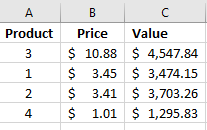
Both formulas are referencing the InventoryCount sheet. The formulas in the value column are correct. But let’s say that I want to sort that column by values. If I sort in descending order, this is what I get:

Inventory data after applying a sort.

The values are not only not correctly sorted  (product 1 is lower than product 2’s value) but the values have changed. If you look at the values before the sort product 3 dropped from 10,956.16 to 4,547.84. There is nothing glaringly obvious that the calculation is now completely incorrect so you can imagine the danger when dealing with lots of data that such a sort could make your data get altered. The formula for the value in product 1 now looks like this:

=SUMIF(InventoryCount!A:A,Total!A2,InventoryCount!B:B)*B3

It is still referencing A2. So technically the formula is still correct, the problem instead is product 1 is no longer on row 2, it is on row 3. The assumption that the value in row 3 relates to the product on row 3 will now be incorrect.

So why did this happen? Notice that the price has not changed for any of these products, Product 1 was $3.45 before the sort, as well as after. This column still is correct in relation to its corresponding products.

If you go back and look at the two formulas (price and value) you will notice on key difference: the cell referenced on the current sheet (Total) for the price does not mention the sheet name, however on the value formula it does.

This is the original formula to calculate the value:

=SUMIF(InventoryCount!A:A,Total!A2,InventoryCount!B:B)*B2

The Total! reference is causing the sorting issue and needs to be removed. The updated formula becomes:

=SUMIF(InventoryCount!A:A,A2,InventoryCount!B:B)*B2

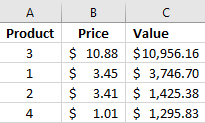
Now if I apply the same logic to the other formulas in the value calculation and sort the data in descending order, below is the result I get:

Inventory data after applying a sort.

The values are back to what they were at the start and product 3 is the highest as it was initially. Except now they are correctly sorted in descending order with the product number correctly being referenced in column A.

So the lesson here is that if you are using formulas with multiple sheets get rid of the sheet reference when referencing a cell on the same sheet as the formula is on (Excel inserts this reference automatically as you switch from one sheet to the next). Otherwise, if you or anyone else sorts the data the calculations will not be on the correct rows.


If you liked this post on How to Sort Data in Excel Without Messing Up Formulas, please give this site a like on Facebook and also be sure to check out some of the many templates that we have available for download. You can also follow us on Twitter and YouTube.

Custom Function That Does Multiple Lookups

MatchThis function
This function works as if you were doing multiple lookup statements in one formula. The example I’m going to use is if you wanted to look at your credit card statement and from the description determine what vendor it is.
For this function to work I need to create a named range of all the values (e.g. possible vendors) I want to cycle through to compare the string (e.g. credit card data) against. The named range needs to be called LookupList. Below you will see the LookupList I created. (For more on named ranges, see this post)
I’ve added a header but that is not necessary. As long as the list is a named range called LookupList. The adjacent column is the value that will be returned if the value in the LookupList is found. You need to ensure this column is also filled in or else the result of the formula will be blank, regardless if there is a match.
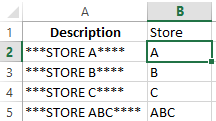
When I run the custom function, the function will cycle through the LookupList from top to bottom to see if one of those values is in the cell I am using the formula on and if so, return the related result. For that reason, the LookupList also needs to be in descending order, to avoid a premature match (e.g. finding Store A before the function finds Store ABC)
Column A is an example of data from a credit card or other source that may have various characters before and after what you are looking for. You could use the MID function to extract that data but that will only work if that data is consistently arranged the same way. It might be, but using this function it won’t matter and it will just look if any of the values in the LookupList are contained in the string, regardless any other characters before and after.
Column B is the MatchThis function. And since the LookupList is already defined the only argument is the data that you want to look at, which in this case is column A. In column B2 the formula is simply =matchthis(A2). Because it matches Store A, it returns the value A (from the results column).
Below is the code for this function:
————————————————————————————————————————————–
Function MatchThis(matchcell As Range)
Application.Volatile
Application.Calculate

Dim LookupList As Range
Dim c As Range
‘Identify the range of cells you want to compare against. The lookuplist is what will be compared against and the column to the right of it will be the output
Set LookupList = Range(“LookupList”)
‘Go through each of the cells looking for the criteria in cell c, and if it matches, pull the value from the next column
For Each c In LookupList
If InStr(1, matchcell, c, vbTextCompare) > 0 Then
MatchThis = c.Offset(0, 1)
Exit Function
End If

Next c

End Function
————————————————————————————————————————————–

Ranks in Excel: Breaking Ties

The RANK() function in Excel is limited to a single range and if you do not have a set of unique numbers to use the rank function on it will return repeating values.
There is a workaround however. If you can afford an extra column for a ‘rank total’ then it will be easy to accommodate. Or you can use an array formula.
The easiest example in creating a rank total column is to look at standings in sports:
Team
W
Points
GF
GA
Goal Differential
Team A
5
15
20
5
15
Team B
4
12
19
18
1
Team C
6
12
12
7
5
Team D
4
11
17
15
2
In this scenario I’m going to say the rank order will first be by points, the first tiebreaker will be wins, followed by goal differential. My rank total formula will be as follows: Points + wins/100 + goal differential/10,000. I’ve broken out how the values look and after totaling them:
Team
W
Points
GF
GA
Goal Differential
Win Value
Differential Value
Rank Total
Team A
5
15
20
5
15
0.05
0.0015
15.0515
Team B
4
12
19
18
1
0.04
0.0001
12.0401
Team C
4
12
12
7
5
0.04
0.0005
12.0405
Team D
4
11
17
15
2
0.04
0.0002
11.0402
For Team A, their rank total is made up of 15 (points), .05 (wins) and .0015 for goal differential. If the factor for goal differential was only 1,000, then goal differential adds 0.015 and now it affects the decimal position for wins and has the same effect as a sixth win, which is wrong. So you want to choose your factors carefully so as not to effect the higher ranking tiebreaker. If goal differential was only ever single digits then you could have used a denominator of 1,000 instead of 10,000.
The result of this rank total tells me Team C should be ranked higher than Team B because both teams have the same points, same wins, but Team C has the higher goal differential.
Now what you can do to pull the ranks is use the following formula:
RANK(ranktotalvalue, ranktotalcolumn)
Or if you want to put the name of the teams in order of their rank rather than just saying Team A is in position 1, then you can use the index and match functions as follows. Assume the Team column is column A and the rank total is column I:
=INDEX(A:A, MATCH(LARGE(I:I,ROW(A1)),I:I,0))
Let’s break down this formula:
=INDEX(A:A
This tells the formula I want to extract the value from column A.
LARGE(I:I,ROW(A1))
This extracts the largest value in column I. The reason I use ROW(A1) instead of the number one is because now if I drag this formula down the relative reference will become ROW(A2), ROW(A3), and ROW(A4) which then looks for the second, third, and fourth largest values respectively.
MATCH(LARGE(I:I,ROW(A1)),I:I,0)
This formula looks for where the value matches the result of the large formula calculation. Where that match is made, the related value from column A is returned. And the following list is generated:
Team A
Team C
Team B
Team D
This correctly puts Team C ahead of Team B in the rankings.
WHAT IF I DON’T HAVE ANY TIEBREAKERS?

If you do not have any tiebreakers then what you can do is pull them in the order that they appear. If you want them to be in ascending or descending order, then you will first need to sort the data in such a way.
In this case, you can calculate your rank total using a value for the row the values are on. The formula for the ‘row value’ would be calculated as follows: 1/(ROW()*100).  The fraction is used to make sure the rows higher up will appear first. I multiple the denominator by 100 to push it further down the decimal location. Below is how my rank totals now look:
Team
W
Points
GF
GA
Goal Differential
Row Value
Rank Total
Team A
5
10
20
5
15
0.005
10.005
Team B
4
12
19
18
1
0.003333333
12.00333333
Team C
4
12
12
7
5
0.0025
12.0025
Team D
4
11
17
15
2
0.002
11.002
I changed Team A’s point total to 10 for the sake of this example. Now the top two ranked teams (B and C) both have 12 points. Because B is in a higher row and thus shows up before C, it has a higher row value which in turn gives it a higher total rank value. So the correct order now is Team B, Team C, Team D, and Team A.
THE FORMULA METHOD

Now if you don’t have the luxury to put an extra column in your worksheet, you can certainly do this in a formula, although it won’t be pretty. Essentially you’ll recalculate the rank total and search through the values using an array formula.
To recalculate the rank for the non-tiebreaker method:
{=INDEX($A$2:$A$5,MATCH(LARGE(($C$2:$C$5)+(1/(ROW($G$2:$G$5)*100)),ROW(A1)),$C$2:$C$5+(1/(ROW($G$2:$G$5)*100)),0),1)}
The INDEX formula again looks at the Team column while looking for the largest value when adding the points value to the row value. The calculation for the row value is the same as above just now dumped into a formula. An array formula has to be used to ensure each team’s results are looked at individually.
For the multiple tiebreaker scenario from above, the formula will be longer to accommodate for all the extra tiebreakers it has to look at:
{=INDEX($A$2:$A$5,MATCH(LARGE(($C$2:$C$5)+($B$2:$B$5/100)+($F$2:$F$5/10000),ROW(A1)),(($C$2:$C$5)+($B$2:$B$5/100)+($F$2:$F$5/10000)),0),1)}
Again, same logic and formulas are involved except without a rank total column it has to be done in an array. The results yield the same order as through adding an extra column.
t account excel template spreadsheet

T-Account Template

A good way to plan and organize your journal entries is to use t accounts. This template will allow you to setup and manage multiple accounts and see the impact of all your entries. It’s a quick way to plan and hopefully prevent any mistakes before they happen.

Download Options

Free version: Download Here For the full version (no ads/workbook locks) click on the following button:
 

About This Template

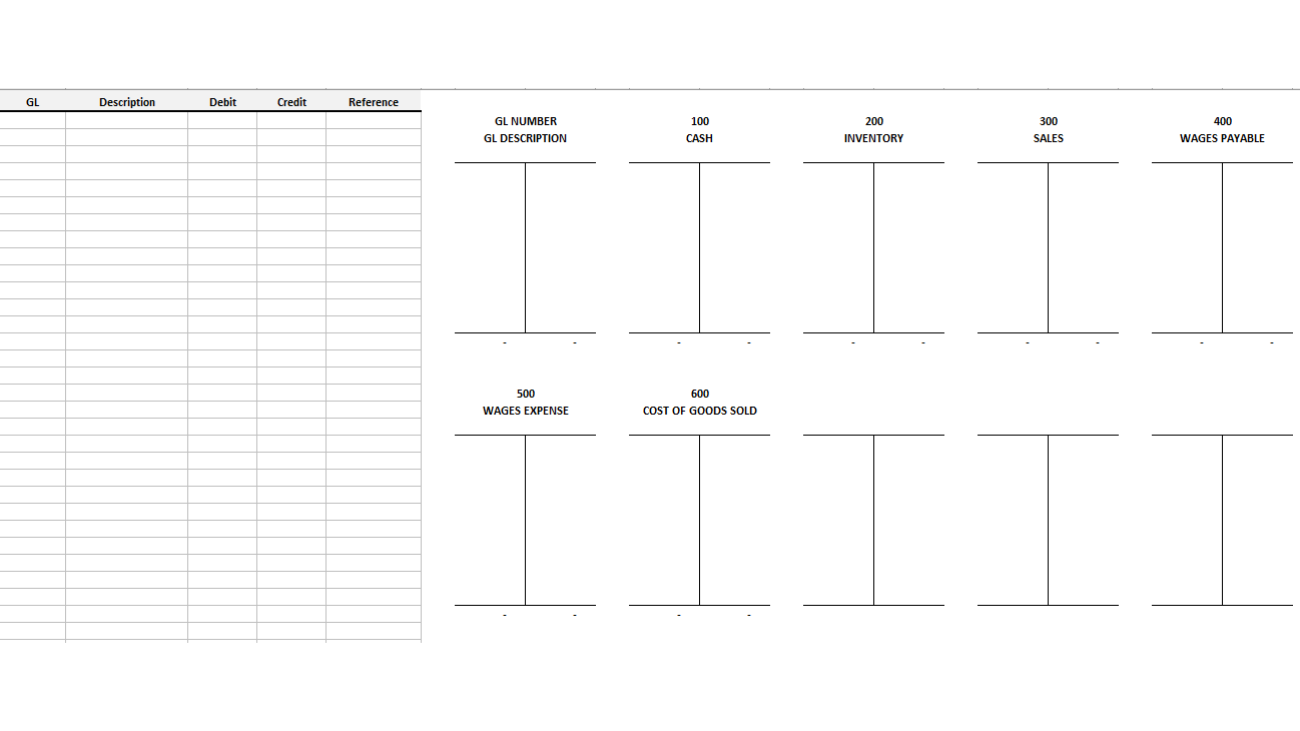
This template allows you to easily setup t-accounts and make entries on the left hand side of the spreadsheet and see the affect on the related t-accounts on the right hand side.
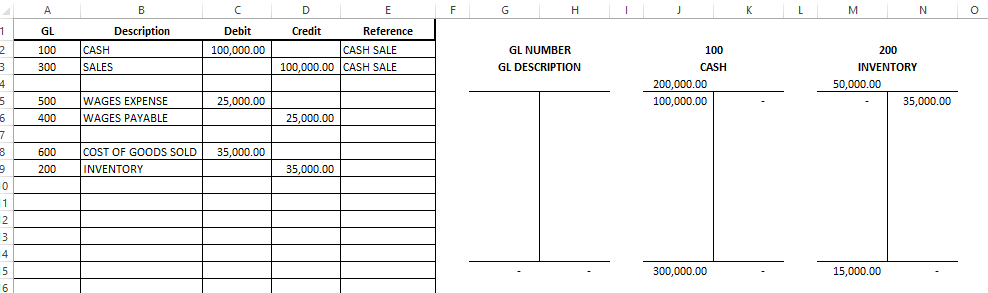
There are placeholders for 10 different t-accounts with the first row specifying the GL number (this will need to match the GL column in the entries to correctly update the t-account), the GL description (for reference only and not needed for calculations), and if there is an opening debit or credit balance for the account. Once setup, any entries you enter will automatically update the t-account which will show the updated balance as well.
Below is how this looks with the sample data in the template. Feel free to test out the template with the embedded Excel file below
aexp

Expense Report Template for Excel

If you’re looking for a way to manage your employee expense reports and don’t want to shell out hundreds of dollars every month, then this expense report template could be a great option for you. You can set up rules and flags for categories and it will keep track of when and who a report was approved be.

Benefits of using this expense report template

The expense report template is designed to help with the following:

  • Unlike online reporting solutions, you have all the data and can store and save it as you wish.
  • Complete customization. Setup multiple approvers, categories, and flags as you need.
  • Make it easy for employees to enter expenses across multiple categories and branches
  • Allow management to easily change and setup desired limits for expenses
  • Bringing problem items to the attention of managers to force them to acknowledge and allow them to comment on individual issues.
  • An approval process that stamps the date, time and user ID of the employee who has reviewed the report and the manager who approved it.
  • Integration with the ribbon so buttons are readily available in the tab.

Setup limits for expenses

Let’s move over to the SETUP tab. This will show you the customization you can do with this report.

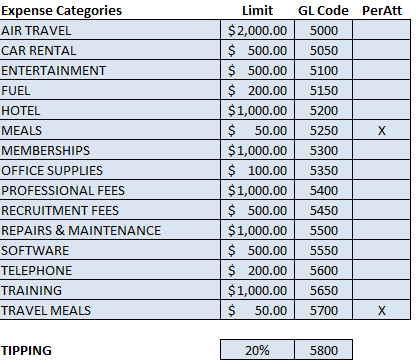
Under the expense categories section I can specify the dollar limit per category, the GL code, as well as if it is per attendee (PerAtt). The limit is at what amount the expense gets flagged. It won’t prevent the user from completing the report, but the limit instead acts as a way to flag expenses over the limit.

For example, in my table below if someone made a claim for $3,000 for air travel, it would get flagged for the manager to review.

In the case of meals, this is a moving target since it is largely dependent on the number of people at a given meal. If it is a company even with dozens of people then a limit of $50 or $100 will not be terribly useful. This is where the PerAtt column comes into play. For meals at $50 and an “X” marked in the PerAtt column, the $50 limit will be multiplied by the number of attendees indicated on the expense report (the data tab has this information). This will allow the limit to grow with the number of people in attendance.

The GL code column is for accounting purposes as to which account it should be booked to.

expense categories

Other setup options

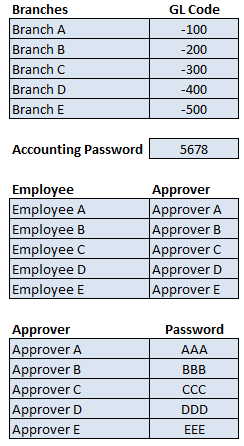
In the next section of the setup tab it relates to branches and what GL suffix is to be added if necessary. If no branches are used this can be left blank. The accounting password is what will need to be entered when the accounting button is pressed at the data tab which will unlock all the tabs including setup. Also, there is a section for a list of employees and their approvers and the approver passwords.

expense report setup
If you need to set up more approvers or sections, make sure to insert a row above the last entry to ensure that formulas remain intact.
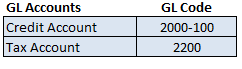
The last section in the setup relates to the GL coding for which account to credit as well as the tax account.
expense gl accounts

Using the data tab

The DATA tab is where all the data entry goes. I have filled out some expenses as below. Since both of them are over my pre-defined limits, they will both be flagged.

expense report template sample

Once the file is sent to the manager for review, he will press on the Manager Review button which will prompt for a password. If correctly entered, the Manager tab will show and it will show the following items as being flagged:

expense report template review

The information is pulled from the data tab and under the reviewable reason it explains why it has been flagged. There is also space for the manager to put their comments regarding the items so that once the report is sent to accounting for processing accounting will see any comments by the manager to confirm they have acknowledged and approved the expenses.

Finally, the accounting tab prepares the GL entry. This is triggered once the accounting button is clicked and password is entered

Get the expense report template today!

Download – Expense Report Template (Trial Version – 10 Entries)

Buy The Full Version – No limitations, coding unlocked and no ads

*default password to access the setup/accounting tabs is 5678
*passwords for approvers is listed in the setup tab