prepaid expenses template excel spreadsheet

Prepaid Expenses Template

***NEW VERSION AVAILABLE HERE ****

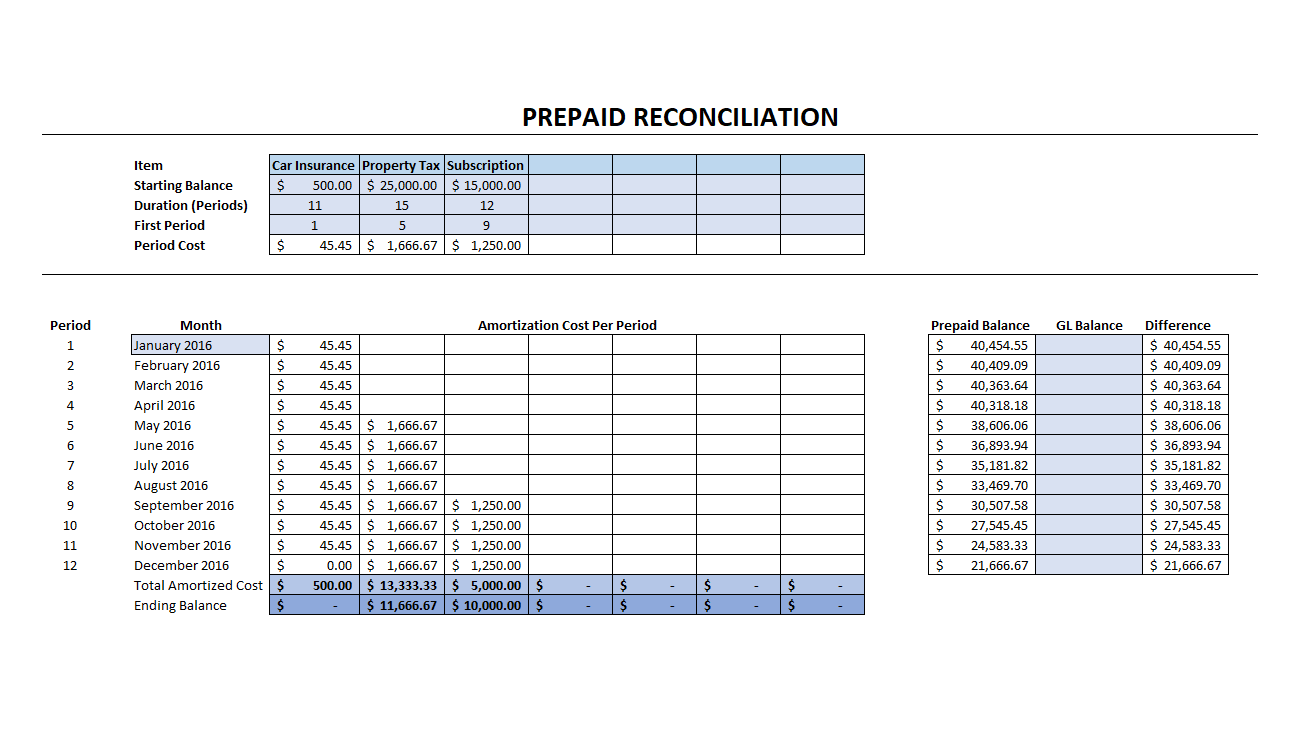
If you’ve got several prepaid expenses to track then this template can help you manage and reconcile that. You can select different start dates and durations and can easily modify the template to adjust it to your needs and add more items to it.

How This Template Works

This template will help you track and amortize prepaid expenses. If you’re looking for an amortization template, however, check this post out.

I have some sample data entered into it and the top section is where you can enter the details. This includes the prepaid item, the starting balance (or the total expense), the number of periods you want to expense it over, and the first period you want to start expensing it from. You can add additional items and just copy the formulas over.

The first month where I’ve entered is January 2024. However,  you can change that  to a different month and the other months will automatically increment. This spreadsheet covers 24 periods or two years as some expenses could possibly stretch longer than just one year. However, you can stretch this to more than 24 periods by again copying the formulas further down.

The section on the right allows you to enter your general ledger (GL) balance. Here you will see any variance between what that amount is and what the prepaid balance should be. This will help you to reconcile your prepaids and identify which items you still need to account for.

The prepaid expenses template is flexible and should be easy to change as needed. There is no coding in this template as it’s entirely driven by formulas. If you can copy formulas, you can easily modify this file as needed to suit your needs.

Another template that might help in your reconciliations is my  t-account template which can help plan your entries.

If you have any feedback on this template please feel free to leave a comment!

Download Options

Free version: Download Here. The free version is limited to three prepaid items to track and the sheet is locked.

For the full version (no restrictions/ads/worksheet locks) click on the following button:

Macro to Replace Cell References with Formulas

When creating a complex formula sometimes you use multiple cells to get to a desired result. Then at the end you may want to join all those cells into one large formula. You can do this by copying formulas to replace the cell references but it’s not as easy as it should be.

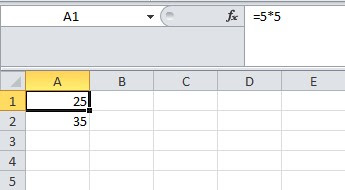
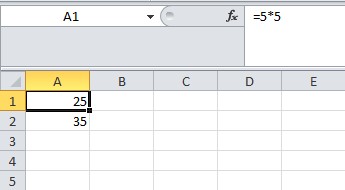
The macro below does exactly that – it will replace the cell references with the formula in the referenced cell. For example, in cell A1 I have a simple formula of =5*5. 
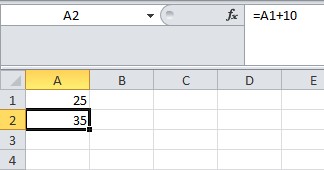
In cell A2 the formula is =A1+10. 

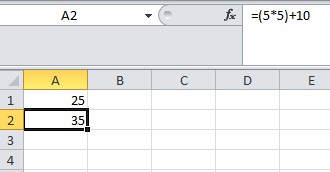
What I do next is to select cell A1 and run the macro. It will look in the spreadsheet to see everywhere that cell A1 is referenced and replace it with the formula in A1. Below is the result in cell A2 after the macro has been run:

You’ll notice I added parentheses to make sure that the result would not get altered – not applicable in this example since order of operations would ensure the calculation is correct but in a more complex example it might not be the case.
Below is the code for this macro:
Sub copyformula()

Dim whattocopy As String
Dim whattoreplace As String

whattoreplace = Replace(ActiveCell.Address, “$”, “”)
whattocopy = “(” & Replace(ActiveCell.Formula, “=”, “”) & “)”

   Cells.Replace What:=whattoreplace, Replacement:=whattocopy, LookAt:=xlPart, _
       SearchOrder:=xlByRows, MatchCase:=False, SearchFormat:=False, _
       ReplaceFormat:=False
    
   Cells.Replace What:=ActiveCell.Address, Replacement:=whattocopy, LookAt:=xlPart, _
       SearchOrder:=xlByRows, MatchCase:=False, SearchFormat:=False, _
       ReplaceFormat:=False

End Sub

Custom Function: Extract All Matching Data

The purpose of this function is to act as multiple vlookups to pull all data that has multiple matches, and allows the user to specify how they want the data delimited

The function is called EXTRACTALL and it has four arguments:
Argument 1: Looup Field. This is the value that you are looking for. If it is text, make sure it is in quotes
Argument 2: Lookup Range. The range the function is going to search to find the value specified in argument 1
Argument 3: Output Range. If a match is found in the lookup range, this is what will be returned. The ranges should be the same length
Argument 4: Separator. This is how the results will be separated.

An example of the formula is below:

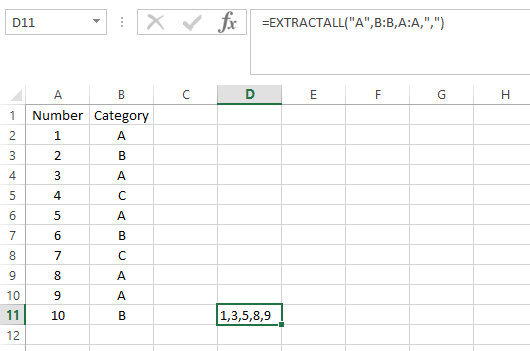
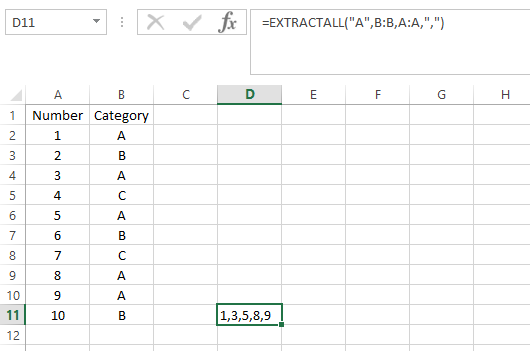
=EXTRACTALL(“A”, B:B,A:A,”,”)

This will look for the letter A in column B, and when there is a match the value from column A will be pulled. All values will be separated by commas.

You will note the values that correspond to A’s are 1, 3, 5, 8, and 9 which is what the result displays in cell D11. This acts effectively the same as a lookup function might with the difference being this will pull every match and put it into one cell whereas a lookup will just grab the first match and nothing else. This is more useful in the case of text values because after using this formula (especially if a comma separator is used) you can convert from a comma delimited field into multiple fields.

Below is the code:

Function extractall(lookupfield As String, lookuprange As Range, outputrange As Range, separator As String)

Dim cl As Range
Dim counter, offsetcol As Integer

counter = 0
extractall = “”


offsetcol = outputrange.Column – lookuprange.Column


For Each cl In lookuprange

    If cl = lookupfield Then
        counter = counter + 1

            If counter > 1 Then

               extractall = extractall & separator & cl.offset(0, offsetcol)
            ElseIf counter = 1 Then

                extractall = cl.offset(0, offsetcol)
            Else

            End If
    End If

Next cl

End Function
acashflow

Cash Flow & Calendar Template

In this post I have attached a simple calendar template that will allow you to generate a new calendar by just changing the month name or year. In addition there is an empty space for each day that by default tracks cash flows (from the data tab). You can enter in dates and cash flows in the data tab and they will populate on the calendar for those days. Of course the formulas can be overridden to put other data in the calendar.

Below is what the template looks like with some sample cash flow numbers filled in

Cash Flow & Calendar Template

aar

Create an Accounts Receivable Customer Statement

TEMPLATE – AR STATEMENT

This is a template designed for creating customer statements from invoice and customer data. Some accounting software (specifically some ERPs) are not the most user-friendly and creating an easy-to-use statement that is customizable is difficult to say the least.

My template has three tabs.

One is for customer data, and this should be a data dump of all your customer names and address information. This will be used to generate the address on the statement for the customer.

The next tab is the invoice data. This should contain all the outstanding, unpaid accounts receivable invoices.

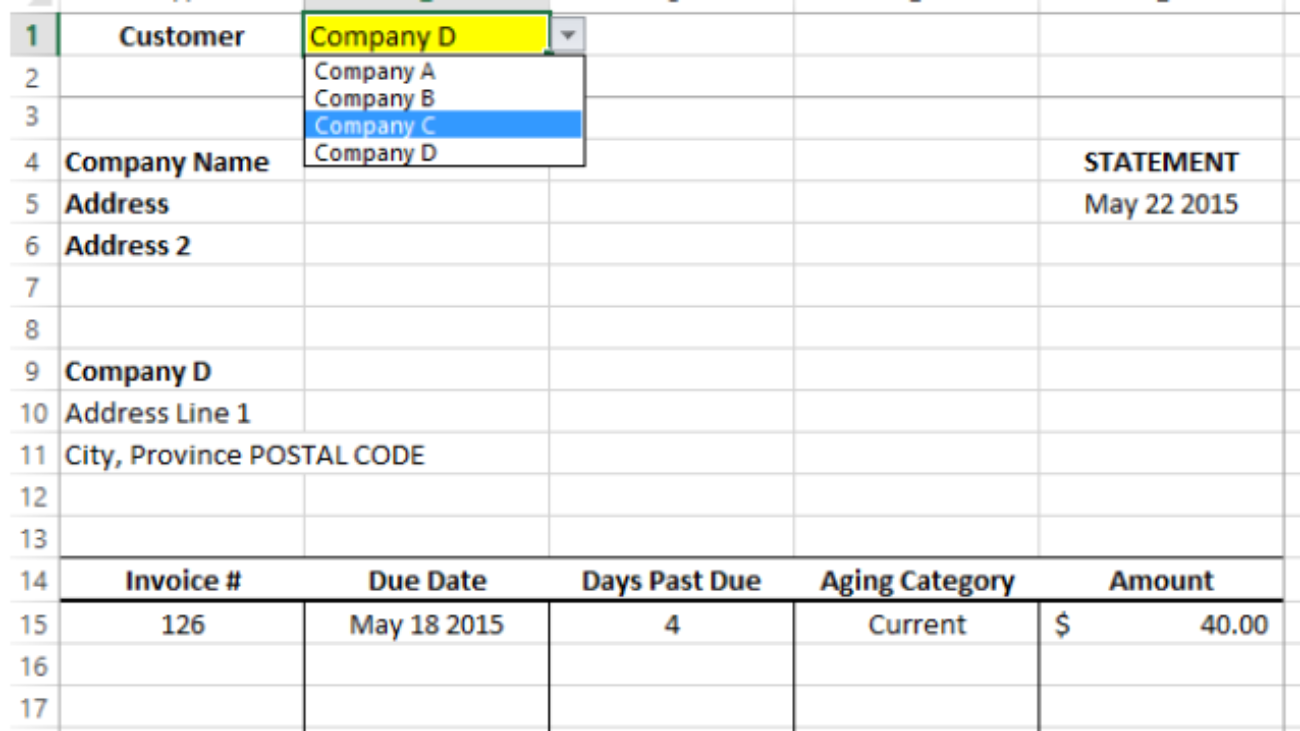
Once all the data is populated on those two tabs, you can go to the statement tab. In cell B1 you can select from a list of customers – this is tied to the customer data tab. Select the customer you want, and the address and outstanding invoices will be updated.

In cells A4 to A6 is where you would put your company information as well as adding any logo or customization. At the bottom of the page there is a summary of the outstanding invoices by aging category as well as the total outstanding.

The template has some sample data for you to test and see how it works.

Simple VBA Tricks

A couple quick snippets of VBA code that can help you impress your friends although might not have much real utility.

First up: have Excel speak to you

Application.speech.speak “text”

Where text is what you want Excel to say. Just like with any other code you can of course use variables for this to alternate. You could create a list to cycle through various messages as well.

Another one: opening a URL

ThisWorkbook.FollowHyperlink “http://www.google.com”

The above code will open Google when triggered in the default browser.

Removing Blank Spaces

When copying data into Excel from other sources – be it web pages, documents, or other Excel documents sometimes you end up with unwanted formatting, such as numbers with invisible spaces that prevents it as being read as a number or converted into one. Or just ending up with data you don’t want.
The TRIM function in Excel is useful for removing trailing spaces after text that serve no purpose.
The more annoying issue that I’ve come across is a blank space that looks like one but isn’t. It is usually character # 160 which looks just like a blank space, only thinner than normal. If you enter char(160) in a cell you’ll see what this looks like. It can be a frustrating process because this character you can’t get rid of by just searching for blank characters and doing a find and replace or the trim function. It’s possible to see this with other characters as 160 isn’t the only one that looks like a blank space, but it is the only one I’ve come across so far.
The solution is to replace character 160 with character 32 (this is a normal space that will get eliminated with the TRIM function). To do this, use the following formula, assuming cell a1 is the cell that needs the cleanup:
=TRIM(SUBSTITUTE (A1,CHAR(160),CHAR(32)))
You can add a *1 to the end of the formula to convert it to a number if necessary.
See below for an example. The only difference between the cells in A2 and A3 is A2 has a normal blank space after it whereas cell A3 has character 160 after it. Both cells equal the same length (12 characters) as show in column B. column C is what the cells look after using the TRIM function – they will look the same but column D recalculates the length and the top cell has now gone down by one character (the trailing space). Column E is after the above formula is used. You can see now the updated length in column F is 11 for both, meaning the trailing character has been deleted in both cells.

As a side note, if you’re need to reference a specific character in excel you’ll notice all it takes is using the CHAR formula. If you’re not sure which number of the character you need, you can have the CHAR function reference the numbers 1 to 255 and you’ll see all the different characters available.

Pivot Tables: Avoid Changing Data Sources with Named Ranges

When working with a pivot table, you determine a data source to use for that table. But what if later you add rows or columns? You’ll normally have to change the data source to include the updated range, otherwise your pivot table isn’t including your changes. Unless you use a named range.

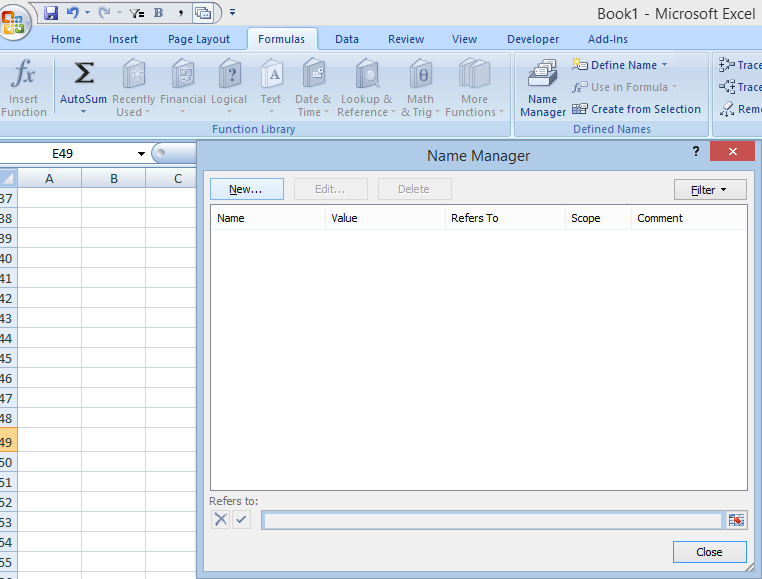
First, select the Name Manager under the Formulas tab and click on New

However, instead of selecting all the data, I’ll use the offset formula.

The OFFSET function allows you to specify the size of your data set. The formula below will keep the range equal to all the nonblank rows and cells starting from cell A1:

=OFFSET(Sheet1!$A$1,0,0,counta(Sheet1!$A:$A),counta(Sheet1!$1:$1))
This is the first cell of your data source

This is the first column of your data source

This is the first row of your data source

Once you’ve created a new name for your data set, put the formula above in the Refers to field and press OK:


Now you’ve created your custom, auto-updating range. All you need to do now is when creating a pivot table (or changing its data source), put in the named range.

Note this will not work properly if you have gaps in your columns or rows. The COUNTA function counts how many non-blank cells are within the range. So you could manually override the formulas if need be, but that would defeat the point of this post.

But if you follow the above steps and use the formula above, your pivot table will automatically be updated with any new rows or columns you add to it. All you’ll have to do is refresh the pivot table. And because the offset formula forces the range to change, that will automatically happen in the pivot table as well.

Formula to find day of week occurrences in Excel

In my previous post I showed a function that can help pull a certain instance of a day of the week using VBA. In this post, I’ll show how to do that without VBA. Specifically, three things this post will look at: 1) how to find the first Monday of the month 2) how to find the date ending/starting of a week, and 3) how to find the 3rd Monday of the month

1.Finding the first Monday of the month

First, I need to identify the weekday that the first day of the year falls on with this formula:

Formula 1.A

=WEEKDAY(DATE(2014,1,1))

This returns 4 (Wednesday). 

Next I’ll determine how many days away this is from my desired day – Monday. Since Monday is the 2nd day of the week, the first day of the year is 2 (4-2) days after Monday. If you want to use another day instead of Monday then change the 2 to the corresponding day of the week (for example, Sunday is 1 – assuming your settings are setup for weeks starting on a Sunday). 

With 7 days in a week, I need to deduct 2 from 7, making 5 days that I need to add to the first day of the year to get to the first Monday of the year. The formula so far looks like this:

Formula 1.B

=DATE(2014,1,1)+7-(WEEKDAY(DATE(2014,1,1))-2)

However, this formula will only work if the first day of the month falls after Monday. I need to include an IF statement so that in the case that Monday (or whatever day I choose) falls after the first day of the year, it will just add the difference. The formula that follows includes this consideration:


Formula 1.C

=DATE(2014,1,1)+IF(WEEKDAY(DATE(2014,1,1))-2<=0,2-WEEKDAY(DATE(2014,1,1)),7-((WEEKDAY(DATE(2014,1,1))-2)))

(the numbers highlighted in red relate to the day of the week I want to calculate)

This formula is a bit more complex but all it is saying is that if the difference between the days of the week are negative (e.g. first day of the year is Sunday and hence before Monday) then I would just add the difference to the first day of the month. Otherwise the formula remains as it was.

I’ve replaced all the possible variables with words so you can easily see where to change the values to calculate to the day you want.


Formula 1.D

=DATE(YEAR,MONTH,1)+IF(WEEKDAY(DATE(YEAR,MONTH,1))-WEEKDAYNUMBER<=0,WEEKDAYNUMBER-WEEKDAY(DATE(YEAR,MONTH,1)),7-((WEEKDAY(DATE(YEAR,MONTH,1))-WEEKDAYNUMBER)))

2. How to find the 3rd Monday of the month

Continuing from Formula 1.D, I’m going to make an adjustment to calculate the proper week. To do this I need to add two weeks to the formula:

Formula 2.A

=DATE(YEAR,MONTH,1)+((XTHOCCURRENCE-1)*7)+IF(WEEKDAY(DATE(YEAR,MONTH,1))-WEEKDAYNUMBER<=0,WEEKDAYNUMBER-WEEKDAY(DATE(YEAR,MONTH,1)),7-((WEEKDAY(DATE(YEAR,MONTH,1))-WEEKDAYNUMBER)))


Where XTHOCCURRENCE in this case will be equal to 3.

If your result is a number you will need to change the cell format (CTRL+1) to date.


3. Find the date ending/starting of a week

If you have weekly reporting and reference a week number, you may find it useful to show what date that week relates to.

This formula builds off of Formula 1.D. One difference is the month will always be set to 1 because we need to know the first weekday of the year. This is important to determine the number of weeks that need to be added.


If the first day of the year falls after the day I want (this example is Monday), then I know the first Monday will fall in week 2, not in week 1. What that means is if I want to determine the Monday on week 15, I will need to multiply by 13 and not by 14 weeks to get to that date. The formula is:

Formula 3.A

=DATE(2014,1,1)+IF(WEEKDAY(DATE(2014,1,1))-2<=0,(15-1)*7+2-WEEKDAY(DATE(2014,1,1)),(15-2)*7+7-((WEEKDAY(DATE(2014,1,1))-2)))

The only parts I added were those in purple, which just multiply the number of weeks I need. This formula will work for any day of the week. So if you want to calculate the the start or end of week 15, you can set the weekday you are calculating to as Monday (2) or for the end of the week to Friday (6). Here is the formula with the variables replaced with words:

=DATE(YEAR,1,1)+IF(WEEKDAY(DATE(YEAR,1,1))-WEEKDAYNUMBER<=0,(WEEKNUMBER-1)*7+WEEKDAYNUMBER-WEEKDAY(DATE(YEAR,1,1)),(WEEKNUMBER-2)*7+7-((WEEKDAY(DATE(YEAR,1,1))-WEEKDAYNUMBER)))

The weekday number relates to the day of the week (e.g. 1-Sunday, 2-Monday, 3-Tuesday, 4-Wednesday, 5-Thursday, 6-Friday, 7-Sunday). This may be slightly different depending on your regional settings, you may have Monday set as 1. The weekday number is the day of the week that you’re interested in determining where it falls.

Find the xth occurrence of a day in a month

This function is called dayx. It consists of the following arguments: occurrence number, day of the week, month, year. For example:

dayx(2,”Monday”,10,2014)  or dayx(2,1,10,2014) will return the second Monday of October 2014, which is October 13, 2014

For information on how to insert a custom function, see this post.

Here is the code for this function:
———————————————————————————————————————–

Function dayx(xoccurrence As Long, xday As String, xmonth As Long, xyear As Long)


Dim firstweekdayofmonth As Long
Dim currentmonth, endofmonth, firstdayofmonth As String


Select Case UCase(xday)
    Case Is = “MONDAY”
        xday = 1
    Case Is = “TUESDAY”
        xday = 2
    Case Is = “WEDNESDAY”
        xday = 3
    Case Is = “THURSDAY”
        xday = 4
    Case Is = “FRIDAY”
        xday = 5
    Case Is = “SATURDAY”
        xday = 6
    Case Is = “SUNDAY”
        xday = 7
End Select

‘Convert month number to name
currentmonth = Format(DateAdd(“m”, Val(xmonth) – 1, “January 1”), “mmmm”)
endofmonth = Format(WorksheetFunction.EoMonth(Format(DateAdd(“m”, Val(xmonth) – 1, “January 1”), “mmm dd, yyyy”), 0), “mmmm dd, yyyy”)

‘Determine the first day of the month
firstdayofmonth = Weekday(currentmonth & ” 1, ” & xyear, vbMonday)

‘Calculate
If xday >= firstdayofmonth Then
dayx = Format(currentmonth & ”  ” & (7 * (xoccurrence – 1)) + 1 – (firstdayofmonth – xday) & ” , ” & xyear, “mmmm d, yyyy”, vbMonday)
Else
dayx = Format(currentmonth & ”  ” & 7 + (7 * (xoccurrence – 1)) + 1 – (firstdayofmonth – xday) & ” , ” & xyear, “mmmm d, yyyy”, vbMonday)
End If

dayx = Format(DateAdd(“m”, 0, dayx), “mmmm dd, yyyy”)

End Function

———————————————————————————————————————–